TriggerApp was updated to v1.0.3.
-
v1.0.3 (June 26, 2024)
- The calculation for increasing the month was modified.
- A new scenario 8 was added. In scenario 8, you can see how to use the month-end. Ref
You can see the detail information here https://github.com/tanaikech/TriggerApp
Gists
Abstract
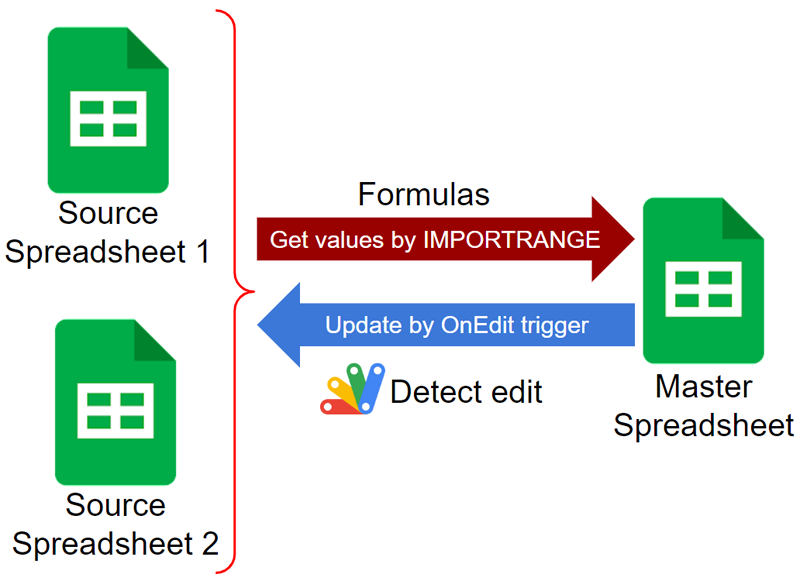
One day, you might have a situation where you are required to update a sheet using Google Apps Script when the cell values retrieved by IMPORTRANGE are changed. This report introduces a workaround for achieving this situation.
Introduction
Google Apps Script can be executed by several triggers. Ref When a cell in a Google Spreadsheet is manually edited, a function of Google Apps Script can be executed by detecting this edit. In most cases, the OnEdit trigger trigger of the simple trigger or the installable trigger is used. When the OnEdit trigger is used, a function can be executed by manually editing a cell. When the function is executed, the function can be run by giving the event object including the information about the edited cell.
TriggerApp was updated to v1.0.1.
-
v1.0.1 (August 18, 2023)
- When
toDay is not used, there was a case that the next trigger is not installed. This bug was removed.
You can see the detail information here https://github.com/tanaikech/TriggerApp
Overview
This is a Google Apps Script library for efficiently managing the time-driven triggers for executing Google Apps Script using Google Apps Script.

Description
Google Apps Script can execute with not only the manual operation but also several triggers. The time-driven trigger is one of them, and this is one of a lot of important functions. When the time-driven trigger is used, Google Apps Script can be automatically executed at the time you set without launching the user’s PC.
Gists

This is a sample script for opening and closing Google Forms on time using Google Apps Script.
In order to test this sample script, please do the following flow.
Usage
Please create a new Google Form and set your sample questions. And, please open the script editor of Google Form.
2. Prepare sample script.
Please copy and paste the following script to the script editor of Google Form. And, please set the values of start and end times you want.
Gists
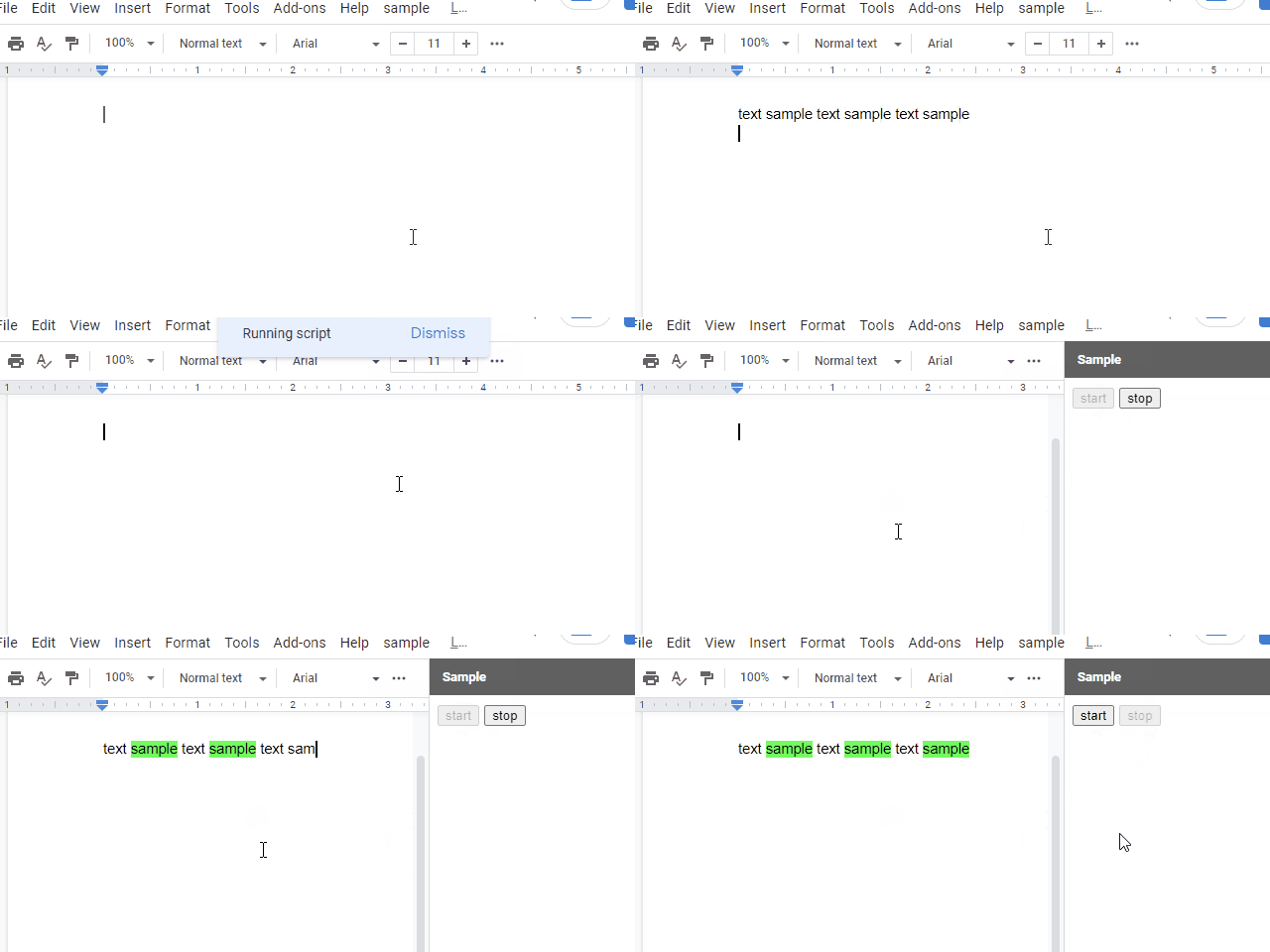
This is a sample script for achieving the pseudo OnEdit trigger for Google Document using Google Apps Script.
In the current stage, there is not OnEdit trigger for Google Document. Ref But I sometimes have the case that I want to use OnEdit trigger. So, as the current workaround, I created this sample script. I think that this workaround can be also used for Google Slides, Google Form and also Google Spreadsheet. In the case of Spreadsheet, what the existing OnEdit trigger and the time-driven trigger cannot do can be achieved.
Gists
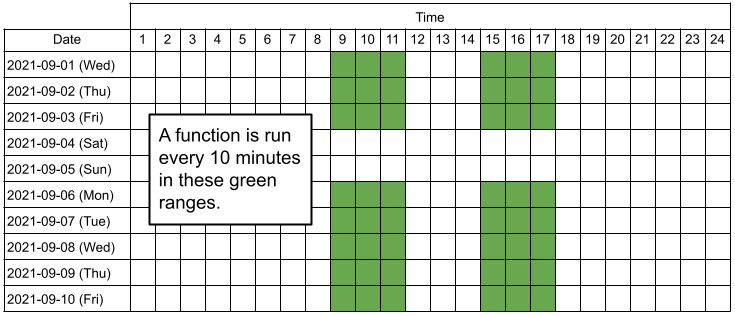
This is a sample script for executing a function with the minutes timer in the specific times using Google Apps Script. For example, when this sample script is used, the following situation can be achieved.
- Execute a function every 10 minutes only in 09:00 - 12:00 and 15:00 - 18:00 for the weekday.
When the above situation is shown as an image, it becomes as follows.
Gists
This is a sample Google Apps Script for running the specific function when the specific sheet is edited.
Sample script
Please copy and paste the following script to the container-bound script of Spreadsheet and set sheets object.
// When the cells are edited, this function is run by the fire of event trigger.
function onEdit(e) {
  // Please set the sheet name and function as follows.
  const sheets = {
    Sheet1: functionForSheet1, // Sheet1 is the sheet name. functionForSheet1 is the function name of function which is run when Sheet1 is edited.
    Sheet2: functionForSheet2,
  };

  const sheetName = e.range.getSheet().getSheetName();
  if (sheets[sheetName]) {
    sheets[sheetName](e);
  }
}

// In this sample, when Sheet1 is edited, this function is run.
function functionForSheet1(e) {
  console.log("Sheet1 was edited.");

  // do something
}

// In this sample, when Sheet2 is edited, this function is run.
function functionForSheet2(e) {
  console.log("Sheet2 was edited.");

  // do something
}
- In this sample script, when the cells of “Sheet1” and “Sheet2” are edited,
functionForSheet1() and functionForSheet2() are run, respectively. When other sheets are edited, no functions are run.
- In this sample script,
onEdit of the simple trigger is used. When the functions you want to run include the methods which are required to authorize, please use the installable trigger.
Note
- This method can be also used for other event triggers like OnChange, OnSelectionChange and so son.
References
Gists
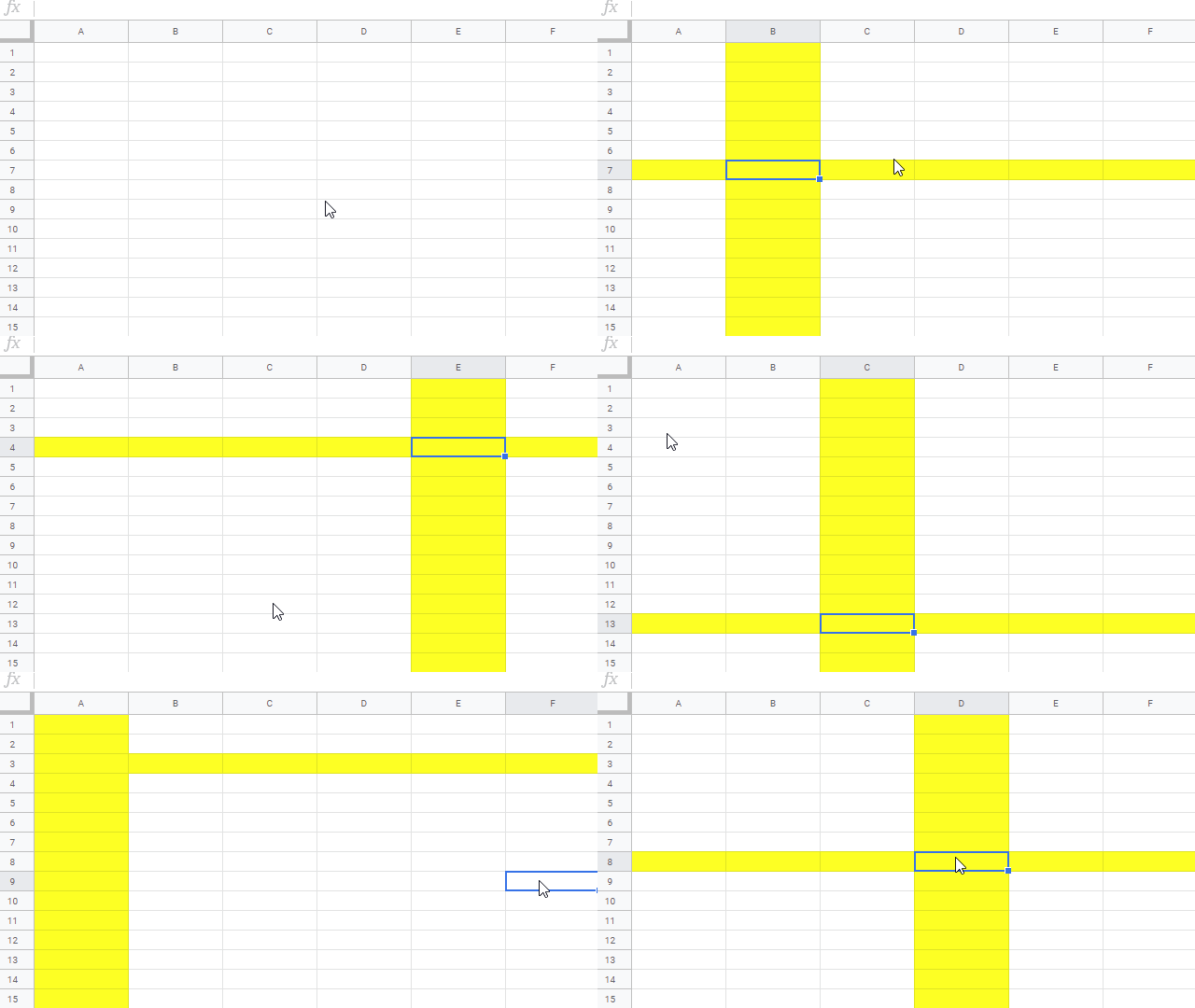
This is a sample script for highlighting the row and column of the selected cell using Google Apps Script. For this, the OnSelectionChange event trigger is used.
Demo
Sample script
Please copy and paste the following script to the script editor of Spreadsheet. And, please select a cell. By this, the script is run by the OnSelectionChange event trigger.
Gists
Abstract
This is a report for detecting quickly checked checkboxes on Google Spreadsheet using Google Apps Script. It supposes that when the checkbox is checked, a function of Google Apps Script is run by the event trigger. In this case, when the multiple checkboxes on Google Spreadsheet are checked quickly, the script cannot be run for all checked checkboxes, because of the response speed of the event trigger. It is considered that to understand the response of event trigger is useful for creating the application for Spreadsheet. In this report, the detection of quickly checked checkboxes on Google Spreadsheet using Google Apps Script has been investigated. From this result, it led to understanding the response of event trigger.
Gists
Abstract
I have already reported about “Change Tab Detection on Google Spreadsheet using onSelectionChange Event Trigger with Google Apps Script”. Ref It is considered that when the situation which uses the event trigger of onSelectionChange is thought, the response speed is important. So, here, I investigated the characteristics of response for the event trigger of onSelectionChange.
Demo
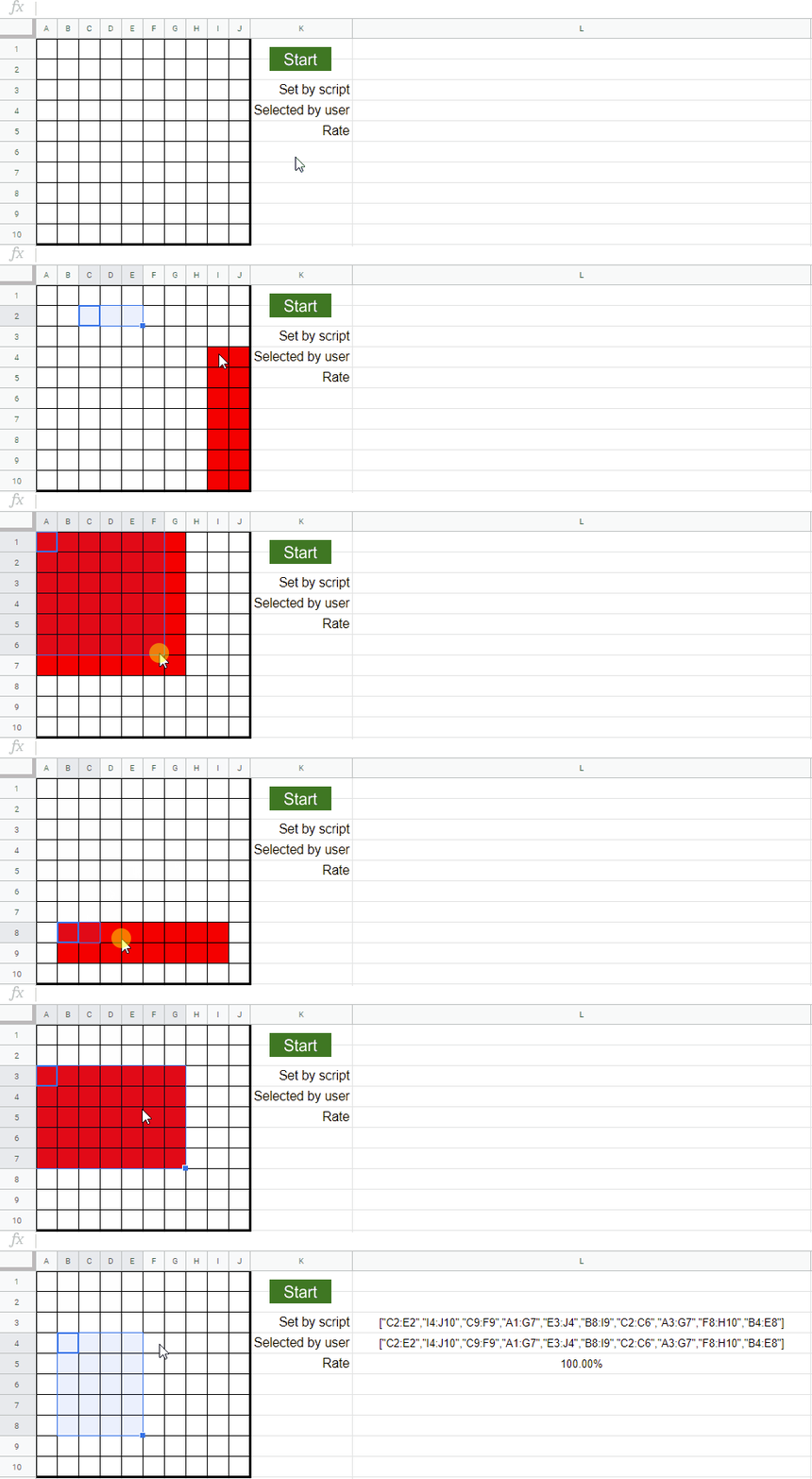
Experiment
Sample script
In order to investigate the response speed, I used the following sample script. The work of sample script can be seen at above demonstration movie. In this report, the script is important for discussing the result. So I pot this at this section instead of the appendix.
Gists
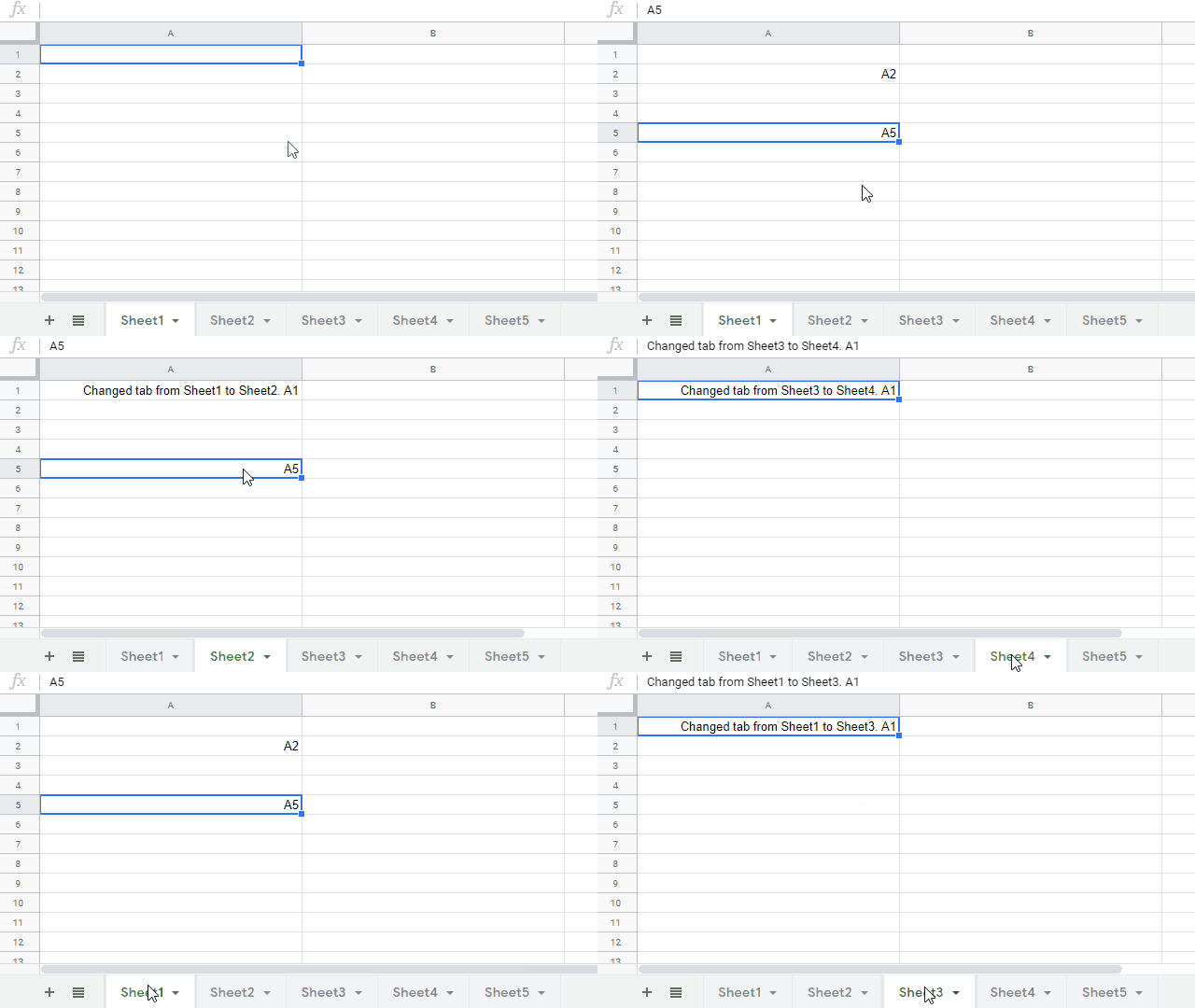
onSelectionChange has been released at April 22, 2020. But this couldn’t be used at the released day. But now, I could confirm that this got to be able to be used. So in order to test this event trigger, I prepared a simple sample script. This is a sample script for detecting the change tab on Google Spreadsheet using onSelectionChange Event Trigger with Google Apps Script.
Demo
Gists
September 21, 2018
Published.
Kanshi Tanaike
Overview
This is a report about the possibility of asynchronous process using event triggers. This is for Google Apps Script (GAS).
Description
onEdit() which is a simple trigger is often used as a trigger when the values are modified on Spreadsheet. When users want to use the script including some methods which are required to be authorized as the onEdit event, a installable trigger of onEdit is used. If the trigger is installed for the function of onEdit(), when the event trigger is run, onEdit() is run 2 times. In order to avoid this, the installable trigger is installed to the functions except for the functions of simple triggers. The functions of simple triggers which is the same events are not used in the project. When I thought about this situation, I thought that both onEdit() which is run by the simple trigger and the function which is run by the installable trigger might be able to be used, simultaneously. So I investigated about this situation.
This sample script sends an e-mail, when spreadsheet was edited from outside by Sheet API v4. When you use this sample, please create a container bound script with spreadsheet which is edited by Sheet API. And please input your e-mail and run firstly a method of createTrigger(). By this, a trigger is installed as onChange(). After this, edit spreadsheet from outside by Sheet API v4.
When when spreadsheet was edited from outside by Sheet API v4, I used sendEmail() as a sample, because script editor is closed.