Scaling a Multimodal AI Writing and Code Review Coach Across Classrooms and Research Labs with Gemini and Google Apps Script
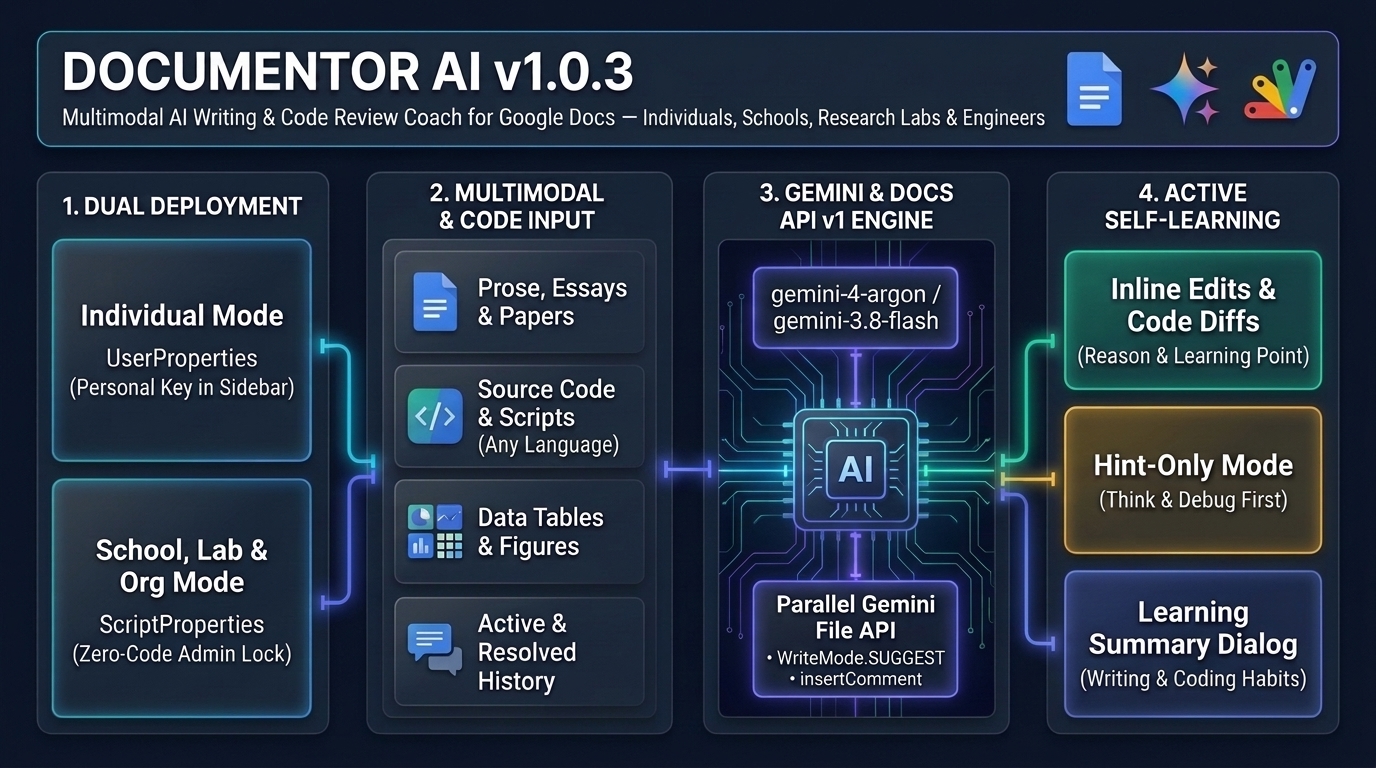
In my previous article—Building a Multimodal, Suggestion-Based AI Writing Coach with Gemini and Google Docs—I introduced DocuMentor AI, an open-source Google Docs add-on built with Google Apps Script, the Google Docs API (v1), and the Gemini API (gemini-3.8-flash / gemini-4-argon). Instead of overwriting a writer’s draft directly, DocuMentor AI uses the newest Google Docs API Suggestion & Comment Management features (WriteControl.writeMode = "SUGGEST", addCommentReply, insertComment, acceptSuggestion, rejectSuggestion, and deleteComment) to turn Google Docs into an interactive, multimodal writing coach.
Shortly after publishing that first article, I received enthusiastic feedback from educators, Google Developer Experts (GDEs), academic researchers, and enterprise practitioners. While they loved how the tool preserves author agency—especially through 💡 Hint-Only Mode and the 🎓 Writing Coach & Learning Summary dialog—they raised a crucial practical question for schools, universities, and organizations:
“How can we deploy DocuMentor AI across a school, university lab, or company domain where students and end users are not allowed to access Google AI Studio to create their own Gemini API keys—without risking an API key leak in a shared Google Doc, and without asking non-coder IT administrators to rewrite JavaScript code?”
At the same time, while reflecting on how DocuMentor AI’s underlying engine works, I came up with another new idea of my own: because DocuMentor AI extracts every line in a Google Doc as an independent block and applies non-destructive inline diffs (WriteMode.SUGGEST), Socratic hints (insertComment), and educational replies (addCommentReply), what if we use it not only for natural-language manuscripts, but also as an interactive Code Review & Programming Coach for software engineers and computer science students? Rather than blindly copy-pasting AI-generated scripts (“vibe coding”), learners could paste source code written in any programming language (Python, JavaScript, TypeScript, Go, Java, C++, Rust, SQL, Google Apps Script, etc.) into Google Docs and learn what is wrong in their code, why it fails, and how to fix it line by line.
In this follow-up article (Part 2), I present DocuMentor AI v1.0.3 alongside this new multi-language code coaching workflow:
- 1. Unified Dual-Mode Deployment (
Individual Mode+School, Research Lab & Organization Mode): With a single unified codebase, DocuMentor AI now seamlessly supports both 👤 Individual Personal Setup (UserProperties) and 🏫 Zero-Code School, Organization & Academic Lab Deployment (ScriptProperties+ Private Google Workspace Marketplace Add-on). - 2. Multi-Language Interactive Code Review & Script Coaching (My New Use Case for Engineer Training): Without changing a single line of the add-on’s code, DocuMentor AI serves as a language-agnostic, GitHub-style inline code reviewer and programming tutor inside Google Docs—capable of coaching learners across Python, JavaScript, TypeScript, C++, Go, SQL, Google Apps Script, and more.
Below, I explain the dual-deployment architecture, why this paradigm is transformative for academia, classrooms, and multi-language software engineer training, and walk through three live execution demonstrations: 💡 Hint-Only Mode, 🚀 Suggest & Coach Mode with resolved review history, and 💻 Interactive Code Review & Script Learning (demonstrated with a beginner Google Apps Script example).
- GitHub Repository: https://github.com/tanaikech/DocuMentorAI
- Previous Article (Part 1): Building a Multimodal, Suggestion-Based AI Writing Coach with Gemini and Google Docs
- 👤 Individual Installation Guide: INSTALL_INDIVIDUAL.md
- 🏫 School, University & Organization Deployment Guide: INSTALL_ORGANIZATION.md
1. The Deployment Challenge in Education, Research Labs & Organizations
When an individual developer or writer uses DocuMentor AI on their personal Google account, pasting a personal Gemini API key into the sidebar (stored in PropertiesService.getUserProperties()) is quick and straightforward.
However, in Google Workspace for Education, university research laboratories, and corporate environments, three structural barriers arise:
- Google AI Studio Is Restricted for Students & Non-Technical Users: In most K–12 schools and universities using Google Workspace for Education, access to Google AI Studio is disabled for student Organizational Units (OUs)—especially for under-18 students—and requiring every student, researcher, or staff member to generate and manage their own API key is a major adoption bottleneck.
- Sharing a Container-Bound Google Doc Risks API Key Exposure & Wipes
ScriptPropertieson Copy: If a teacher or administrator simply pastes the script into a shared Google Docs template, any student with Editor access to that document can open Extensions > Apps Script and inspect the project settings. Furthermore, when Google Classroom creates individual student copies of an assignment document (“Make a copy for each student”), Google Apps Script intentionally strips allScriptPropertiesfrom the copied files for security reasons. - Most School & Department IT Administrators Are Non-Coders: If deploying an internal tool requires editing source code to hardcode credentials or rewrite authentication flows, many school and departmental IT staff will be unable to maintain it.
2. How v1.0.3 Solves This with a Single Unified Script
To address all three barriers without splitting the project into separate “Personal” and “Enterprise/Edu” editions, DocuMentor AI v1.0.3 introduces two core architectural upgrades in src/code.js and src/index.html.
A. Priority-Locked Dual API Key Resolution (ScriptProperties ➔ UserProperties)
In v1.0.3, the backend helper getEffectiveApiKeyInfo_() checks two storage scopes in strict priority order:
function getEffectiveApiKeyInfo_() {
  try {
    const scriptProps = PropertiesService.getScriptProperties();
    const scriptKey = scriptProps
      ? scriptProps.getProperty("GEMINI_API_KEY")
      : null;
    if (scriptKey && scriptKey.trim().length > 0) {
      return {
        apiKey: scriptKey.trim(),
        hasApiKey: true,
        apiKeySource: "script",
      };
    }
  } catch (e) {}

  try {
    const userProps = PropertiesService.getUserProperties();
    const userKey = userProps ? userProps.getProperty("GEMINI_API_KEY") : null;
    if (userKey && userKey.trim().length > 0) {
      return {
        apiKey: userKey.trim(),
        hasApiKey: true,
        apiKeySource: "user",
      };
    }
  } catch (e) {}

  return {
    apiKey: "",
    hasApiKey: false,
    apiKeySource: "none",
  };
}
Here is how this single function behaves across both environments without a single line of code modification:
- 🏫 Admin-Managed Mode (
apiKeySource === 'script'): The IT administrator opens the Apps Script visual interface (Project Settings ⚙️ > Script Properties), clicks Add script property, and registersGEMINI_API_KEYonce. BecauseScriptPropertiestakes top priority, DocuMentor AI automatically locks into Admin-Managed Mode. - 🔒 Locked Student / Organization Sidebar UI: When any student, faculty member, or employee opens the sidebar under Admin-Managed Mode, the API key input field and the Reset button are completely hidden and replaced with a locked status badge (
🔒 API Key Configured (School / Organization Admin)). Furthermore, bothsaveApiKey()anddeleteApiKey()ignore client-side overrides whenapiKeySource === 'script'—meaning students cannot clear, overwrite, or inspect the organization’s API key even from browser developer tools. - 👤 Individual User Mode (
apiKeySource === 'user'or'none'): Individual users do not touch Project Settings ⚙️ > Script Properties, soScriptPropertiesremains empty. The sidebar behaves 100% identically to previous versions: displaying the API key input box on first launch, saving the user’s personal key intoUserProperties, and showing🔒 API Key Configured (Saved)with a Reset button (as shown at the top of thev1.0.3sidebar in Section 4 below).
B. Dual Menu Registration for Both Private Marketplace Add-ons and Container-Bound Scripts (onOpen & onInstall)
When a script is published as a Google Workspace Marketplace Editor Add-on, Google Docs executes onOpen(e) in ScriptApp.AuthMode.NONE until the user interacts with the add-on, and requires menus to be registered via DocumentApp.getUi().createAddonMenu() (which places the menu under Extensions > DocuMentor AI). Conversely, personal container-bound scripts typically use createMenu('✦ DocuMentor AI') to display a top-level menu in the Google Docs toolbar.
In v1.0.3, onOpen(e) and onInstall(e) seamlessly support both execution environments in one place:
function onInstall(e) {
  onOpen(e);
}

function onOpen(e) {
  const ui = DocumentApp.getUi();
  try {
    ui.createAddonMenu().addItem("Open Dashboard", "showSidebar").addToUi();
  } catch (err) {}

  if (!e || e.authMode !== ScriptApp.AuthMode.NONE) {
    try {
      ui.createMenu("✦ DocuMentor AI")
        .addItem("Open Dashboard", "showSidebar")
        .addToUi();
    } catch (err) {}
  }
}
3. Why DocuMentor AI Is Transformative for Academia, Scientific Research, Higher Education & Engineering Training
While DocuMentor AI is a versatile writing coach for everyday business documents and K–12 classrooms, its architecture—combining Google Docs API v1 Suggestion/Comment management with Gemini’s multimodal reasoning—makes it uniquely powerful for academic researchers, university laboratories, graduate students, scientific authors, and software engineering learners.
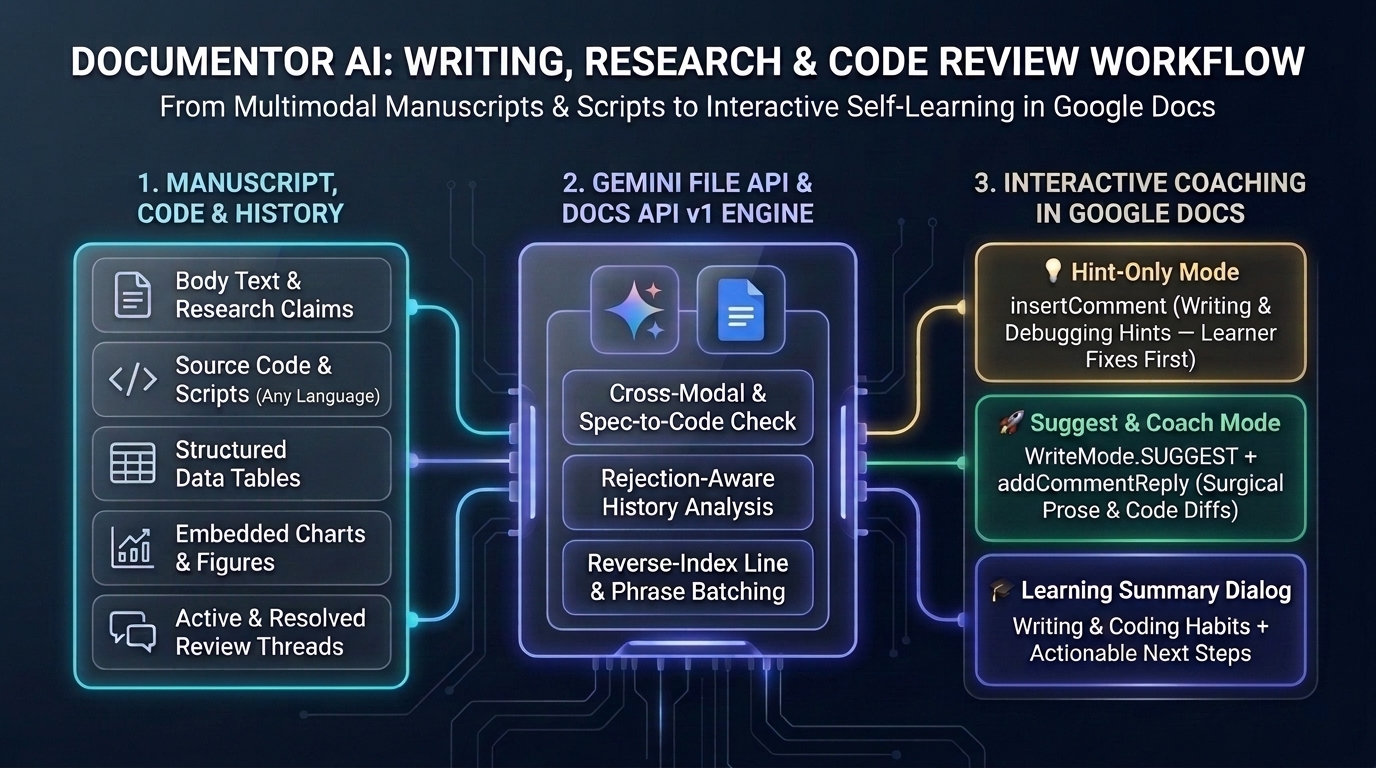
As illustrated in the workflow infographic above, DocuMentor AI operates through a three-stage multimodal pipeline designed specifically for active learning, scholarly rigor, and engineering code review:
- Stage 1 — Manuscript, Code & Review History Extraction: When a researcher, student, or developer runs the tool on a Google Doc (or a highlighted section via
🎯 Proofread Selection Only), the backend inspects the active document tab viadocuments.getwithsuggestionsViewMode=PREVIEW_SUGGESTIONS_ACCEPTEDandcommentsViewMode=COMMENTS_VIEW_MODE_INCLUDED. It simultaneously extracts body text and research claims, source code and scripts in any programming language (Python, JavaScript, TypeScript, Go, Java, C++, SQL, Google Apps Script, etc., line by line), structured data tables (TABLE_1,TABLE_2, …), embedded charts and figures as binary images (VISUAL_1,VISUAL_2, …), and both active and resolved review threads (including previously accepted or rejected inline edits and resolved comments from advisors, co-authors, or code reviewers). - Stage 2 — Gemini File API & Docs API v1 Engine: The extracted Markdown context and binary figure images are uploaded in parallel to the Gemini File API (
fileData.fileUri) and analyzed bygemini-4-argonorgemini-3.8-flash. During this phase, the engine performs cross-modal and spec-to-code verification (checking whether claims, baselines, or implementation scripts match the numbers, units, and architecture diagrams in tables and figures), conducts rejection-aware history analysis (adapting its edit granularity based on what the author previously accepted or rejected), and prepares reverse-index line and phrase batch requests (startIndexdescending) so multiple edits never shift downstream character offsets. - Stage 3 — Interactive Coaching in Google Docs: Rather than silently overwriting the manuscript or script, the engine delivers three complementary outputs directly inside Google Docs: 💡 Hint-Only Mode (
insertCommentwriting and debugging hints without spoiling the rewrite), 🚀 Suggest & Coach Mode (WriteMode.SUGGESTsurgical prose and code diffs paired withaddCommentReplyexplanations), and the 🎓 Learning Summary Dialog synthesizing overall evaluation, recurring writing and coding habits, and actionable next steps.
This architecture directly addresses five critical challenges across academic research, classroom education, and software engineer training:
1. Combating “Cognitive Debt” and “Cognitive Surrender” in Academic & Student Writing
Recent cognitive science research has sounded the alarm on passive AI reliance:
- MIT Media Lab Brain Study (June 2025): The study “Your Brain on ChatGPT” demonstrated that passively accepting AI-generated text induces “cognitive debt,” measurably reducing neural connectivity and mental engagement (Ref).
- CMU, Wharton & MIT Studies (2026): Subsequent research highlighted the “shortcut trap”—where even 10 minutes of AI reliance reduces subsequent independent problem-solving performance by 20% (Ref)—and “cognitive surrender,” where fluent AI outputs create an illusion of competence that stops students from thinking critically (Ref).
- Nikkei XTECH Survey (October 2026): In this survey, 42.1% of generative AI users cited “decline in thinking ability due to AI dependency” as their #1 concern (Ref).
In universities and schools, faculty often hesitate to permit AI tools because conventional rewriters turn students into passive copy-pasters. DocuMentor AI flips this dynamic by requiring authors to either formulate their own revisions from anchored coaching hints (💡 Hint-Only Mode) or critically evaluate each transparent diff paired with its grammatical/logical reason (🚀 Suggest & Coach Mode).
2. True Cross-Modal Consistency Verification (Prose ⇄ Tables ⇄ Figures) for Research Papers
Academic manuscripts—such as journal articles, conference papers, theses, and grant proposals—never consist of prose alone. One of the most common reasons peer reviewers flag scientific drafts is cross-modal inconsistency:
- Mismatched Baselines & Metrics: Numbers or percentages cited in the Results text do not match the values or baselines in
Table 1orFigure 1. - Inconsistent Units & Labels: Axis labels, units, or terminology in a bar chart or architecture diagram (
Execution Time (Minutes)) differ from the column headers in a table (Task Time). - Uncited Visuals: Figures and tables are inserted into the manuscript without being explicitly cited or interpreted in the narrative.
Because DocuMentor AI uploads the manuscript’s structured Markdown and binary figure images in parallel to the Gemini File API, gemini-4-argon inspects the actual visual pixels of your plots alongside your tables and prose—proposing inline cell edits (WriteMode.SUGGEST) and attaching anchored review comments (insertComment) directly onto every figure and table.
3. Distilling Co-Author, Advisor & Peer-Review History into Long-Term Learning (INCLUDE_RESOLVED_HISTORY)
In academic labs and graduate programs, a Google Doc often accumulates dozens of inline suggestions and comment threads from a principal investigator (PI), thesis advisor, or co-authors. Once a student clicks Accept on the advisor’s edits or Resolve on comment threads, that valuable pedagogical feedback normally disappears into the document’s history.
With DocuMentor AI, calling documents.get with commentsViewMode=COMMENTS_VIEW_MODE_INCLUDED extracts both open review threads and resolved review history (RESOLVED, ACCEPTED, REJECTED):
- Step 1 History Ledger: Renders an expandable
📜 View Resolved Review Historyledger right in the sidebar showing every accepted/rejected edit and resolved comment thread. - Rejection-Aware Adaptive Proofreading: When
📜 Include Resolved Review Historyis enabled during proofreading, Gemini respects the author’s prior rejections (for instance, switching from full-sentence rewrites to surgical phrase-level edits if the author previously rejected broad rewrites). - Retrospective Learning Summary: By turning ON 📜 Include Resolved Review History and clicking 🎓 Generate Learning Summary from Suggestions & Comments, graduate students and researchers can synthesize their advisor’s or co-authors’ entire review pass—even after all threads are resolved—into a structured Writing Coach & Learning Summary.
4. Protecting Unpublished Research Data & Scaling Across Classrooms
For universities and schools deploying DocuMentor AI via ScriptProperties, linking the institution’s Google Cloud Billing account (Paid Tier 1+) to the Gemini API project provides two essential guarantees:
- Strict Academic & Student Data Privacy: Under Google’s Gemini API Terms of Service for paid/billed projects, submitted manuscripts, tables, and unpublished research figures are never used to train or improve Google models—preserving academic originality and student privacy. Additionally, DocuMentor AI automatically deletes all temporary files from the Gemini File API inside a
finallyblock (deleteGeminiFiles_) immediately after each request. - High Concurrent Throughput & Distributed GAS Quotas: Paid Tier rate limits allow an entire classroom of 30–40 students or a full research department to run multimodal proofreading simultaneously without hitting Free Tier RPM bottlenecks, while Google Apps Script
UrlFetchAppquotas are counted per active student/researcher account (20,000–100,000 calls/day per user) rather than sharing a single user’s quota.
5. Beyond Prose: Why DocuMentor AI Is Ideal for Multi-Language Script Learning, Code Review & Engineer Training
While designing and testing DocuMentor AI, I realized that its core mechanism is not limited to natural-language essays or academic papers—it is equally powerful for coaching programming scripts across any language (Python, JavaScript, TypeScript, Go, Java, C++, Rust, SQL, Bash, Google Apps Script, and more).
Just as passive AI text rewriting leads to “cognitive surrender” in essay writing, software engineering education, university computer science courses, and corporate DX (citizen-developer) training face an identical crisis: “vibe coding”—where beginners and junior engineers blindly copy and paste AI-generated code without understanding what was wrong in their original script, why it failed at runtime, or how the underlying language or API actually works.
When we examine both the pedagogical workflow and the internal implementation of src/code.js, three reasons make DocuMentor AI uniquely suited for multi-language script learning and educational code reviews inside Google Docs:
- 1. Transforming Passive Copy-Pasting into Active, Language-Agnostic Engineering Mentorship: Instead of handing over a rewritten file that replaces the learner’s entire script at once, DocuMentor AI supports two active-learning code review modes for any programming language. In 💡 Hint-Only Mode (
insertComment), it acts like a Socratic senior engineer mentor—highlighting the buggy, inefficient, or insecure line of code and explaining the root cause (e.g., an off-by-one error, SQL injection risk, memory leak, unclosed resource, or API misuse) so the learner can debug and refactor the line themselves first. In 🚀 Suggest & Coach Mode (WriteMode.SUGGEST+addCommentReply), it acts like an educational GitHub Pull Request inline diff—crossing out the problematic line, proposing the idiomatic replacement in that target language inline, and attaching a reply with the💡 Reason for Revisionand🎓 Learning Point, followed by a🎓 Writing Coach & Learning Summarythat diagnoses recurring coding habits across the entire script. - 2. High Technical Affinity with DocuMentor AI’s Line-Block & Reverse-Index Engine (
src/code.js): Why does Google Docs inline suggestion mode work so cleanly on source code regardless of the programming language? When any script is pasted into Google Docs with normal line breaks (Enter), Step 1 extracts each line of code as an independent paragraph block ineditableBlocks([Block N (Body)]). In Step 2, Gemini’s strict schema rule (each "originalText" MUST be an exact, character-for-character substring found within "Target Editable Settled Text Blocks" without newlines) naturally guides the model to target self-contained, single-line bugs and anti-patterns. Then, in Step 3 (step3_buildRequestBody()), all matched code lines are sorted in reverse character-index order (b.startIndex - a.startIndex) and updated viadeleteContentRange+insertTextunderWriteControl.writeMode = "SUGGEST". As a result, indentation (even in whitespace-sensitive languages like Python!) and character offsets never shift, and clicking✅ Accept All Suggestionsimmediately produces a 100% syntactically valid, runnable script that can be copied straight into an IDE or code editor! - 3. Multimodal Specification-to-Code Verification (
Architecture Diagram + API Spec Table + Script): Traditional code linters and IDE extensions only see raw text files. Because DocuMentor AI is powered by the Gemini File API’s multimodal pipeline, an instructor, tech lead, or engineer can place a system architecture diagram (Figure 1), an API specification or database schema table (Table 1), and the implementation code (in Python, TypeScript, Go, GAS, etc.) inside a single Google Doc—allowing Gemini to simultaneously review the code for bugs and verify whether the implementation accurately matches the architecture diagram and specification table!
4. Live Demonstration (v1.0.3): Inside the Sidebar Dashboard, Prose Modes & Interactive Code Review
To see how DocuMentor AI v1.0.3 works in practice across both multimodal technical manuscripts (body text, Table 1, and Figure 1) and programming scripts (using a beginner Google Apps Script as our concrete code review example), let’s first look at the v1.0.3 Sidebar Control Center, and then walk through three live execution cases.
Inside the v1.0.3 Sidebar Dashboard (sidebar_v103.jpg)
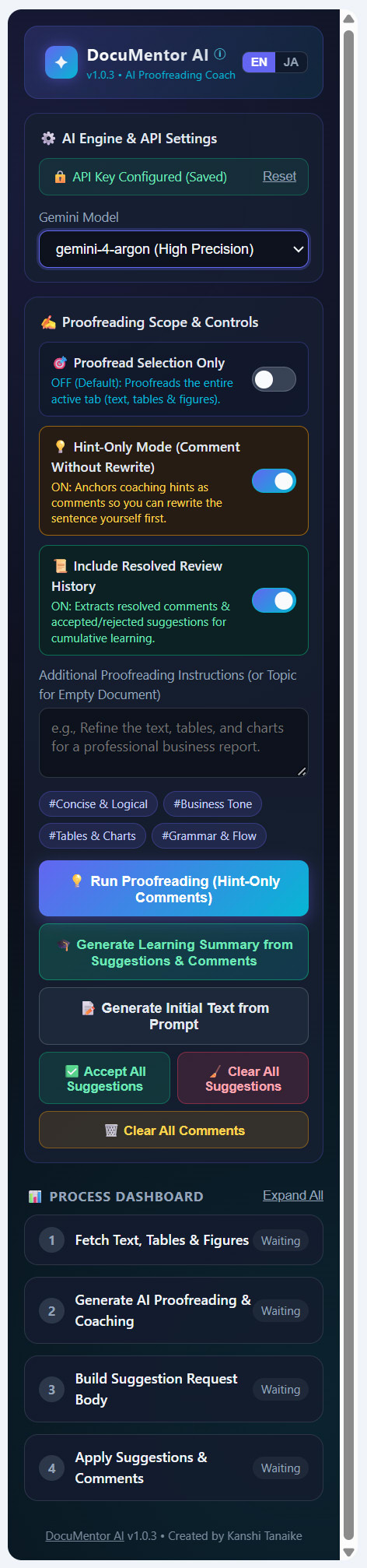
As shown in sidebar_v103.jpg above, the entire workflow is controlled from a clean, four-part sidebar inside Google Docs:
- 1. Header & Bilingual UI Switcher (
EN/JA): Displays the version badge (v1.0.3 • AI Proofreading Coach), an info modal trigger (ⓘ), and a one-click language toggle (EN/JA) that switches both the sidebar labels and the language of Gemini’s coaching explanations and learning summaries. - 2.
⚙️ AI Engine & API Settings: Displays the API key status badge and model selector (gemini-4-argon (High Precision)vs.gemini-3.8-flash (Fast & Balanced)). In Individual Mode (UserProperties), this card shows🔒 API Key Configured (Saved)with aResetlink as pictured above; in School/Organization Mode (ScriptProperties), it automatically locks to🔒 API Key Configured (School / Organization Admin)and hides theResetlink. - 3.
✍️ Proofreading Scope & Controls: Houses the three independent pedagogical toggles—🎯 Proofread Selection Only(here OFF to inspect the entire active tab),💡 Hint-Only Mode (Comment Without Rewrite)(here turned ON with an amber border), and📜 Include Resolved Review History(here turned ON with an emerald border)—followed by custom instructions, quick preset chips (#Concise & Logical,#Business Tone,#Tables & Charts,#Grammar & Flow), and action buttons (💡 Run Proofreading (Hint-Only Comments),🎓 Generate Learning Summary from Suggestions & Comments,📝 Generate Initial Text from Prompt,✅ Accept All Suggestions,🧹 Clear All Suggestions, and🗑️ Clear All Comments). Notice how toggling ON💡 Hint-Only Modedynamically updates the primary button label from🚀 Run Proofreading (Suggest & Coach)to💡 Run Proofreading (Hint-Only Comments). - 4.
📊 PROCESS DASHBOARD(Steps 1–4): Tracks the real-time 4-stage pipeline (1 Fetch Text, Tables & Figures,2 Generate AI Proofreading & Coaching,3 Build Suggestion Request Body, and4 Apply Suggestions & Comments), shown here in its initialWaitingstate right before clicking run.
Choosing the Right Model: Gemini 3.8 Flash vs. Gemini 4 Argon
In the ⚙️ AI Engine & API Settings card of the sidebar, you can switch between gemini-3.8-flash (Fast & Balanced) and gemini-4-argon (High Precision) at any time. Because DocuMentor AI supports both natural-language manuscript proofreading and multi-language code review, choosing the right model for your current stage of work maximizes both speed and analytical depth.
The table below summarizes the recommended decision criteria across writing, research, and software engineering workflows:
| Scenario / Use Case | Domain | Recommended Model | Why & Key Selection Criteria |
|---|---|---|---|
| 1. Typo, Spelling & Grammar Check | ✍️ Prose | ⚡ Gemini 3.8 Flash(Fast & Balanced) |
Fixing typos, spelling mistakes, and clear grammatical errors relies primarily on pattern recognition—making Flash’s high speed and low token cost the optimal choice. |
| 2. Routine Code Refactoring | 💻 Code | ⚡ Gemini 3.8 Flash(Fast & Balanced) |
Standardizing naming conventions, adding comments/docstrings, and rewriting simple functions without complex algorithmic changes complete almost instantaneously with Flash. |
| 3. Rapid Iterative Drafting & Interactive Checks | ✍️ Prose / 💻 Code | ⚡ Gemini 3.8 Flash(Fast & Balanced) |
When actively drafting or iterating in the editor and wanting fast, rhythmic feedback or brainstorming without breaking your creative flow, Flash’s ultra-low latency provides a stress-free experience. |
| 4. First-Pass Triage of Large Documents or Long Scripts | ✍️ Prose / 💻 Code | ⚡ Gemini 3.8 Flash(Fast & Balanced) |
Ideal for cost-effectively screening long manuscripts or large scripts to surface broad errors and recurring issues in a single initial pass. |
| 5. Logical Consistency in Academic Papers, Contracts & Multimodal Figures | ✍️ Prose & 🖼️ Visuals | 🧠 Gemini 4 Argon(High Precision) |
Best when deep contextual reasoning is required to detect contradictions across claims, flawed logical progressions, subtle loopholes in legal/contractual phrasing, or cross-modal mismatches between body text, tables, and figures. |
| 6. Complex Algorithm & Data Structure Review | 💻 Code | 🧠 Gemini 4 Argon(High Precision) |
Shines in code reviews that require deep analytical thinking—such as optimizing time and space complexity, designing advanced data structures, and verifying subtle edge-case bugs. |
| 7. Security Auditing & Vulnerability Detection | 💻 Code | 🧠 Gemini 4 Argon(High Precision) |
Ideal for deeply tracing execution paths to uncover concurrency bugs (race conditions), injection vulnerabilities, credential exposure, or subtle security flaws hidden in source code. |
| 8. Nuanced Tone, Style & Psychological Audience Adaptation | ✍️ Prose | 🧠 Gemini 4 Argon(High Precision) |
Powerful for executing abstract, high-level editorial instructions beyond surface proofreading—such as rewriting text to achieve a specific psychological effect or persuasive tone tailored to a target audience. |
💡 Practical Two-Pass Workflow Tip: For long academic papers or complex scripts, start with
gemini-3.8-flashfor a fast, low-cost First-Pass Triage (cleaning up typos, basic grammar, and naming conventions), and then switch togemini-4-argonfor your Deep Second Pass (verifying thesis/contract logic, cross-checkingTable 1andFigure 1, or auditing algorithm complexity and security vulnerabilities).
Case A: Running “💡 Hint-Only Mode” (Active-Recall Coaching Without Spoiling the Answer)
With the sidebar configured exactly as shown in sidebar_v103.jpg above (gemini-4-argon (High Precision), 💡 Hint-Only Mode ON, and 📜 Include Resolved Review History ON), we click 💡 Run Proofreading (Hint-Only Comments):
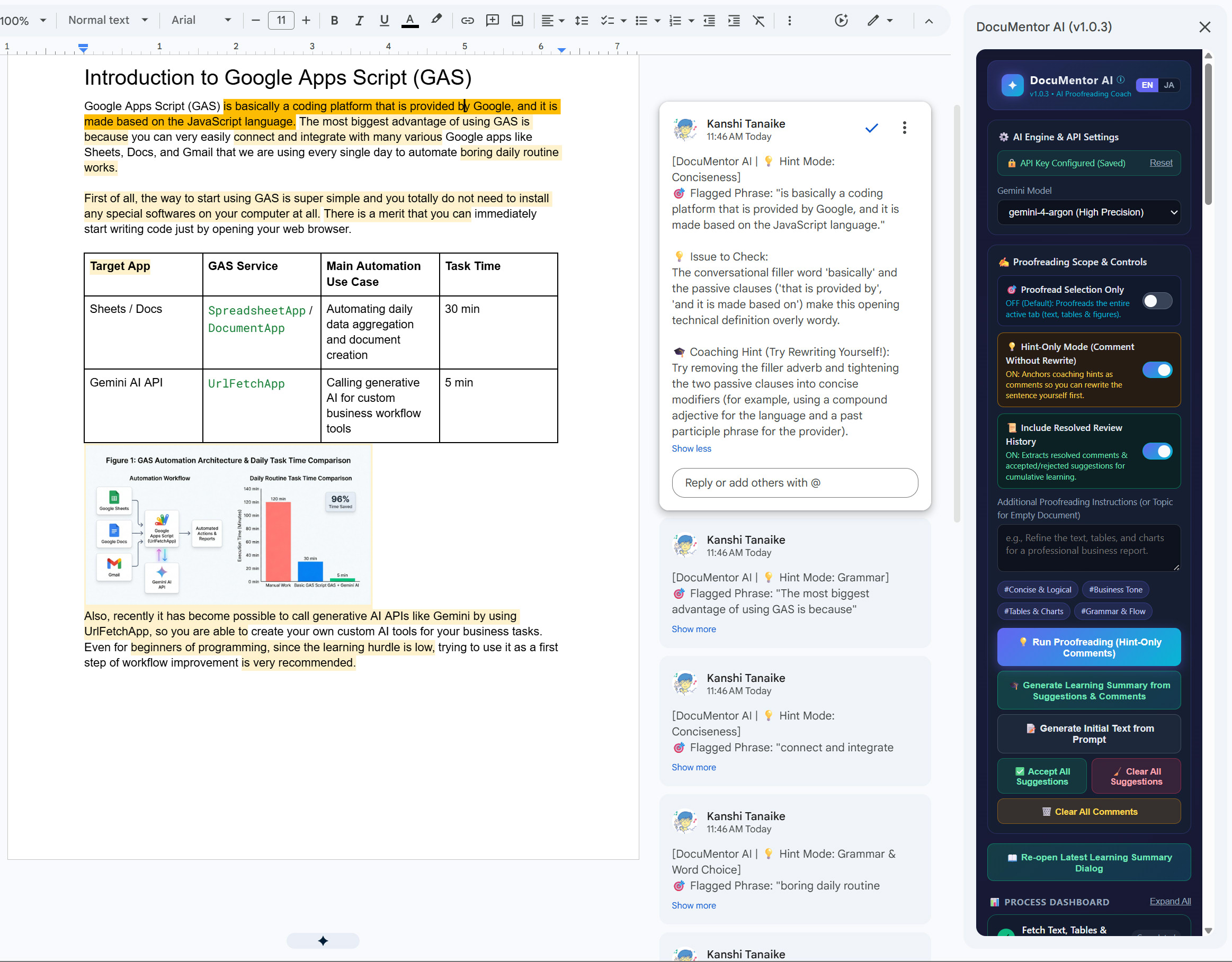
Look closely at what happens across the three panes in hint_only_mode_result.jpg:
- Zero Forced Rewrites on the Document Canvas (Left Pane): Not a single word of the author’s manuscript is crossed out or overwritten with green suggestion text. Instead, phrases requiring attention—such as
"is basically a coding platform that is provided by Google, and it is made based on the JavaScript language.","The most biggest advantage of using GAS is because","connect and integrate","boring daily routine works.","Target App"inTable 1, andFigure 1—are highlighted in yellow as anchored Google Docs comments (insertComment). - Socratic Coaching Comments in the Comment Stream (Center Pane): Looking at the expanded top comment card (
[DocuMentor AI | 💡 Hint Mode: Conciseness]), DocuMentor AI identifies the exact🎯 Flagged Phrase, explains the💡 Issue to Check(“The conversational filler word ‘basically’ and the passive clauses (’that is provided by’, ‘and it is made based on’) make this opening technical definition overly wordy”), and provides a🎓 Coaching Hint (Try Rewriting Yourself!)(“Try removing the filler adverb and tightening the two passive clauses into concise modifiers (for example, using a compound adjective for the language and a past participle phrase for the provider)”). - On-Demand Reference Rewrites & Learning Summary (Right Sidebar): Students or researchers can attempt their own revision in the document first, and only click
👁️ Show Reference Rewritein the sidebar if they get stuck.
Immediately after Hint-Only Mode finishes, DocuMentor AI pops up the 🎓 Writing Coach & Learning Summary modal dialog (which can be re-opened anytime via 📖 Re-open Latest Learning Summary Dialog). Here is the exact summary output produced for this Hint-Only session:
[🎓 Writing Coach & Learning Summary (DocuMentor AI v1.0.3)]

■ 📋 Overall Manuscript Evaluation
This manuscript clearly outlines the core strengths of Google Apps Script (GAS) and how it integrates with Google Workspace and the Gemini AI API. However, several grammatical errors, redundant modifiers, uncountable noun pluralizations, and overly conversational expressions remain in the body text. Additionally, the table and Figure 1 contain valuable quantitative comparisons (such as the 120-minute manual baseline and 96% time savings) that should be better aligned with the surrounding narrative. Because Hint-Only Mode is active, each flagged phrase includes a clear explanation of the underlying issue and a constructive coaching hint so you can practice revising the sentences yourself.

■ 💡 What Was Flagged & Hinted
Flagged grammatical errors (double superlatives, uncountable nouns like 'software' and 'work', and 'the advantage is because'), redundant word pairings ('connect and integrate', 'many various'), and awkward direct translations ('there is a merit that', 'learning hurdle is low', 'very recommended'). Also provided review comments on aligning Table 1 and Figure 1 with the main text.

■ 🔍 Areas for Improvement & Writing Habits
1. Stacking redundant modifiers or intensifiers (e.g., 'most biggest', 'many various', 'super simple', 'totally... at all'). 2. Pluralizing uncountable nouns ('softwares', 'routine works'). 3. Using literal translations of non-English idioms ('there is a merit that', 'learning hurdle is low') instead of natural English collocations.

■ 🌱 Actionable Advice for Future Writing
1. Check noun countability: remember that 'software' and 'work' (meaning labor) are uncountable; use 'software' and 'tasks' instead. 2. Pair 'The advantage is...' with a 'that'-clause or noun phrase rather than 'because'. 3. Use standard collocations like 'gentle learning curve' and 'highly recommended', and explicitly cite your figures and tables in the body text.
Notice how the Hint-Only Learning Summary does not merely list isolated typos—it diagnoses the writer’s underlying structural habits (stacking redundant intensifiers, pluralizing uncountable nouns like 'softwares' and 'works', and translating non-English idioms literally like 'there is a merit that' or 'learning hurdle is low') and reminds the author to align the quantitative metrics in Table 1 (120-minute manual baseline) and Figure 1 (96% time savings) with the main narrative.
Case B: Running “🚀 Suggest & Coach Mode” with Resolved Review History (Rejection-Aware Surgical Edits)
Next, let’s see what happens when we turn OFF 💡 Hint-Only Mode, keep 📜 Include Resolved Review History turned ON, and click 🚀 Run Proofreading (Suggest & Coach):
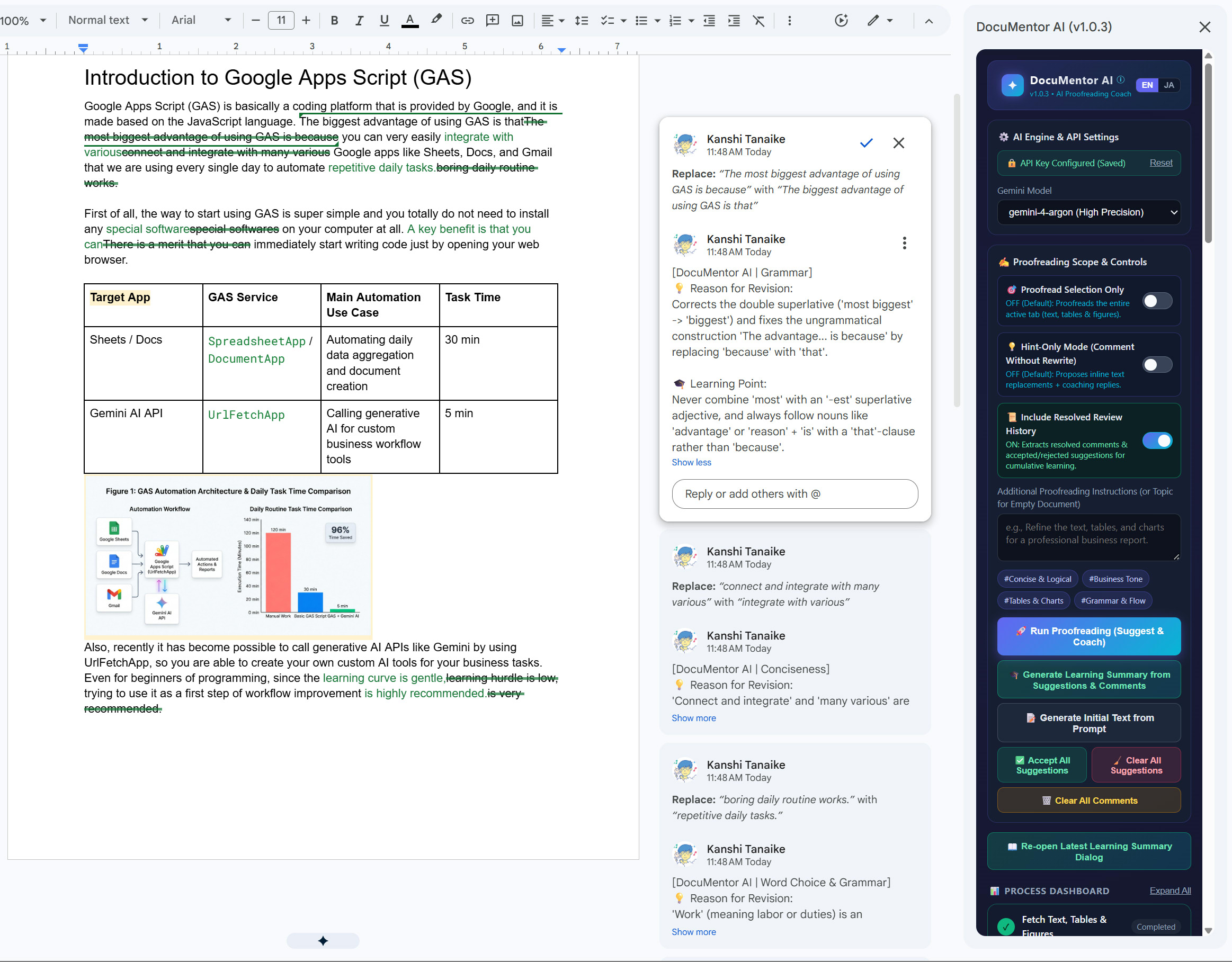
Examining suggest_mode_result.jpg reveals three powerful capabilities working together:
- Rejection-Aware Surgical Edits (
WriteMode.SUGGEST) on the Canvas (Left Pane): In an earlier review pass on this document, full-sentence rewrites had been rejected by the author (stored in the document’s resolved history). Because📜 Include Resolved Review Historyis active, DocuMentor AI detects that preference and automatically shifts from broad full-sentence rewrites to surgical, phrase-level inline suggestions that preserve the author’s natural voice! Specifically, it proposes targeted replacements for"The most biggest advantage of using GAS is because"➔"The biggest advantage of using GAS is that","connect and integrate with many various"➔"integrate with various","boring daily routine works."➔"repetitive daily tasks.","special softwares"➔"special software","There is a merit that you can"➔"A key benefit is that you can","learning hurdle is low,"➔"learning curve is gentle,", and"is very recommended."➔"is highly recommended.", alongside anchored cross-modal review comments (insertComment) onTable 1("Target App") andFigure 1. - Native Suggestion Cards Paired with Educational Replies (Center Pane): In the Google Docs margin, every native
Replace: ... with ...suggestion card is automatically enriched with an educational reply viaaddCommentReply. For example, on the first card (Replace: “The most biggest advantage of using GAS is because” with “The biggest advantage of using GAS is that”), the reply explains both the💡 Reason for Revision(“Corrects the double superlative (‘most biggest’ -> ‘biggest’) and fixes the ungrammatical construction ‘The advantage… is because’ by replacing ‘because’ with ’that’”) and the transferable🎓 Learning Point(“Never combine ‘most’ with an ‘-est’ superlative adjective, and always follow nouns like ‘advantage’ or ‘reason’ + ‘is’ with a ’that’-clause rather than ‘because’”). - Granular Accept / Reject Control (Right Sidebar & Native Cards): The author can review and accept or reject each suggestion individually or in bulk from the sidebar while reading the exact rationale behind every edit.
Here is the exact 🎓 Writing Coach & Learning Summary generated after running Suggest & Coach Mode:
[🎓 Writing Coach & Learning Summary (DocuMentor AI v1.0.3)]

■ 📋 Overall Manuscript Evaluation
Your manuscript provides a clear, well-structured introduction to Google Apps Script (GAS), effectively combining explanatory text, a summary table (Table 1), and a composite architecture and benchmark figure (Figure 1). Because previous full-sentence rewrites were rejected in favor of targeted, phrase-level improvements, this review focuses on surgical edits that preserve your natural voice while correcting specific grammatical errors (such as double superlatives, uncountable nouns, and redundant pairings) and improving alignment between the text, Table 1, and Figure 1.

■ 🛠️ What Was Revised
Proposed targeted, phrase-level revisions to fix grammatical errors ('most biggest', 'advantage... is because', 'softwares', 'routine works'), eliminate tautologies ('connect and integrate with many various'), refine idiomatic collocations ('gentle learning curve', 'highly recommended'), and improve data consistency across Table 1 and Figure 1.

■ 🔍 Areas for Improvement & Writing Habits
Two recurring habits appear in the draft: (1) stacking redundant modifiers or double intensifiers ('most biggest', 'connect and integrate', 'many various', 'totally... at all'), and (2) pluralizing uncountable English nouns ('softwares', 'works') or translating Japanese idioms literally ('There is a merit that', 'learning hurdle is low', 'very recommended').

■ 🌱 Actionable Advice for Future Writing
1. Treat 'software' and 'work' (meaning labor/duties) as uncountable nouns; use 'software' and 'tasks' instead.
2. Pair 'The advantage is...' with 'that' rather than 'because', and never combine 'most' with '-est' adjectives.
3. Ensure baseline numbers and service labels in your tables and figures (such as the 120-minute manual baseline and Gmail/GmailApp) match across all elements.
Look at the second sentence of ■ 📋 Overall Manuscript Evaluation above:
“Because previous full-sentence rewrites were rejected in favor of targeted, phrase-level improvements, this review focuses on surgical edits that preserve your natural voice while correcting specific grammatical errors…”
This demonstrates why combining commentsViewMode=COMMENTS_VIEW_MODE_INCLUDED with Gemini’s multimodal reasoning is such a leap forward: DocuMentor AI learns from what the writer accepts and rejects within the document’s history, adapting its coaching style to respect the writer’s voice while still catching cross-modal discrepancies (such as matching the 120-minute manual baseline and Gmail/GmailApp labels across the prose, Table 1, and Figure 1).
Case C: Beyond Prose — Interactive Multi-Language Code Review & Script Coaching (code_review_mode_result.jpg)
Finally, let’s test the new use case I conceived for DocuMentor AI: coaching programming scripts and conducting line-by-line code reviews inside Google Docs. While this workflow supports any programming language (Python, JavaScript, TypeScript, Go, Java, C++, SQL, etc.), here we demonstrate it using a beginner Google Apps Script snippet (sendDailyReport) pasted into Google Docs. It represents a common automation task—reading rows from a Google Sheet, summarizing them with the Gemini API, and emailing the summary—written with typical beginner bugs, security risks, and API misuses:
// Sample Beginner Google Apps Script: Summarize spreadsheet tasks with Gemini and send an email
function sendDailyReport() {
  // 1. Set the Gemini API key and get the target spreadsheet tab
  var apiKey = "AIzaSyD-1234567890abcdef_HARDCODED_KEY";
  var sheet = SpreadsheetApp.getActiveSpreadsheet().getActiveSheet();

  // 2. Read all task rows from the sheet (Rows 2 to 50, Columns A to C)
  var data = sheet.getRange("A2:C50").getValue();

  // 3. Stop execution if the retrieved task data is empty
  if (data == "") {
    Logger.log("No task data found.");
    return;
  }

  // 4. Call the Gemini API using UrlFetchApp to summarize today's tasks
  var url =
    "https://generativelanguage.googleapis.com/v1beta/models/gemini-3.8-flash:generateContent?key=" +
    apiKey;
  var payload = {
    contents: [
      { parts: [{ text: "Summarize these tasks: " + JSON.stringify(data) }] },
    ],
  };
  var response = UrlFetchApp.fetch(url, { method: "post", payload: payload });
  var result = JSON.parse(response);

  // 5. Send the generated summary to the manager via email
  MailApp.sendEmail(
    "manager@example.com",
    "Daily Task Summary",
    result.candidates[0].content.parts[0].text,
  );
  Logger.log("Successfully sent the daily report!");
}
Next, we entered the following prompt into Additional Proofreading Instructions in the sidebar and clicked 🚀 Run Proofreading (Suggest & Coach):
Review this Google Apps Script code for bugs, GAS API misuse, security risks, and modern V8 JavaScript best practices, proposing line-by-line code fixes.
Here is the resulting Google Docs canvas and sidebar after execution (code_review_mode_result.jpg):
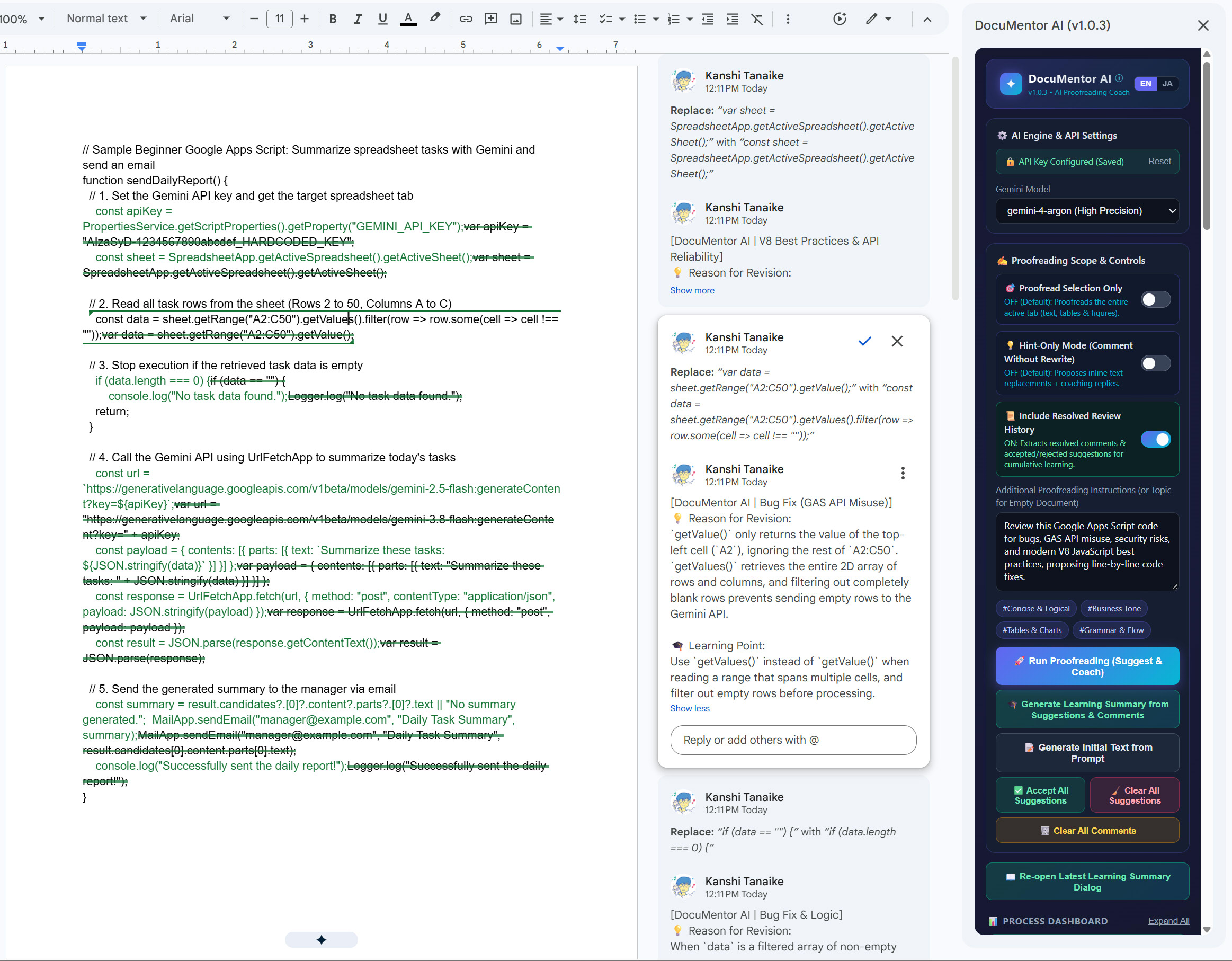
Look at what code_review_mode_result.jpg achieves across all three panes:
- 1. Security Fix (
PropertiesServiceInstead of Hardcoded API Keys): On line 4, DocuMentor AI crosses outvar apiKey = "AIzaSyD-1234567890abcdef_HARDCODED_KEY";and suggestsconst apiKey = PropertiesService.getScriptProperties().getProperty("GEMINI_API_KEY");—teaching the developer never to hardcode credentials in source files. - 2. GAS
RangeAPI Bug Fix (getValues()+ Blank-Row Filtering Instead ofgetValue()): On line 8, beginners frequently call.getValue()(singular) on a multi-cell range like"A2:C50", which silently ignores every cell exceptA2. DocuMentor AI replacesvar data = sheet.getRange("A2:C50").getValue();withconst data = sheet.getRange("A2:C50").getValues().filter(row => row.some(cell => cell !== ""));and updatesif (data == "")on line 11 toif (data.length === 0). Look at the expanded comment reply in the center pane ([DocuMentor AI | Bug Fix (GAS API Misuse)]): it clearly explains what was wrong and why ("getValue()only returns the value of the top-left cell (A2), ignoring the rest ofA2:C50.getValues()retrieves the entire 2D array of rows and columns, and filtering out completely blank rows prevents sending empty rows to the Gemini API") and states the🎓 Learning Point(“UsegetValues()instead ofgetValue()when reading a range that spans multiple cells, and filter out empty rows before processing”). - 3.
UrlFetchApp.fetch&HTTPResponseBug Fixes: On lines 19–20, callingUrlFetchApp.fetch(url, { method: "post", payload: payload })with a raw object sends form-encoded data instead of JSON, and callingJSON.parse(response)directly on a GASHTTPResponseobject fails at runtime. DocuMentor AI suggests addingcontentType: "application/json"withpayload: JSON.stringify(payload)and parsing viaJSON.parse(response.getContentText()). - 4. Defensive Optional Chaining (
?.) & Modern V8 Syntax (const, Template Literals,console.log): On line 23, it replaces unprotected deep property access (result.candidates[0].content.parts[0].text) withconst summary = result.candidates?.[0]?.content?.parts?.[0]?.text || "No summary generated."; MailApp.sendEmail("manager@example.com", "Daily Task Summary", summary);and upgrades legacyvarandLogger.log()calls to V8const, template literals, andconsole.log(). Crucially, if the learner clicks✅ Accept All Suggestions, the resulting document is a 100% syntactically valid, runnable Google Apps Script!
And here is the exact 🎓 Writing Coach & Learning Summary generated for this Google Apps Script review:
[🎓 Writing Coach & Learning Summary (DocuMentor AI v1.0.3)]

■ 📋 Overall Manuscript Evaluation
This Google Apps Script snippet provides a clear high-level workflow for reading spreadsheet tasks, summarizing them with the Gemini API, and sending an email report. However, it contains several critical runtime bugs, a major security vulnerability (hardcoded API key), incorrect Google Apps Script API methods (such as using `getValue()` for a multi-cell range and improperly configuring `UrlFetchApp.fetch` for JSON), and outdated ES5 `var` declarations. Applying the line-by-line fixes below will make the script secure, functional, and compliant with modern V8 JavaScript standards.

■ 🛠️ What Was Revised
Replaced the hardcoded API key with `PropertiesService`, fixed `getValue()` to `getValues()` for multi-row range reading, updated the empty-data check to inspect the 2D array properly, corrected the Gemini model name and `UrlFetchApp` JSON payload configuration, fixed `HTTPResponse` parsing with `getContentText()`, added optional chaining for safer response access, and modernized variable declarations from `var` to `const`.

■ 🔍 Areas for Improvement & Writing Habits
The script shows common beginner pitfalls in Google Apps Script: confusing single-cell and multi-cell `Range` methods (`getValue` vs. `getValues`), assuming `UrlFetchApp.fetch` automatically serializes JavaScript objects as JSON and returns a string directly, hardcoding sensitive credentials in source code, and using legacy `var` syntax instead of V8's `const`/`let`.

■ 🌱 Actionable Advice for Future Writing
1. Always store API keys in Script Properties (`PropertiesService.getScriptProperties()`). 2. When working with multi-cell ranges, use `getValues()` and remember it returns a 2D array (`[][]`) even for empty cells. 3. When calling REST APIs with `UrlFetchApp`, always set `contentType: 'application/json'`, stringify the payload (`JSON.stringify()`), and call `.getContentText()` on the response before parsing.
Instead of blindly copying a rewritten block of code from a chatbot without knowing what changed, an aspiring engineer or computer science student gets an interactive line-by-line code review right inside Google Docs—learning what was broken, why it failed, and how to write production-grade Google Apps Script in the future.
5. Comparison: Individual Mode vs. School, Organization & Academic Lab Mode
Both modes run from the exact same three files in src/:
| Aspect | 👤 Individual Mode (Personal Setup) | 🏫 School, Organization & Academic Lab Mode |
|---|---|---|
| Target Users | Individual writers, independent researchers, developers, bloggers. | K–12 schools, university classes, academic research labs, corporate teams. |
| Deployment Type | Container-bound script inside a Google Doc (Extensions > Apps Script). |
Standalone script published as a Private (Domain-Internal) Google Workspace Marketplace Editor Add-on. |
| Code Changes Required | None (copy & paste src/ as-is). |
None (copy & paste the exact same src/ files as-is). |
| Where the Gemini API Key Is Stored | PropertiesService.getUserProperties() (entered by the user in the sidebar UI). |
PropertiesService.getScriptProperties() (entered once by the IT Admin in Project Settings ⚙️ > Script Properties). |
| Sidebar API Key UI | Shows input box on first run; once saved, shows 🔒 API Key Configured (Saved) + Reset button. |
Automatically locked: shows 🔒 API Key Configured (School / Organization Admin) with no input box and no Reset button. |
| API Key Security | Private to the individual user’s Google account. | 100% isolated: Students/end users cannot open Apps Script, cannot view ScriptProperties, and never need Google AI Studio. |
| Document Availability | Available in the Google Doc where the script was pasted. | Available in every Google Doc across the school/lab domain (installed automatically via Google Admin Console for OUs). |
| Step-by-Step Guide | 👉 INSTALL_INDIVIDUAL.md |
👉 INSTALL_ORGANIZATION.md |
6. Quick Walkthrough of the Two Setup Workflows
Workflow A: Individual Setup (3 Minutes)
- Open Apps Script: Open your Google Document and click Extensions > Apps Script.
- Paste the Source Files: Enable
appsscript.jsonin Project Settings (⚙️), and copysrc/appsscript.json,src/code.js(intoCode.gs), andsrc/index.htmlinto the editor. - Save Your Personal Key: Reload the Google Doc, click
✦ DocuMentor AI>Open Dashboard, paste your Gemini API key into the sidebar, and click Save. For detailed instructions, seeINSTALL_INDIVIDUAL.md.
Workflow B: Zero-Code School, University & Organization Rollout (10 Minutes for IT Admins)
- Create a Standalone Script & Set
ScriptProperties: Open script.google.com, create a new project, and pastesrc/appsscript.json,src/code.js, andsrc/index.html. Then open Project Settings (⚙️) > Script Properties, click Add script property, set Property =GEMINI_API_KEYand Value = your organization’s Gemini API key, and click Save. - Publish as a Private (Internal) Marketplace Add-on: Link a standard GCP project number in Apps Script Project Settings (⚙️) and create an Add-on deployment (Deploy > New deployment). In the GCP Console, enable
Google Docs APIandGoogle Workspace Marketplace SDK, set the OAuth Consent Screen toInternal, and configure the Google Workspace Marketplace SDK with Visibility:Private(domain-only, requiring zero public review wait time). - Install for Student / Researcher Organizational Units: In the Google Workspace Admin Console (
admin.google.com), go to Apps > Google Workspace Marketplace apps > Apps list > Install app > Internal apps, select DocuMentor AI, and perform an Admin install for your target Organizational Units (e.g.,/Students,/GraduateLab, or domain-wide). Students and researchers can immediately open any Google Doc and launch Extensions > DocuMentor AI > Open Dashboard with the organization’s API key pre-configured and locked. For the complete IT Administrator checklist and prerequisites, seeINSTALL_ORGANIZATION.md.
Summary
By evolving DocuMentor AI (v1.0.3) to support both Individual Mode (UserProperties) and School, Organization & Academic Mode (ScriptProperties + Private Google Workspace Marketplace Add-on) within a single codebase—and combining 💡 Hint-Only Mode, 🚀 Rejection-Aware Suggest & Coach Mode, 💻 Interactive Code Review & Script Coaching, and 🎓 Retrospective Learning Summaries—anyone from an independent writer, software engineer, or academic researcher to a school IT administrator can deploy a safe, multimodal, pedagogical writing and coding coach inside Google Docs without modifying a single line of code.
All updated source code, sample multimodal manuscripts, and separated installation guides are available on GitHub:
- GitHub Repository: https://github.com/tanaikech/DocuMentorAI
- Previous Article (Part 1): Building a Multimodal, Suggestion-Based AI Writing Coach with Gemini and Google Docs
- 👤 Individual Setup Guide: INSTALL_INDIVIDUAL.md
- 🏫 School, University & Organization Setup Guide: INSTALL_ORGANIZATION.md