When we use generative AI to proofread our daily writing—whether technical reports, business proposals, or blog posts—it is easy to fall into the habit of simply copying and pasting AI-rewritten text without reflecting on what was changed or why. While that fixes the immediate draft, it rarely helps us grow as writers.
Recently, Google introduced powerful new capabilities to programmatically manage comments and suggestions across Google Docs, Sheets, and Slides via the Google Workspace APIs (see the official guide: Work with suggestions and comments in the Google Docs API).
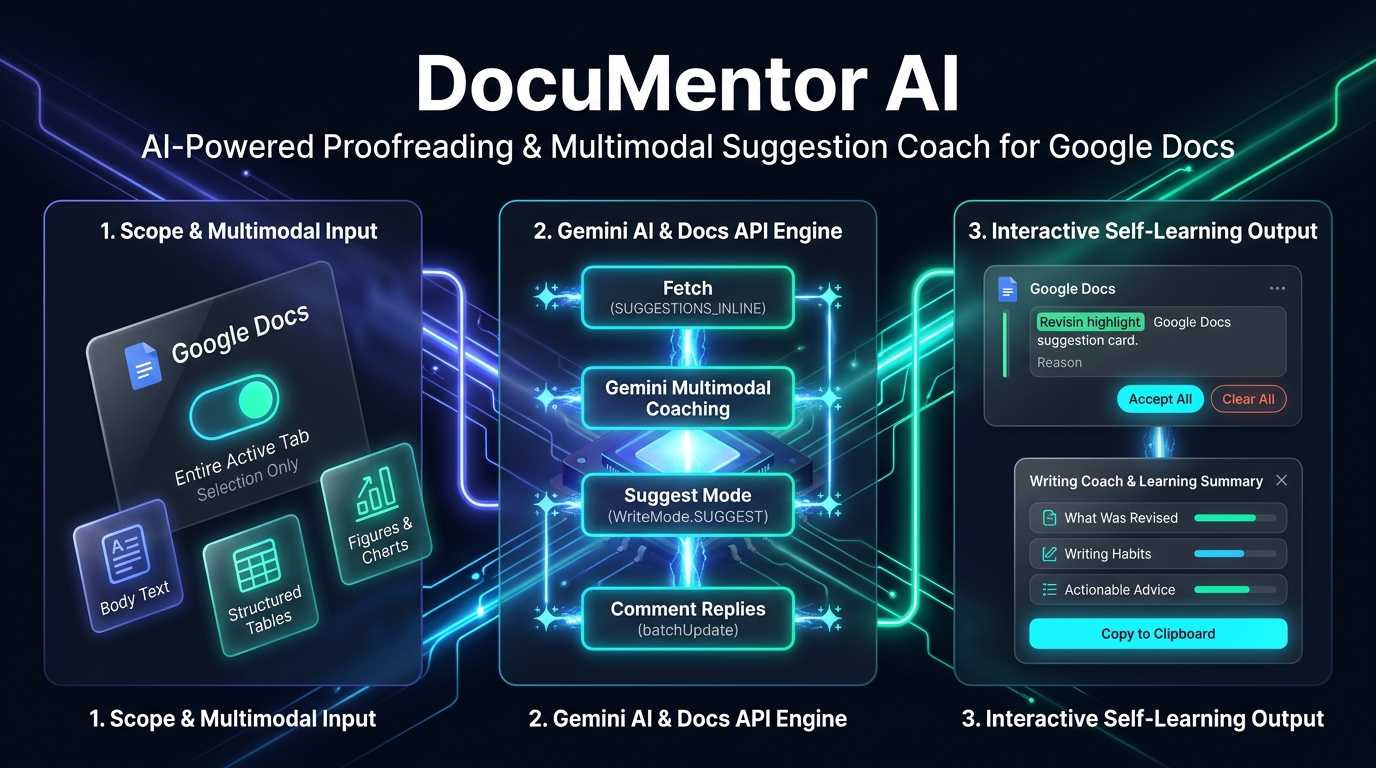
In this article, I introduce DocuMentor AI, an open-source Google Docs add-on built with Google Apps Script, the Google Docs API (v1), and the Gemini API (gemini-3.8-flash / gemini-4-argon). Instead of overwriting your manuscript directly, DocuMentor AI uses the new WriteControl.writeMode = "SUGGEST" and comment management APIs (addCommentReply, insertComment, acceptSuggestion, rejectSuggestion, and deleteComment) to turn Google Docs into an interactive, multimodal writing coach for continuous self-learning. As shown in the overview infographic above, the system connects three cohesive stages: 1. Scope & Multimodal Input (analyzing the entire active tab or a highlighted selection across body text, tables, and embedded figures/charts), 2. Gemini AI & Docs API Engine (combining gemini-3.8-flash / gemini-4-argon multimodal reasoning with temporary Gemini File API uploads and Google Docs API v1 batch operations), and 3. Interactive Self-Learning Output (delivering inline suggested edits with attached Reason and Learning Point replies, anchored figure/table review comments, and a pop-up Writing Coach & Learning Summary dialog). Furthermore, because I also wanted to verify the true capabilities of Gemini 4 Argon, the DocuMentor AI application itself was built using Gemini 4 Argon, while also integrating gemini-4-argon as its high-precision multimodal proofreading and coaching engine.
- GitHub Repository: https://github.com/tanaikech/DocuMentorAI
Purpose, Motivation & Addressing the “AI-Induced Cognitive Offloading” Problem
Purpose of Development & Effectiveness Against AI-Induced “Thought Stopping”
DocuMentor AI was developed to break away from the conventional paradigm of generative AI proofreading—which focuses solely on “efficiency by directly replacing the final text”—and instead achieve “preserving user agency and maximizing learning outcomes.”
In recent years, “thought stopping” (cognitive offloading) and the decline of critical thinking abilities caused by over-reliance on AI have become pressing societal challenges. For example, a June 2025 brain study by the MIT Media Lab (“Your Brain on ChatGPT”) demonstrated the risk of “cognitive debt,” showing that continuously and passively accepting AI-generated outputs reduces brain activity and neural connectivity (Ref). Furthermore, entering 2026, research from institutions such as Carnegie Mellon University, the Wharton School (University of Pennsylvania), and MIT, along with related reports, have highlighted phenomena across education and business including the “shortcut trap”—where even 10 minutes of AI reliance reduces subsequent independent problem-solving and logical thinking performance by 20% (Ref)—and “cognitive surrender,” where reading fluent AI responses creates a false illusion of understanding and leads students and professionals to stop thinking critically for themselves (Ref).
DocuMentor AI fundamentally solves these challenges by leveraging Google Docs’ native Suggestion and Comment features to visualize the thought process and rationale (Why—which part was revised, how, and why) rather than overwriting the author’s text. Because the user must actively judge whether to accept or reject each proposed revision, critical thinking is naturally triggered instead of blindly accepting AI output. According to a survey reported by Nikkei XTECH in October 2026, the #1 concern among generative AI users (42.1%) is the “decline in thinking ability due to AI dependency” (Ref). By transforming AI from a mere “ghostwriter” into a “side-by-side personal tutor,” DocuMentor AI directly addresses this concern and empowers users to cultivate autonomous writing skills and a continuous growth mindset.
Technical Inspiration
When I read the following three insightful articles recently published by Romin Irani demonstrating the new Google Docs API comment and suggestion features, I realized that these capabilities could be applied not only to automated document review, but also as a self-directed learning environment where writers can inspect every suggested revision alongside its underlying rationale:
- Building an AI Document Reviewer with Google ADK, Gemini, and the New Google Docs Comments
- Grounding Google Docs Suggested Edits with Developer Knowledge MCP and Google Search
- Building an AI Comment Assistant in Google Docs with ADK and the New Docs API v1 Comment
At the same time, I wanted to evaluate and confirm the real-world power of Gemini 4 Argon. Therefore, I built the entire DocuMentor AI application using Gemini 4 Argon—from designing the 4-stage pipeline, resolving bottom-to-top UTF-16 character indices across unsettled suggestions, and orchestrating the new Google Docs API v1 suggestion/comment endpoints, to crafting the interactive sidebar dashboard (src/code.js and src/index.html)—and also incorporated gemini-4-argon directly into the add-on as the high-precision model for multimodal proofreading and coaching.
Inspired by these articles and powered by Gemini 4 Argon, I designed DocuMentor AI around four core pillars:
1. Non-Destructive, Transparent AI Editing (WriteMode.SUGGEST)
Traditional AI writing tools either overwrite your text directly or force you to switch back and forth between an external chat window and your document. By programmatically submitting edits in Google Docs’ native Suggest Mode (writeControl: { writeMode: "SUGGEST" }) and attaching educational replies (addCommentReply) directly to each suggestion thread, authors retain 100% editorial control to accept or reject every proposed revision.
2. True Multimodal Manuscript Understanding (Text, Tables & Figures)
Real-world documents—especially academic papers and technical reports—are rarely plain text alone; they combine prose, structured tables, and numerous visual charts or diagrams. DocuMentor AI extracts document tables as structured Markdown, fetches embedded figures and charts as binary images, temporarily uploads them via the Gemini File API, passes their file URIs (fileData.fileUri) to Gemini, and automatically deletes the uploaded files immediately after content generation to keep the environment completely clean. As a result, Gemini can propose inline phrasing edits inside table cells, verify numerical alignment between body text and charts, and attach anchored improvement comments (insertComment) directly to tables (TABLE_1, etc.) and figures (VISUAL_1, etc.).
3. Flexible Scope Control (Entire Active Tab vs. Selection Only)
Sometimes you want a holistic review of an entire document tab; other times you only want to polish a single paragraph, table, or figure you just drafted. DocuMentor AI provides a 🎯 Proofread Selection Only toggle switch in the sidebar:
- OFF (Default): Proofreads the entire active tab (body text, tables, and figures/charts).
- ON: Proofreads only your highlighted selection (
doc.getSelection()), while still passing the full active tab’s context to Gemini so that local revisions remain consistent with the overall manuscript.
4. Pedagogical Writing Coach & Learning Summary Dialog (Learning from Both AI and Other Users’ Reviews)
Rather than acting as a black-box proofreader, DocuMentor AI explains why each change was suggested (💡 Reason) and provides a concise takeaway (🎓 Learning Point) in every suggestion card. Furthermore, as soon as AI proofreading finishes, it automatically displays a custom 🎓 Writing Coach & Learning Summary modal dialog that synthesizes four structured sections:
- 📋 Overall Manuscript Evaluation (
overallFeedback): A holistic assessment of the manuscript’s strengths, clarity, and cross-modal consistency across text, tables, and figures. - 🛠️ What Was Revised / Pointed Out (
revisionsDigest): A clear digest of the primary improvements and review points made. - 🔍 Areas for Improvement & Writing Habits (
weakPointsAndHabits): Recurring tendencies, grammatical habits, or structural weak points observed in the author’s draft. - 🌱 Actionable Advice for Future Writing (
actionableTips): Simple, practical tips the author can apply in future drafts, complete with a one-click 📋 Copy to Clipboard button.
In addition to generating this summary during AI proofreading (🚀 Run Proofreading), DocuMentor AI includes a dedicated 🎓 Generate Learning Summary from Suggestions & Comments button (step2_generateLearningSummaryFromExisting). When you open a Google Document that already contains inline suggestions or comments from other users (such as colleagues, supervisors, or human editors), clicking this button analyzes those existing suggestions and comments in context and generates the Writing Coach & Learning Summary—enabling you to learn from human peer reviews just as effectively as from AI proofreading (and allowing you to re-run the summary separately at any time after proofreading).
From Black-Box Rewriting to an Active Self-Learning Loop: Architecture & 4-Stage Workflow
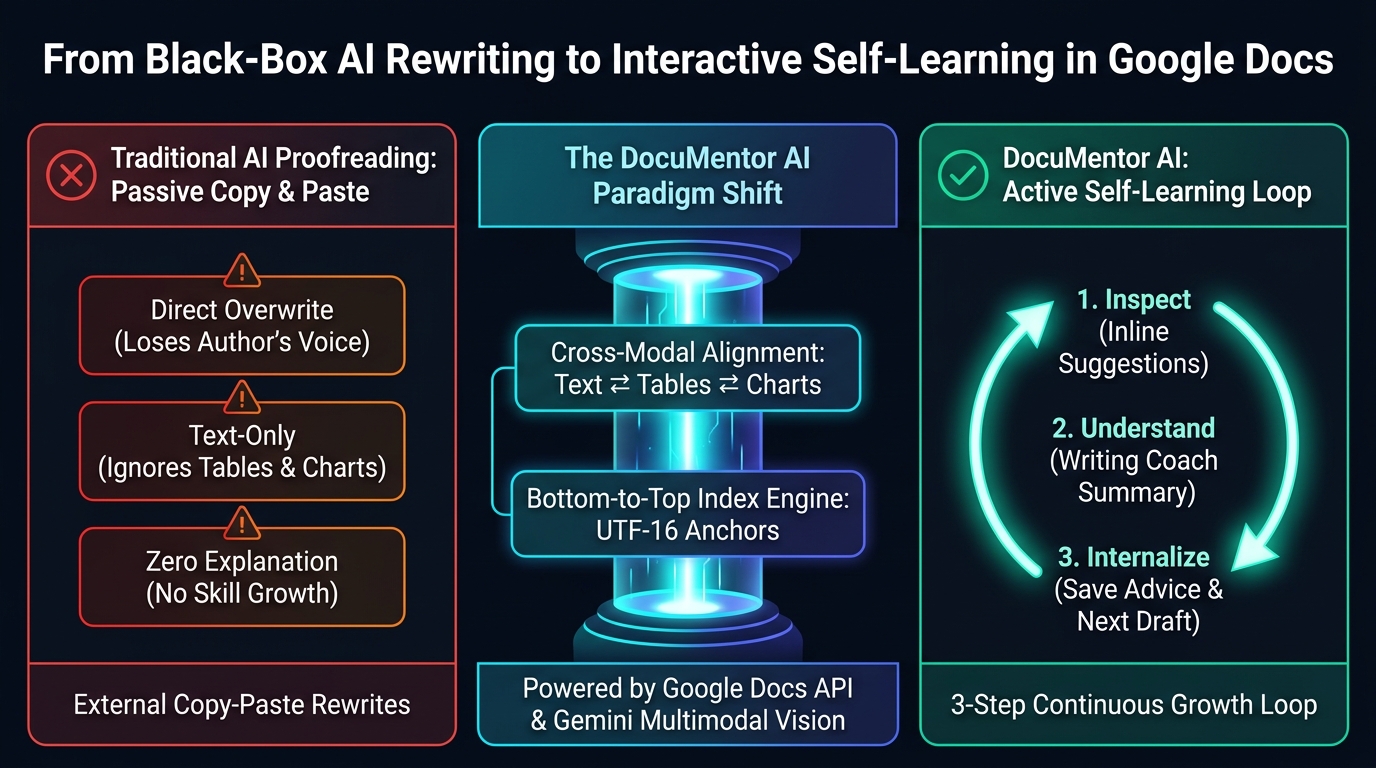
As illustrated in the diagram above, DocuMentor AI shifts AI proofreading away from passive external copy-paste rewrites—which overwrite the author’s voice, ignore tables/charts, and offer zero explanation—toward an Active 3-Step Self-Learning Loop (1. Inspect ➔ 2. Understand ➔ 3. Internalize) powered by cross-modal alignment (Text ⇄ Tables ⇄ Charts) and a bottom-to-top UTF-16 index engine.
When the user clicks 🚀 Run Proofreading (Suggest & Coach) in the Google Docs sidebar, DocuMentor AI executes a structured 4-stage pipeline, updating its real-time Process Dashboard at each step:
- STEP 1: Fetch Document & Parse Structure (
step1_fetchDocument)- Calls
documents.getwithincludeTabsContent=true,suggestionsViewMode=SUGGESTIONS_INLINE, andcommentsViewMode=COMMENTS_VIEW_MODE_INCLUDED. - Identifies the user’s currently active tab (
doc.getActiveTab()) and extracts settled text blocks, structured tables (converted to Markdown), visual figures/charts (contentUri), and any existing unresolved suggestions and active comment threads (existingComments). - If the Proofread Selection Only toggle is enabled, maps
doc.getSelection()to exact UTF-16 character ranges and target element IDs within the active tab.
- Calls
- STEP 2: Multimodal Analysis & Coaching via Gemini (
step2_generateProofreading)- Fetches binary image data for embedded figures/charts in parallel via
UrlFetchApp.fetchAll(), uploads them to the Gemini File API (upload/v1beta/files), and passes their file URIs (fileData.fileUri) in the prompt so that even long manuscripts with many figures remain lightweight. - Sends the full active tab context, target editable blocks/tables/figures, and optional custom prompt instructions to Gemini (
gemini-3.8-flashorgemini-4-argon) using Structured Outputs (responseSchema), and immediately deletes all uploaded temporary files from the Gemini File API (DELETE v1beta/files/...inside afinallyblock) once the response is received. - Enforces 100% single-language output matching the selected UI mode (English
ENor JapaneseJA).
- Fetches binary image data for embedded figures/charts in parallel via
- STEP 3: Build Suggest & Comment Payloads (
step3_buildRequestBody)- Matches each proposed
originalTextagainst the settled text blocks to resolve exactstartIndexandendIndexcoordinates. - Sorts all text replacement ranges in descending index order (from the bottom of the document to the top) so that earlier character indices never shift during batch execution.
- Constructs
deleteContentRangeandinsertTextrequests scoped with the active tab’stabIdunderwriteControl: { writeMode: "SUGGEST" }.
- Matches each proposed
- STEP 4: Apply Suggestions & Educational Comments (
step4_applySuggestions)- Executes the
SUGGESTbatch update viadocuments.batchUpdate, extractscreatedSuggestionIdsfromsuggestionResponses, and attachesaddCommentReplyrequests (ReasonandLearning Point) to each inline suggestion card. - Because direct inline edit suggestions (
WriteMode.SUGGEST) cannot be applied to figures, re-fetches the updated post-suggestion indices and executesinsertCommentrequests—with an automatic 3-tier anchor range fallback (exact element range ➔ containing paragraph range ➔ nearest settled text block)—to reliably attach review comments directly to figures/charts (VISUAL_1, etc.) and overall tables (TABLE_1, etc.). - Opens the 🎓 Writing Coach & Learning Summary custom modal dialog.
- Executes the
Step-by-Step Installation & Usage Guide
You can install and run DocuMentor AI in any Google Document by following these steps:
1. Create or Open a Google Document
- Open Google Docs and create a new document or open an existing manuscript you wish to proofread.
- In the top menu bar, click Extensions > Apps Script to open the Google Apps Script editor.
2. Copy and Paste the Script Files (src/)
In the Apps Script editor, set up the following three files from the src/ directory of the repository:
- Enable
appsscript.json(Manifest File):- In the Apps Script editor, click Project Settings (the gear icon ⚙️ on the left sidebar) and check the box “Show ‘appsscript.json’ manifest file in editor”.
- Return to the Editor (
< >icon), selectappsscript.json, and replace its contents withsrc/appsscript.json(this enables theDocsAdvanced Servicev1and configures the required OAuth scopes soUrlFetchAppcan call the latest Google Docs REST APIv1suggestion and comment endpoints directly viaScriptApp.getOAuthToken()).
- Copy
code.jsintoCode.gs:- Select the default
Code.gsfile in the editor and replace its entire contents withsrc/code.js.
- Select the default
- Create
index.html:- Click the
+button next to Files in the left panel and select HTML. - Name the file
index(it will automatically appear asindex.html—do not type.htmlin the name prompt). - Paste the entire contents of
src/index.htmlinto this file.
- Click the
- Save the Project:
- Press
Ctrl + S(orCmd + Son macOS) or click the Save project (floppy disk 💾) icon.
- Press
3. Reload Google Docs & Launch from the Custom Menu
- Close the Apps Script tab and reload (refresh) your Google Docs browser tab.
- After a few seconds, a new custom menu
✦ DocuMentor AIwill appear in the Google Docs menu bar. - Click
✦ DocuMentor AI>Open Dashboard. - (First-time run only) Google will prompt you to authorize the script permissions (
documents,script.container.ui,script.external_request). Complete the authorization flow and click✦ DocuMentor AI>Open Dashboardagain.
4. Configure Settings & Run Proofreading (How to Use the Sidebar)
Once launched from ✦ DocuMentor AI > Open Dashboard, the DocuMentor AI sidebar appears on the right side of Google Docs, organized into intuitive control cards and a live process dashboard:
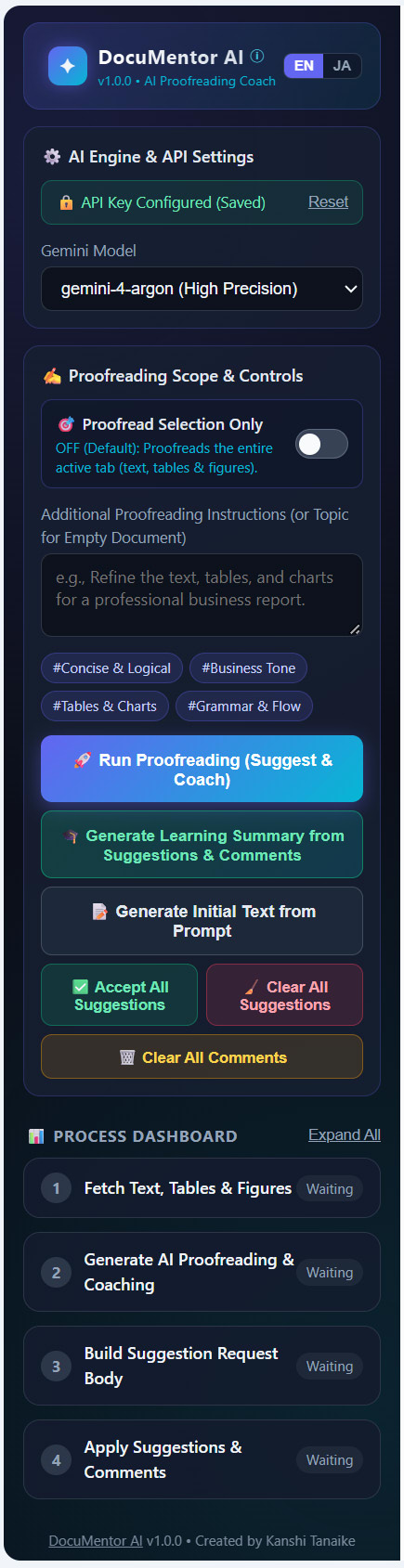
- First, Register Your Gemini API Key (
⚙️ AI Engine & API Settings):- When you launch the application and the sidebar opens, first register your API key for using Gemini. Enter your Gemini API Key (obtainable from Google AI Studio) in the AI Engine & API Settings card and click Save. Once saved in
PropertiesService.getUserProperties(), the card displays🔒 API Key Configured (Saved)with a Reset link so you do not need to re-enter it in future sessions. - Under Gemini Model, select either
gemini-3.8-flash (Default / Fast)for rapid daily proofreading orgemini-4-argon (High Precision)for deep multimodal and structural analysis. - At the top-right of the sidebar header, toggle between
EN(English) andJA(Japanese) to switch both the UI language and 100% of Gemini’s output language. ClickingDocuMentor AI ⓘin the header (orDocuMentor AIin the footer) opens the About DocuMentor AI modal dialog (Developer: Kanshi Tanaike,Version: v1.0.0, and GitHub repository link).
- When you launch the application and the sidebar opens, first register your API key for using Gemini. Enter your Gemini API Key (obtainable from Google AI Studio) in the AI Engine & API Settings card and click Save. Once saved in
- Switch the Proofreading Scope (
"Proofread Selection Only"Toggle):- Inside the ✍️ Proofreading Scope & Controls card, turning ON the "🎯 Proofread Selection Only" toggle switch proofreads only the selected part (any specific paragraph, sentence, table cell, table, or figure you highlight in the document).
- Leaving the "🎯 Proofread Selection Only" toggle switch OFF (Default) proofreads the entire active tab (text, tables & figures).
- Add Additional Instructions via Custom Prompt (Optional):
- When proofreading, it is also possible to add additional instructions as a Custom Prompt. You can type specific requests into the Additional Proofreading Instructions text box (e.g., “Refine the text, tables, and charts for a professional business report.”) or click one or more of the preset prompt chips (
#Concise & Logical,#Business Tone,#Tables & Charts,#Grammar & Flow).
- When proofreading, it is also possible to add additional instructions as a Custom Prompt. You can type specific requests into the Additional Proofreading Instructions text box (e.g., “Refine the text, tables, and charts for a professional business report.”) or click one or more of the preset prompt chips (
- Execute Proofreading (
"Run Proofreading") & Automatic Learning Summary:- Click the primary "🚀 Run Proofreading (Suggest & Coach)" button (or "📝 Generate Initial Text from Prompt" if the active tab is currently empty).
- As the 4-stage pipeline runs, each step in the 📊 Process Dashboard (
1 Fetch Text, Tables & Figures➔2 Generate AI Proofreading & Coaching➔3 Build Suggestion Request Body➔4 Apply Suggestions & Comments) updates in real time. - When the pipeline finishes, the 🎓 Writing Coach & Learning Summary custom modal dialog automatically pops up with a 📋 Copy to Clipboard button, and a 📖 Re-open Latest Learning Summary Dialog button appears in the sidebar.
- Generate a Learning Summary from Existing Suggestions & Comments (Learn from Other Users’ Feedback too):
- Click the "🎓 Generate Learning Summary from Suggestions & Comments" button right below the Run Proofreading button to generate a Writing Coach & Learning Summary directly from existing suggestions and comments found in the Google Document when you open it (without adding or modifying any suggestions or comments in the document). This enables you to learn effectively from edits and review comments made by other users (colleagues, supervisors, or human editors).
- Note that while pressing "🚀 Run Proofreading" automatically generates the Writing Coach & Learning Summary, you can also press "🎓 Generate Learning Summary from Suggestions & Comments" separately at any time afterward to re-analyze and generate the summary from the current suggestions and comments in the document.
- Accept or Delete All Suggestions & Comments with One Click:
- Clicking the "✅ Accept All Suggestions" button accepts all pending inline suggestions in the active tab at once.
- Clicking the "🧹 Clear All Suggestions" button rejects and clears all pending inline suggestions in the active tab at once.
- Clicking the "🗑️ Clear All Comments" button deletes all active comments (including figure/table review comments created via
insertComment) in the active tab at once.
Testing with the Sample Manuscript (sample/) & Live Demonstration
To help you immediately test how DocuMentor AI works across body text, a structured table, and an embedded figure/chart, a ready-to-use sample manuscript is provided in the sample/ directory of the repository. Both screenshots below were captured using this exact sample manuscript:
sample/sample_article.md: Contains an introductory draft about Google Apps Script (GAS) and Gemini AI integration that intentionally includes redundant phrasing, colloquialisms, and grammatical awkwardness (e.g., “most biggest advantage”, “boring daily routine works”, “special softwares”), along with a compact 2-data-row (3 rows including the header) Markdown comparison table and a reference tosample/sample_figure.pngsized to fit neatly on a single page.sample/sample_figure.png: A composite diagram and bar chart (“Figure 1: GAS Automation Architecture & Daily Task Time Comparison”) designed for multimodal visual inspection.

How to Load the sample/ Files into Google Docs
- Import or Paste the Markdown Content:
- Option A (Paste from Markdown): Copy the contents of
sample/sample_article.md, right-click inside your Google Doc, and select Paste from Markdown (available in Google Docs when “Enable Markdown” is turned on under Tools > Preferences), or paste the text and create the table directly. - Option B (Open in Google Drive): Upload
sample/sample_article.mdto Google Drive and open it with Google Docs.
- Option A (Paste from Markdown): Copy the contents of
- Insert the Sample Figure:
- Place your cursor right below the table, click Insert > Image > Upload from computer, and select
sample/sample_figure.png.
- Place your cursor right below the table, click Insert > Image > Upload from computer, and select
- Test Both Proofreading Modes:
- Full Active Tab Mode (Toggle OFF): Leave 🎯 Proofread Selection Only turned OFF and click 🚀 Run Proofreading (Suggest & Coach) to see inline text edits, table cell refinements, anchored comments on
TABLE_1andVISUAL_1, and the pop-up 🎓 Writing Coach & Learning Summary dialog. - Selection-Only Mode (Toggle ON): Click 🧹 Clear All Suggestions (and 🗑️ Clear All Comments), highlight a single paragraph, table cell, or the figure, switch 🎯 Proofread Selection Only ON, and run proofreading again to verify scoped suggestions and comments.
- Full Active Tab Mode (Toggle OFF): Leave 🎯 Proofread Selection Only turned OFF and click 🚀 Run Proofreading (Suggest & Coach) to see inline text edits, table cell refinements, anchored comments on
Before Proofreading: The sample/ Manuscript Loaded into Google Docs
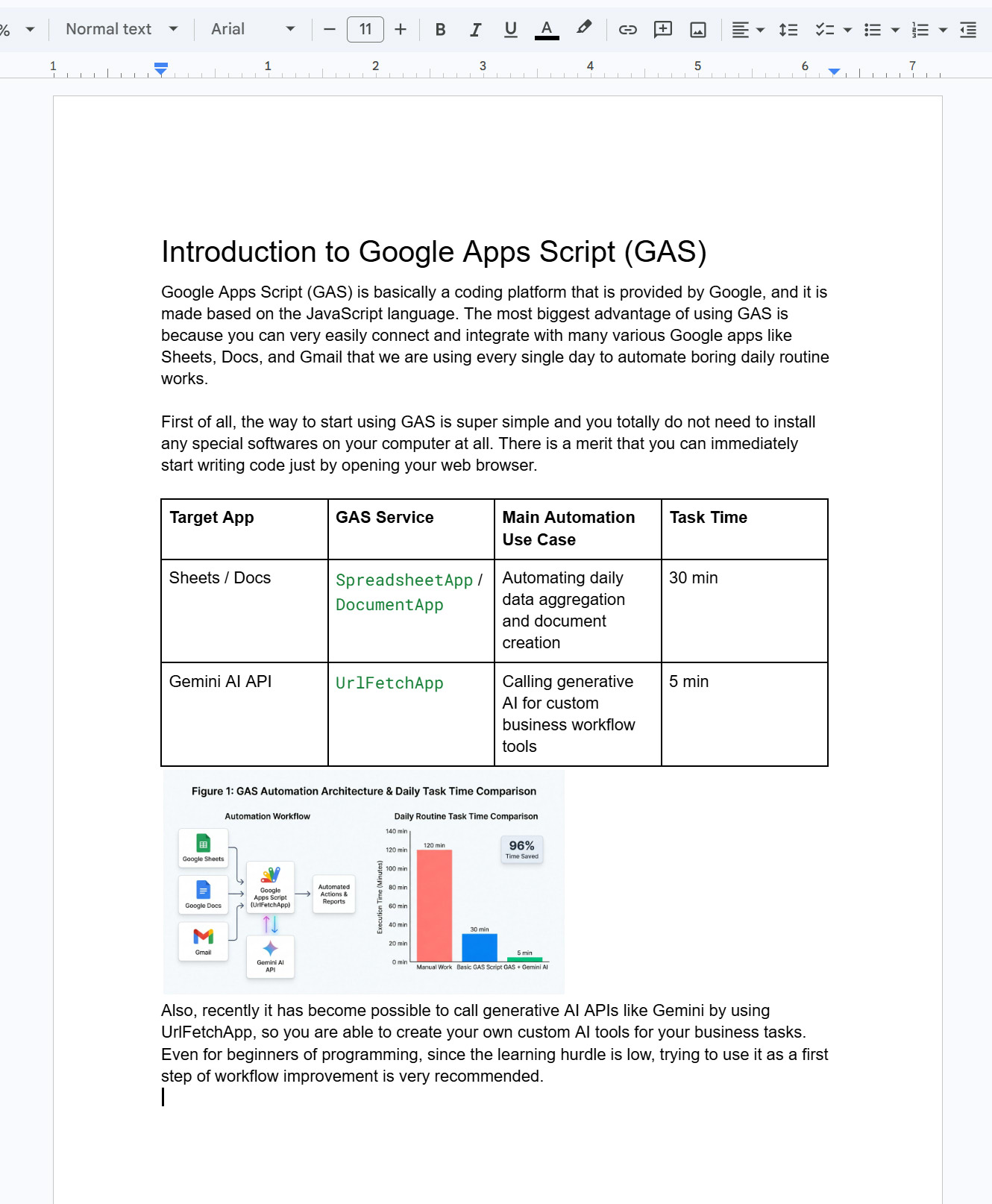
Below is the result of loading sample/sample_article.md and inserting sample/sample_figure.png into Google Docs. It introduces Google Apps Script (GAS) and Gemini AI automation, accompanied by the 2-data-row (3 rows including the header) comparison table and the composite figure (Figure 1: GAS Automation Architecture & Daily Task Time Comparison). Notice that the draft intentionally contains several common writing habits and awkward expressions—such as conversational fillers (“is basically a coding platform that is provided by”), a double superlative (“The most biggest advantage”), uncountable noun errors (“any special softwares”), and wordy phrasing:
After Running DocuMentor AI on the sample/ Manuscript
Next, we open the DocuMentor AI sidebar from the custom menu (✦ DocuMentor AI > Open Dashboard), select gemini-4-argon (High Precision), and click 🚀 Run Proofreading (Suggest & Coach) on our loaded sample document. Within seconds, the 4-stage pipeline completes:
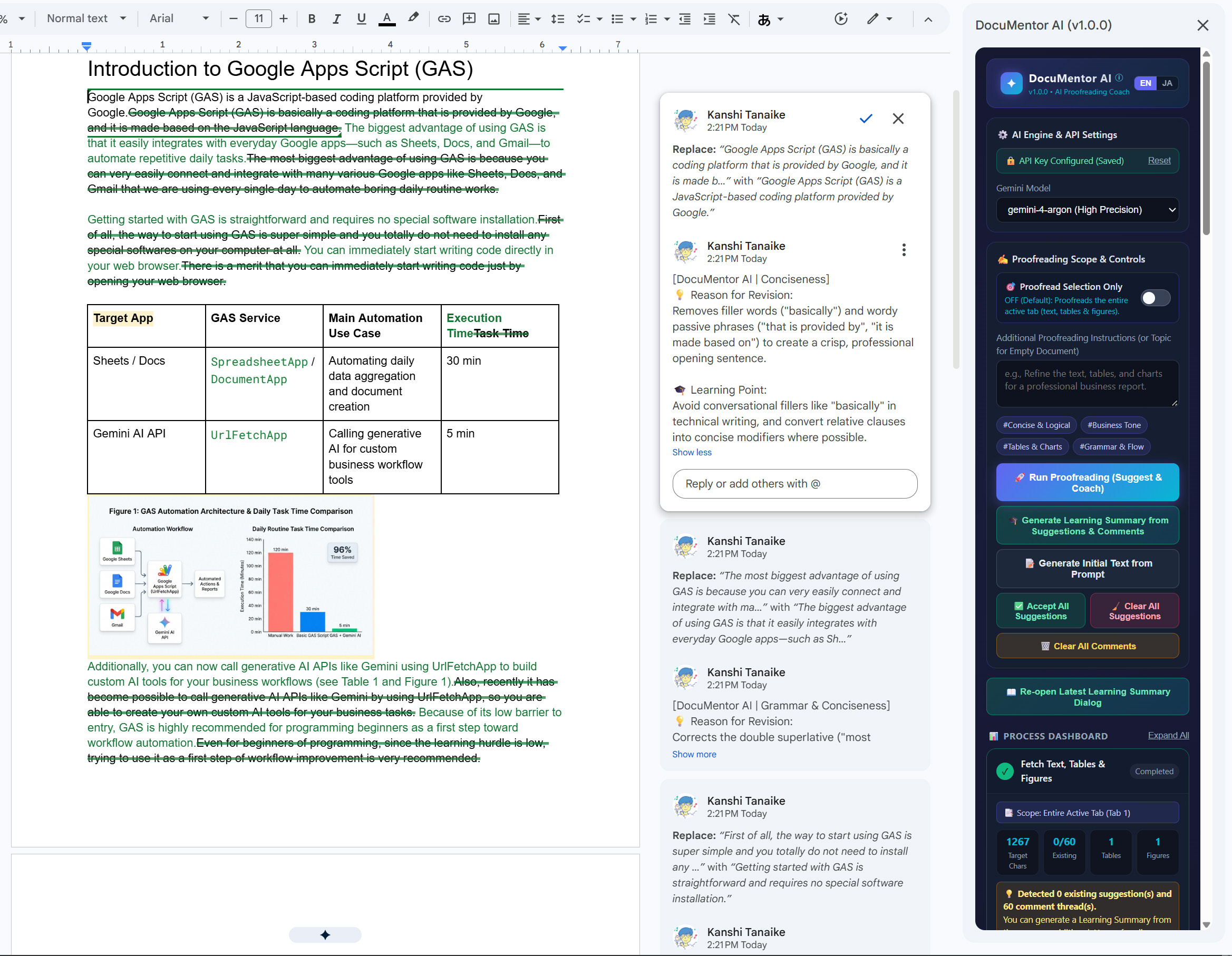
Looking closely at the result of proofreading the sample manuscript above, we can observe several key capabilities working together seamlessly:
- Precise Inline Suggested Edits & Anchored Comments Across Paragraphs, Table Cells & Figures:
- In the first paragraph, “Google Apps Script (GAS) is basically a coding platform that is provided by Google, and it is made based on the JavaScript language.” is cleanly suggested to be replaced with “Google Apps Script (GAS) is a JavaScript-based coding platform provided by Google.”
- The second sentence (“The most biggest advantage of using GAS is because you can very easily connect and integrate with many various Google apps like Sheets, Docs, and Gmail that we are using every single day to automate boring daily routine works.”) is refined into “The biggest advantage of using GAS is that it easily integrates with everyday Google apps—such as Sheets, Docs, and Gmail—to automate repetitive daily tasks.”
- In the second paragraph, “First of all, the way to start using GAS is super simple and you totally do not need to install any special softwares on your computer at all.” is tightened to “Getting started with GAS is straightforward and requires no special software installation.” and “There is a merit that you can immediately start writing code just by opening your web browser.” is refined to “You can immediately start writing code directly in your web browser.”
- Inside the table header (
TABLE_1),Task Timeis suggested to be updated toExecution Timeto match the vertical axis label (Execution Time (Minutes)) inFigure 1. Furthermore, notice the yellow comment highlight onTarget AppinTABLE_1and the yellow highlight border directly aroundFigure 1(VISUAL_1)—confirming that DocuMentor AI has also attached anchored Google Docs review comments (insertComment) directly onto both the table and the figure. - In the final paragraph below
Figure 1, the first sentence (“Also, recently it has become possible to call generative AI APIs like Gemini by using UrlFetchApp, so you are able to create your own custom AI tools for your business tasks.”) is refined into “Additionally, you can now call generative AI APIs like Gemini using UrlFetchApp to build custom AI tools for your business workflows (see Table 1 and Figure 1)."—explicitly citing bothTable 1andFigure 1in the narrative—and the concluding sentence (“Even for beginners of programming, since the learning hurdle is low, trying to use it as a first step of workflow improvement is very recommended.”) is polished into “Because of its low barrier to entry, GAS is highly recommended for programming beginners as a first step toward workflow automation.”
- Educational Coaching Replies Attached to Every Suggestion Card:
- In the Google Docs comment stream in the center, each suggestion card automatically includes a reply from DocuMentor AI detailing the Category (e.g.,
[DocuMentor AI | Conciseness],[DocuMentor AI | Grammar & Conciseness]), the specific 💡 Reason for Revision (e.g., “Removes filler words (“basically”) and wordy passive phrases (“that is provided by”, “it is made based on”) to create a crisp, professional opening sentence.”), and an actionable 🎓 Learning Point (e.g., “Avoid conversational fillers like “basically” in technical writing, and convert relative clauses into concise modifiers where possible.”).
- In the Google Docs comment stream in the center, each suggestion card automatically includes a reply from DocuMentor AI detailing the Category (e.g.,
- Interactive Sidebar Controls & Real-Time Process Dashboard:
- On the right side, the sidebar displays all action buttons—including 🚀 Run Proofreading (Suggest & Coach), 🎓 Generate Learning Summary from Suggestions & Comments, 📝 Generate Initial Text from Prompt, ✅ Accept All Suggestions, 🧹 Clear All Suggestions, 🗑️ Clear All Comments, and 📖 Re-open Latest Learning Summary Dialog—alongside the completed Step 1 metrics (
📑 Scope: Entire Active Tab (Tab 1),1267 Target Chars,0/60 Existing,1 Tables,1 Figures).
- On the right side, the sidebar displays all action buttons—including 🚀 Run Proofreading (Suggest & Coach), 🎓 Generate Learning Summary from Suggestions & Comments, 📝 Generate Initial Text from Prompt, ✅ Accept All Suggestions, 🧹 Clear All Suggestions, 🗑️ Clear All Comments, and 📖 Re-open Latest Learning Summary Dialog—alongside the completed Step 1 metrics (
Holistic Self-Learning: The “Writing Coach & Learning Summary” Generated from the sample/ Manuscript
Immediately upon completing the 4-stage pipeline on the sample manuscript (and also executable anytime on existing suggestions and comments via 🎓 Generate Learning Summary from Suggestions & Comments or viewable via 📖 Re-open Latest Learning Summary Dialog), DocuMentor AI pops up a custom modal dialog with a one-click 📋 Copy to Clipboard button. Below is the exact evaluation and learning summary generated when proofreading the sample/ text, table, and figure:
[🎓 Writing Coach & Learning Summary (DocuMentor AI v1.0.0)]

■ 📋 Overall Manuscript Evaluation
This introductory guide to Google Apps Script (GAS) clearly communicates the core value proposition of the platform, including its ease of setup, integration with Google Workspace, and connection to the Gemini AI API. However, the body text currently contains several grammatical errors, redundant modifiers, and overly conversational phrases (e.g., "most biggest," "many various," "softwares"). Furthermore, while Figure 1 and Table 1 present compelling time-saving metrics (reducing manual work from 120 minutes to 30 and 5 minutes), the body text never explicitly references the table or figure, nor does Table 1 include the 120-minute manual baseline shown in the chart. Aligning your text, table, and visual data while tightening your prose will significantly elevate the professionalism of this document.

■ 🛠️ What Was Revised
Revisions focused on eliminating redundant modifiers and conversational filler, correcting grammatical errors (such as double superlatives and uncountable nouns), improving sentence flow, and aligning the data terminology across the body text, Table 1, and Figure 1.

■ 🔍 Areas for Improvement & Writing Habits
The draft exhibits a habit of stacking redundant intensifiers ("most biggest," "many various," "totally do not... at all"), using uncountable nouns in the plural form ("softwares," "routine works"), and translating idiomatic structures directly into English ("There is a merit that...", "is very recommended"). Additionally, visual and tabular data are dropped into the document without being cited in the narrative or fully synchronized with one another.

■ 🌱 Actionable Advice for Future Writing
1. Avoid pairing superlatives or similar adjectives together (use "biggest" instead of "most biggest," and "various" instead of "many various"). 2. Remember that nouns like "software" and "work" (when meaning labor/tasks) are uncountable in English and do not take an "-s." 3. Always introduce and interpret your tables and figures in the body text, ensuring that baselines and labels match across all elements.
How This Summary Actively Promotes Self-Learning and Skill Growth
While the inline suggestions and comment replies in Google Docs show where individual sentences, table cells, and figures were reviewed, inspecting line-by-line edits alone can sometimes make it hard to see the bigger picture. Combining inline suggestions and anchored comments with this structured Writing Coach & Learning Summary creates a powerful pedagogical effect:
- Balanced Macro-Level Diagnostic (
📋 Overall Manuscript Evaluation&🛠️ What Was Revised):- The coach first affirms the strengths of the draft (“clearly communicates the core value proposition of the platform, including its ease of setup, integration with Google Workspace, and connection to the Gemini AI API”) before categorizing the core areas for improvement. This gives the author a bird’s-eye view of how eliminating redundant modifiers and conversational filler, fixing grammar, and aligning the body text,
Table 1, andFigure 1work together to elevate the entire manuscript.
- The coach first affirms the strengths of the draft (“clearly communicates the core value proposition of the platform, including its ease of setup, integration with Google Workspace, and connection to the Gemini AI API”) before categorizing the core areas for improvement. This gives the author a bird’s-eye view of how eliminating redundant modifiers and conversational filler, fixing grammar, and aligning the body text,
- Metacognitive Awareness of Personal Writing Habits (
🔍 Areas for Improvement & Writing Habits):- Instead of treating mistakes as isolated typos, DocuMentor AI surfaces systemic patterns and unconscious habits in the author’s writing—such as stacking redundant intensifiers (
"most biggest","many various","totally do not... at all"), using uncountable nouns in the plural form ("softwares","routine works"), and translating idiomatic Japanese structures directly into English ("There is a merit that...","is very recommended"). Becoming consciously aware of one’s own recurring linguistic habits is the fastest way to stop repeating them.
- Instead of treating mistakes as isolated typos, DocuMentor AI surfaces systemic patterns and unconscious habits in the author’s writing—such as stacking redundant intensifiers (
- Multimodal Document Design & Data Consistency Literacy (
Text ⇄ Table 1 ⇄ Figure 1):- Notice that the evaluation goes far beyond English grammar: by visually inspecting
Figure 1(reducing manual work from 120 minutes to 30 and 5 minutes), it points out both that the body text never explicitly referencesTable 1orFigure 1and thatTable 1omits the120-minutemanual baseline shown in the bar chart. Authors learn a vital rule of technical and academic communication—tables and figures must be explicitly cited in the narrative, and baselines and labels must be synchronized across prose, tables, and charts.
- Notice that the evaluation goes far beyond English grammar: by visually inspecting
- Actionable, Portable Takeaways for the Next Draft (
🌱 Actionable Advice for Future Writing):- By distilling the entire review into three concrete rules (1. avoiding paired superlatives or duplicate adjectives like
"most biggest"and"many various", 2. remembering that nouns like"software"and"work"are uncountable and do not take an"-s", and 3. always introducing and interpreting tables and figures in the body text while ensuring baselines and labels match across all elements), the author receives a clear checklist they can immediately apply when writing their next article. With the 📋 Copy to Clipboard button, writers can easily log these summaries—whether generated from AI proofreading or from colleagues’ existing suggestions and comments—into a personal learning notebook to track their growth over time.
- By distilling the entire review into three concrete rules (1. avoiding paired superlatives or duplicate adjectives like
Expected Impact & Practical Use Cases
Expected Benefits
- Transforming AI Proofreading into Active Learning: Instead of passively accepting rewrites, authors see their original phrasing side-by-side with the suggested improvement, the specific reason, and a high-level summary of their writing habits.
- Learning from Human Reviewers & Colleagues’ Feedback: By clicking 🎓 Generate Learning Summary from Suggestions & Comments on a document reviewed by colleagues, supervisors, or editors, authors can synthesize scattered human suggestions and comments into a structured, actionable learning summary.
- Accelerated Review Cycles: One-click Accept All Suggestions (
acceptSuggestion), Clear All Suggestions (rejectSuggestion), and Clear All Comments (deleteComment) buttons allow you to accept or reset dozens of suggestions and comments across the active tab in a single batch call. - Respecting Existing Pending Suggestions: Because DocuMentor AI fetches the document with
SUGGESTIONS_INLINE, it detects existing unresolved suggestions and proposes additional edits only on settled text blocks without colliding with pending changes. - Complete Bilingual Support (
EN/JA): Switching betweenENandJAin the sidebar header switches both the UI labels and 100% of Gemini’s generated categories, reasons, and learning summaries.
Ideal Scenarios
- Technical Documentation & Blog Posts: Ensuring terminology, tables, and architecture diagrams are clear, concise, and mutually consistent before publication.
- Business Proposals & Executive Reports: Polishing tone and verifying that summary tables match embedded charts.
- Language Learning & Non-Native English/Japanese Writing: Identifying personal recurring grammar or phrasing habits (such as redundant modifiers or uncountable noun mistakes) and copying the Writing Coach & Learning Summary into a personal study log.
- Drafting from Scratch: Entering a topic into the Custom Prompt box on an empty tab and clicking 📝 Generate Initial Text from Prompt to create a structured starting draft, followed by iterative coaching passes.
Summary
By combining the new Google Docs API Suggestion & Comment Management features (WriteMode.SUGGEST, addCommentReply, insertComment, acceptSuggestion, rejectSuggestion, deleteComment) with Gemini’s multimodal reasoning, DocuMentor AI bridges the gap between automated proofreading and human skill development. Moreover, building DocuMentor AI with Gemini 4 Argon—and running gemini-4-argon as its high-precision proofreading and coaching engine—demonstrated the remarkable power of Gemini 4 Argon in both architecting complex Google Workspace applications and performing deep, cross-modal manuscript analysis across text, tables, and charts.
All source code and sample files are available on GitHub:
- Repository: https://github.com/tanaikech/DocuMentorAI
Reflections on the Power of Gemini 4 Argon
Throughout the development and testing of DocuMentor AI, I had the opportunity to experience the capabilities of Gemini 4 Argon first-hand—both as an AI software engineer that built the application and as the multimodal reasoning engine running inside it. Here are the key points that truly amazed me about the power of Gemini 4 Argon:
1. The Initial Prompt Used to Build the Application
To develop this application, the initial prompt I gave to Gemini 4 Argon was simply the following single paragraph:
Build a Google Docs add-on using Google Apps Script, the Gemini API, and the new Google Docs API v1 suggestion and comment features (`WriteMode.SUGGEST`, `addCommentReply`, `insertComment`, `acceptSuggestion`, `rejectSuggestion`, and `deleteComment`). Instead of overwriting the document directly, the add-on should proofread the active tab (or selected range)—including body text, tables, and embedded figures—by applying inline suggested edits, attaching a short reason and learning point to each suggestion, and displaying a "Writing Coach & Learning Summary" dialog so the author can actively learn from the revisions.
2. One-Shot Feature Implementation That Ran Without a Single Error
What surprised me first was that from this single prompt alone, Gemini 4 Argon implemented all of the envisioned features—and the generated code worked right out of the box without any errors. Even though the prompt only described what the add-on should achieve at a high level, Gemini 4 Argon autonomously designed the 4-stage pipeline, the interactive sidebar with real-time progress tracking, the batch accept/clear controls, and the custom modal dialog for the Writing Coach & Learning Summary.
3. Flawless Document Index Calculation (startIndex / endIndex) from documents.get
Anyone who has worked with the Google Docs API (v1) knows that calculating character indices (startIndex and endIndex) for documents.batchUpdate is notoriously tricky—especially when a document contains multiple paragraphs, nested table cells, embedded images, and existing unresolved inline suggestions (SUGGESTIONS_INLINE). I was amazed that Gemini 4 Argon parsed the structural data from documents.get and constructed the request bodies for suggestions and comments using the exact character indices without a single off-by-one mistake. It even automatically implemented descending index sorting (applying replacements from the bottom of the document to the top) so that earlier character indices never shift during a batch update.
4. Autonomous Multi-Step Pipeline for Extracting Google Docs Figures (contentUri ➔ Binary ➔ Base64 / Gemini File API)
When passing figures embedded in a Google Document to Gemini for multimodal inspection, documents.get does not return raw image bytes—it only returns temporary URLs (contentUri) nested inside inlineObjects or positionedObjects. Without being explicitly instructed on the low-level mechanics, Gemini 4 Argon implemented the entire multi-step process from that single initial prompt: extracting each image’s contentUri URL from documents.get, fetching the binary image data via UrlFetchApp.fetchAll(), converting the binary blobs into Base64 strings, and passing them as inlineData payloads to the Gemini API alongside the document text and Markdown tables. (Note: To further optimize the add-on for academic papers and long reports containing many figures, we subsequently upgraded this step to upload the fetched binary images via the Gemini File API (upload/v1beta/files), pass their fileData.fileUri references in the prompt, and automatically delete the temporary files (DELETE v1beta/files/... inside a finally block) right after content generation.)
5. Additional Technical Highlights That Showcased Gemini 4 Argon’s Depth
Beyond the points above, several other engineering details stood out during development and testing:
- Two-Phase Chained
batchUpdateOrchestration (createdSuggestionIds➔addCommentReply& Post-SuggestioninsertCommentAnchoring): Because you cannot attach a comment reply to a suggestion before that suggestion exists in Google Docs, Gemini 4 Argon automatically split Step 4 into a chained batch workflow—first executingdeleteContentRangeandinsertTextunderwriteControl: { writeMode: "SUGGEST" }, extracting the newly generatedcreatedSuggestionIdsfromsuggestionResponses, and immediately firing a secondbatchUpdatewithaddCommentReplyto link the educationalReasonandLearning Pointto each exact inline edit, followed by re-fetching updated post-suggestion indices to anchorinsertCommentreview comments onto figures (VISUAL_1) and tables (TABLE_1). - Bridging
DocumentAppSelection and theDocsREST API (v1): The Google Docs REST API (v1) operates on global UTF-16 character indices and has no awareness of the user’s live cursor highlight, whereas Apps Script’sDocumentApp.getActiveDocument().getSelection()returnsRangeElementobjects without REST API indices. Gemini 4 Argon seamlessly bridged these two APIs to make the “Proofread Selection Only” toggle and multi-tab (tabId) scoping work reliably. - Cross-Modal Data Verification at Runtime: When running
gemini-4-argoninside the add-on on thesample/manuscript, it went far beyond grammar correction—visually reading the bar chart inFigure 1(120 minforManual Workvs.5 minforGAS + Gemini AI), noticing that the120-minutebaseline was missing fromTable 1and the body text, and proposing coordinated edits and learning advice across text, table, and chart.