This is a sample script for creating a folder tree including all folders in Google Drive. For each element, parent folder and sub folder are retrieved.
Script :
var results = (function(folder, folderSt, results){
var ar = [];
var folders = folder.getFolders();
while(folders.hasNext()) ar.push(folders.next());
folderSt += folder.getName() + "(" + folder.getId() + ")#_aabbccddee_#";
var array_folderSt = folderSt.split("#_aabbccddee_#");
array_folderSt.pop()
results.push(array_folderSt);
ar.length == 0 && (folderSt = "");
for (var i in ar) arguments.callee(ar[i], folderSt, results);
return results;
})(DriveApp.getRootFolder(),"",[]);
Result :
[
[foldername1(folder1 id)],
[foldername1(folder1 id), sub foldername1s(sub folde1s id)],
[foldername1(folder2 id)],
[foldername2(folder2 id), sub foldername2s1(sub folde2s1 id)],
[foldername2(folder2 id), sub foldername2s1(sub folde2s1 id), sub foldername2s2(sub folde2s2 id)]
]
By the way :
ar.length == 0 && (folderSt = "");
if (ar.length == 0) {
folderSt = "";
}
Both scripts are the same meaning.
Released a CLI tool for easily retrieving accesstoken from Google OAuth2. The title is gogauth. When I have seen stackoverflow, I knew that it is difficult to retrieve accesstoken from Google OAuth2. So I made this.
Features of this CLI tool are as follows.
-
Retrieves easily accesstoken from Google OAuth2 for using Drive API.
-
If you have PhantomeJS, this retrieves “code” from Google using it. So you don’t need to launch your browser for retrieving “code”.
This is a script to export a CSV file from spreadsheet and make an user download it. When the users download it, they can download by push a button made by this script.
In order to use this script, put both HTML and script in a GAS project.
html :
This file name is “download.html”.
<!DOCTYPE html>
<html>
<body>
Download CSV?
<form>
<input type="button" value="ok" onclick="google.script.run
.withSuccessHandler(executeDownload)
.saveAsCSV();" />
</form>
</body>
<script>
function executeDownload(url) {
window.location.href = url;
}
</script>
</html>
Script :
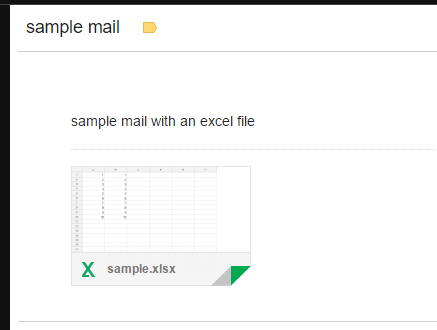
This is a script to send e-mail with a xlsx file converted from spreadsheet as an attachment file. Access token is necessary to use this script.
function excelSender() {
var accesstoken = "[your accesstoken]";
var sheetID = "[sheet id]";
var xlsxName = "[output xlsx file name]"
var params = {
"headers" : {Authorization: "Bearer " + accesstoken},
"muteHttpExceptions" : true
};
var dUrl = "https://www.googleapis.com/drive/v3/files/" + sheetID + "/export?mimeType=application/vnd.openxmlformats-officedocument.spreadsheetml.sheet"
var xlsxlFile = UrlFetchApp.fetch(dUrl, params).getBlob().setName(xlsxName);
MailApp.sendEmail({
to: "[your mail address]",
subject: "sample mail",
body: "sample mail with an excel file",
attachments: [xlsxlFile]
});
}
These GASs retrieve an access token for using Google Drive API. There are 3 parts. Before you use this, please retrieve client ID, client secret and redirect uri from Google , and choose scopes.
1. Retrieving code from web
This is a script to output URL for retrieving “code” from web. Please retrieve “code” by import this URL to your browser. After you run this script, using “url” got from this script, it retrieves “code”.
This sample script sends an e-mail with an Excel file exported from Spreadsheet as an attachment file.
function excelSender() {
var sheetID = [Sheet ID];
var xlsxName = [Excel file name];
var params = {
"headers" : {Authorization: "Bearer [Retrieved AccessToken]"},
"muteHttpExceptions" : true
};
var dUrl = "https://www.googleapis.com/drive/v3/files/" + sheetID + "/export?mimeType=application/vnd.openxmlformats-officedocument.spreadsheetml.sheet"
var xlsxlFile = UrlFetchApp.fetch(dUrl, params).getBlob().setName(xlsxName);
MailApp.sendEmail({
to: [Mail address],
subject: "sample subject",
body: "sample body",
attachments: [xlsxlFile]
});
}

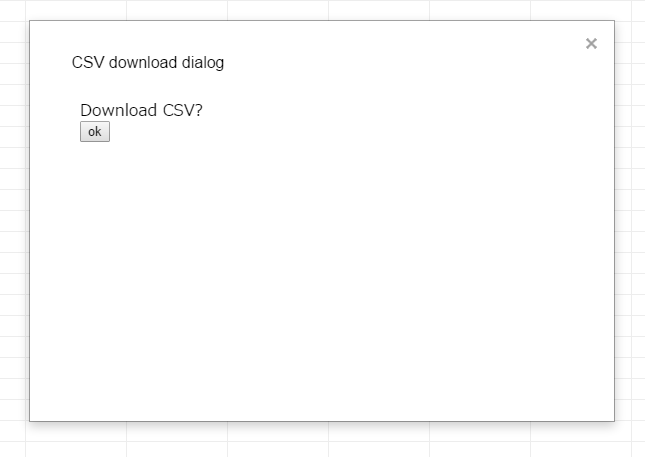
Here, I introduce how to download a CSV file from spreadsheet using Google HTML Service.
- Using “onOpen()”, it addes menu for launching a dialog.

-
After launching the dialog, “getFileUrl()” is launched by pushing a button. “getFileUrl()” exports a CSV file and outputs download URL.
-
The CSV file is downloaded by “executeDownload()”.
Please put both HTML and GAS to a GAS project.
HTML : download.html
<!DOCTYPE html>
<html>
<body>
Download CSV?
<form>
<input type="button" value="ok" onclick="google.script.run
.withSuccessHandler(executeDownload)
.getFileUrl();" />
</form>
</body>
<script>
function executeDownload(url) {
window.location.href = url;
}
</script>
</html>
GAS :
function onOpen() {
SpreadsheetApp.getUi()
.createMenu('export')
.addItem('export csv files', 'dialog')
.addToUi();
}
function dialog() {
var html = HtmlService.createHtmlOutputFromFile('download');
SpreadsheetApp.getUi().showModalDialog(html, 'CSV download dialog');
}
function getFileUrl() {
var filename = "#####"; // CSV file name
var folder = "#####"; // Folder ID
var csv = "";
var v = SpreadsheetApp // Now spreadsheet is an active sheet.
.getActiveSpreadsheet()
.getActiveSheet()
.getDataRange()
.getValues();
v.forEach(function(e) {
csv += e.join(",") + "\n";
});
var url = DriveApp.getFolderById(folder)
.createFile(filename, csv, MimeType.CSV)
.getDownloadUrl()
.replace("?e=download&gd=true","");
return url;
}

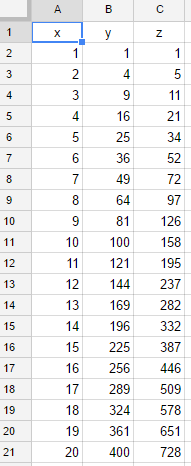
var sheet = SpreadsheetApp.getActiveSpreadsheet().getActiveSheet();
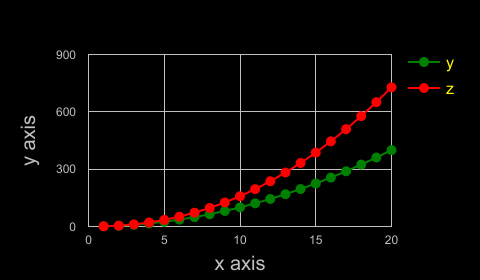
var chart = sheet.newChart()
.setChartType(Charts.ChartType.LINE)
.asLineChart()
.addRange(sheet.getRange('a1:a21'))
.addRange(sheet.getRange('b1:b21'))
.addRange(sheet.getRange('c1:c21'))
.setColors(["green", "red"])
.setBackgroundColor("black")
.setPosition(5, 5, 0, 0)
.setPointStyle(Charts.PointStyle.MEDIUM)
.setOption('useFirstColumnAsDomain', true)
.setOption('height', 280)
.setOption('width', 480)
.setOption('title', 'Sample chart')
.setOption('hAxis', {
title: 'x axis',
minValue: 0,
maxValue: 20,
titleTextStyle: {
color: '#c0c0c0',
fontSize: 20,
italic: false,
bold: false
},
textStyle: {
color: '#c0c0c0',
fontSize: 12,
bold: false,
italic: false
},
baselineColor: '#c0c0c0',
gridlines: {
color: '#c0c0c0',
count: 4
}
})
.setOption('vAxis', {title: 'y axis',
minValue: 0,
maxValue: 800,
titleTextStyle: {
color: '#c0c0c0',
fontSize: 20,
italic: false,
bold: false
},
textStyle: {
color: '#c0c0c0',
fontSize: 12,
bold: false,
italic: false
},
baselineColor: '#c0c0c0',
gridlines: {
color: '#c0c0c0',
count: 4
}
})
.setOption('legend', {
position: 'right',
textStyle: {
color: 'yellow',
fontSize: 16
}
})
.build();
sheet.insertChart(chart);
It is necessary to retrieve access token on Google. Scope is as follows.
https://www.googleapis.com/auth/drive
Other mimetypes can be seen here.
Download and convert from Spreadsheet to Excel
curl -X GET -sSL \
-H "Authorization: Bearer [Your access token]" \
-o "Excel file name" \
"https://www.googleapis.com/drive/v3/files/[File ID]/export?mimeType=application/vnd.openxmlformats-officedocument.spreadsheetml.sheet"
Upload and convert from Excel to Spreadsheet
curl -X POST -sSL \
-H "Authorization: Bearer [Your access token]" \
-F "metadata={ \
name : '[File name on Google Drive]', \
mimeType : 'application/vnd.google-apps.spreadsheet' \
};type=application/json;charset=UTF-8" \
-F "file=@[Your Excel file];type=application/vnd.ms-excel" \
"https://www.googleapis.com/upload/drive/v3/files?uploadType=multipart"
This is a Sample Array Script for Spreadsheet. It makes an 2D array filled by strings and number. The strings and number are column strings and row number, respectively.
However, because this is a sample, the maximum column number is 26.
function sa(row, col){
if (col > 26) return;
var ar = new Array(row);
for(var i = 0; i < row; i++) ar[i] = new Array(col);
for (var i = 0; i < row; i++){
for (var j = 0; j < col; j++){
ar[i][j] = String.fromCharCode(i + 97) + String(j + 1);
}
}
return ar.map(function(x, i){return x.map(function(y, j){return ar[j][i]})});
}
When “sa(10,10)” is given, following array can be output.