Gists
Abstract
Learn how Gemini AI and Google Apps Script automate Google Slides generation. A developed application demonstrates this synergy, streamlining initial presentation drafting and showcasing AI’s automation potential within Google Workspace.
Introduction
The field of AI, particularly large language models like Google’s Gemini, is advancing rapidly. A powerful application of this technology involves integrating Gemini with Google Apps Script. Google Apps Script provides a seamless way to automate tasks across Google Workspace by natively handling authorization and interaction with services like Google Docs, Google Sheets, and Google Slides. By combining Gemini’s generative capabilities with Apps Script, sophisticated automations become accessible.
Gists

Description
This is a sample Google Apps Script designed to replace all instances of specific text within a Google Slides presentation, while simultaneously applying a desired text style. The built-in Presentation.replaceAllText() method within the Google Slides service is limited; it efficiently replaces text strings but lacks the functionality to modify text formatting during the replacement process. This limitation poses a challenge when aiming for styled text replacements. This report presents a detailed script solution that overcomes this constraint. The script iterates through all text elements within the slides, identifies matching text, and performs a replacement. Crucially, it also applies specified text formatting attributes, such as font, font size, color, and bold/italic settings, to the replaced text. This enhanced functionality allows users to maintain consistent and visually appealing presentations when automating text modifications. Furthermore, the script illustrates the use of TextRange methods for precise text manipulation and styling within Google Slides. This approach offers a more robust alternative to the standard replaceAllText() method, providing greater control over text replacement and formatting in Google Slides automation workflows.
DocsServiceApp was updated to v1.2.2
You can see the detail information here https://github.com/tanaikech/DocsServiceApp
Gists
Description
When the generated text can be automatically inserted into the cursor position of Google Document, Google Spreadsheet, and Google Slide, it will be useful for users. This report introduces sample scripts for achieving this.
Sample scripts
Here, I would like to introduce 3 sample scripts for a Google Document, a Google Spreadsheet, and a Google Slide.
Create an API key
These sample scripts request Gemini Pro API using an API key. So, please create your API key.
Gists
Abstract
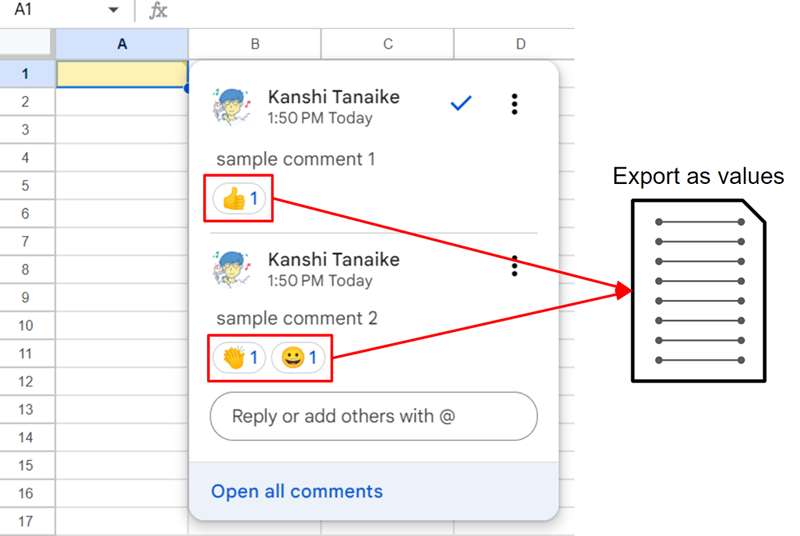
This report introduces the method for retrieving the Emoji reactions from the comments in Google Docs files (Google Documents, Google Slides, and Google Spreadsheets) using Google Apps Script.
Introduction
Recently, the Emoji reactions have been implemented in the comments on Google Docs files (Google Documents, Google Slides, and Google Spreadsheets). Ref With this implementation, the collaborative work has been higher. Here, it is considered that when the Emoji reactions can be retrieved from the Google Docs files, the statistics of the reactions will be also more useful for increasing collaboration. This report introduces a sample script for retrieving Comments including the Emoji reactions from Google Docs files.
Gists
This is a sample script for managing the row height and the column width of a table on Google Slides using Google Apps Script.
In the current stage, Google Slides service (SlidesApp) cannot manage the row height and the column width of the table on Google Slides, while the table width and height can be managed. But, fortunately, when Google Slides API is used, this can be achieved.
In this post, I would like to introduce a sample script for managing the row height and the column width of a table on Google Slides using Google Apps Script.
Gists
Introduction
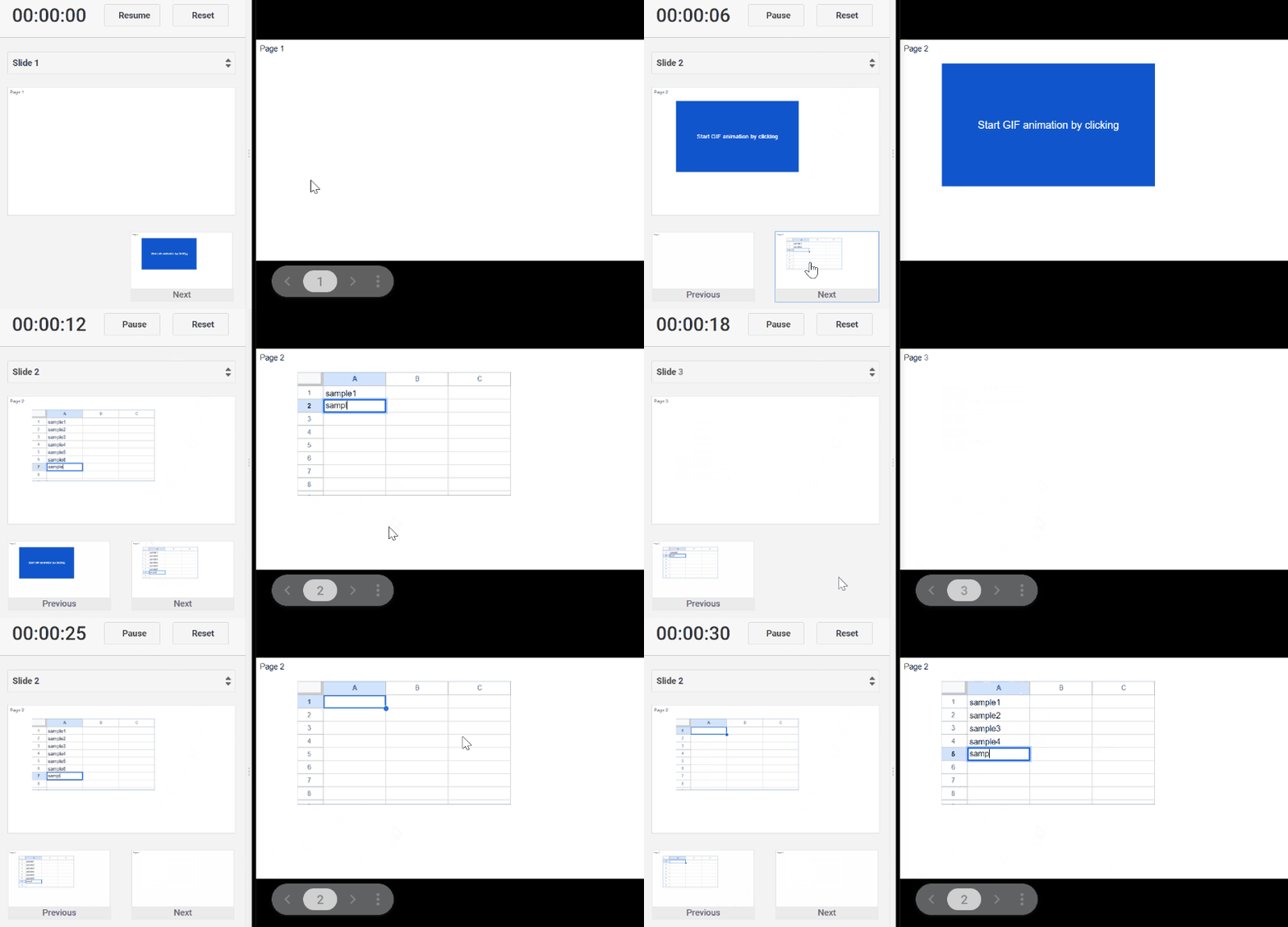
This is a simple workaround for starting an animation GIF on Google Slide by clicking.
When an animation GIF is inserted into a slide of Google Slides, the animation is automatically started. By this, the timing for starting cannot be controlled by the user side. In this post, I would like to introduce a workaround for resolving this issue.
Preparation
The sample flow is as follows.
Overview
This is a Google Apps Script library for supporting Document service, Docs API, Spreadsheet service, Sheets API, Slides service and Slides API. The aim of this library is to compensate the processes that they services cannot achieve.
DocsServiceApp was updated to v1.2.0

You can see the detail information here https://github.com/tanaikech/DocsServiceApp
Overview
This is a Google Apps Script library for supporting Document service, Docs API, Spreadsheet service, Sheets API, Slides service and Slides API. The aim of this library is to compensate the processes that they services cannot achieve.
DocsServiceApp was updated to v1.1.0

You can see the detail information here https://github.com/tanaikech/DocsServiceApp
Gists
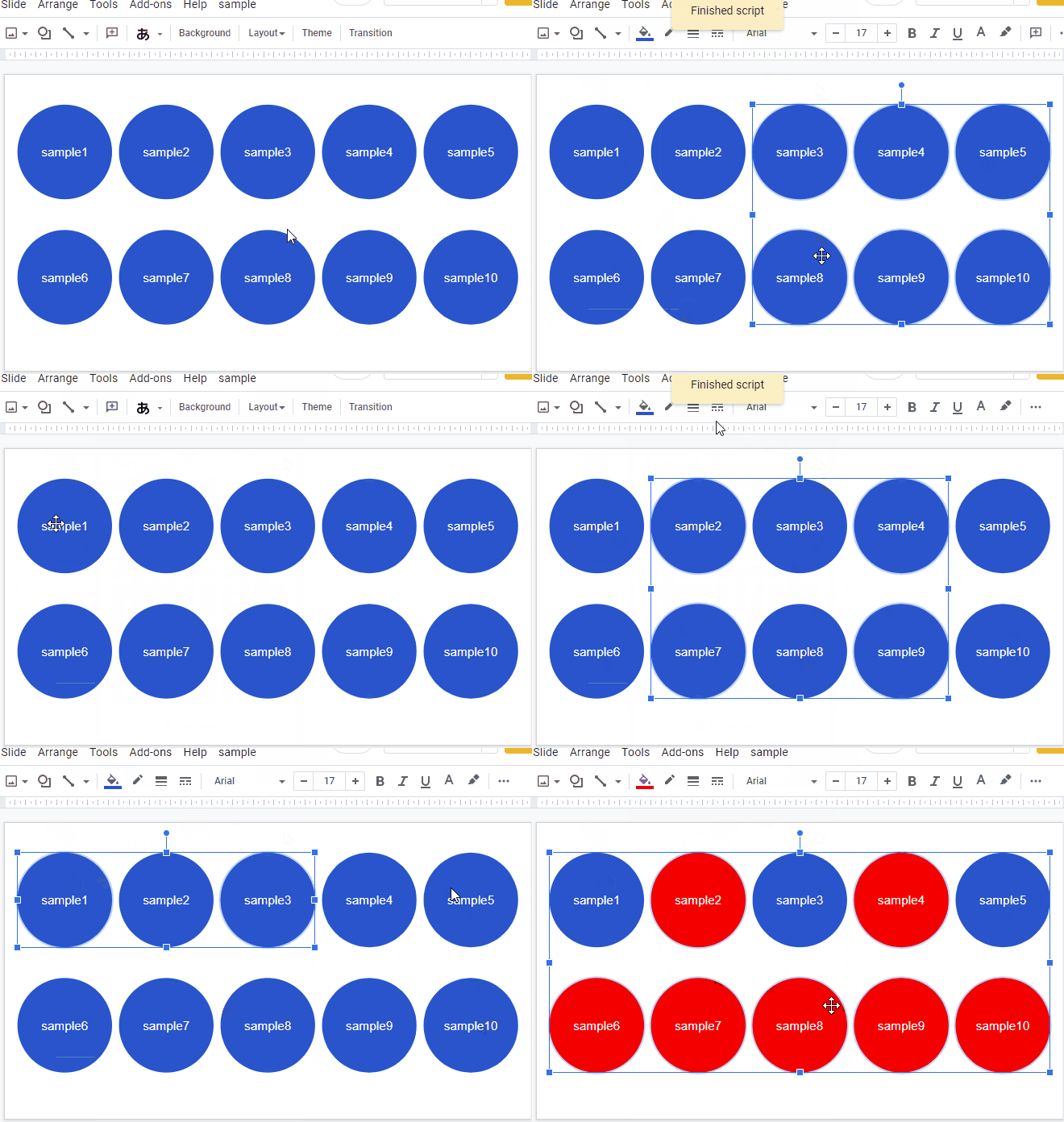
This is a sample script for inverting the selected objects on Google Slides using Google Apps Script.
I have the case that I want to invert the selected objects on Google Slides. This sample script can be achieved this goal using Google Apps Script.
Sample script
Please copy and paste the following script to the script editor of Google Slides, and save the script. And, please select the objects on the Slide and run the function main(). By this, the selected objects are inverted.
Gists
This is a sample script for exporting all thumbnail images retrieved from Google Slides as a zip file using Google Apps Script.
Sample script
Before you use this script, please enable Slides API at Advanced Google services. Ref
function myFunction() {
  const presentationId = "###"; // Please set Google Slides ID.
  const folderId = "###"; // Please set the folder ID.
  const outputFilename = "###"; // Please set the output filename.

  const blobs = SlidesApp.openById(presentationId)
    .getSlides()
    .map((e, i) =>
      UrlFetchApp.fetch(
        Slides.Presentations.Pages.getThumbnail(
          presentationId,
          e.getObjectId(),
          {
            "thumbnailProperties.mimeType": "PNG",
            "thumbnailProperties.thumbnailSize": "LARGE",
          }
        ).contentUrl
      )
        .getBlob()
        .setName(`page${("000" + (i + 1)).slice(-3)}.png`)
    );
  DriveApp.getFolderById(folderId).createFile(
    Utilities.zip(blobs).setName(outputFilename + ".zip")
  );
}
Gists
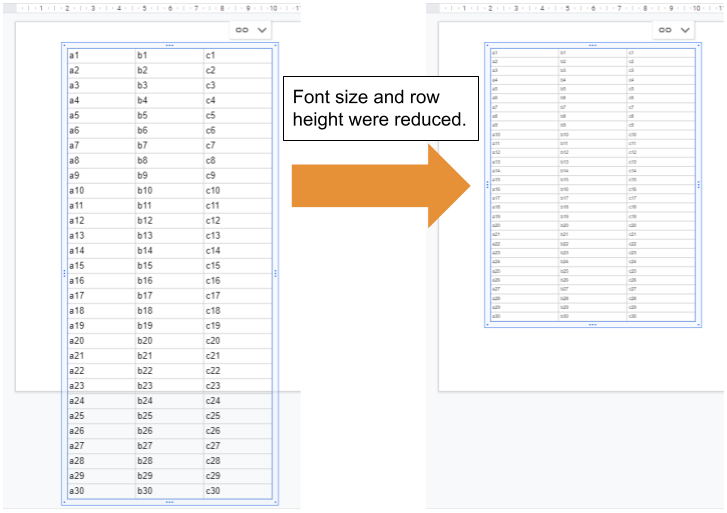
This is a sample script for reducing the table height of the table inserted from Google Spreadsheet to Google Slides using Google Apps Script.
Sample script
Please copy and paste the following script to the script editor of Google Slides. This sample script uses Slides API. So, please enable Slides API at Advanced Google services. Ref
Overview
This is a sample script for achieving a simple photo gallery created by Google Slides and Web Apps using Google Apps Script.
Description
At Google, there is a great Google Photos. Ref Recently, I was required to have a simple photo gallery. At that time, I thought that when an independence photo gallery instead of Google Photos can be used, it will be useful. Also, this might be useful
for other users. So I published this.
Gists
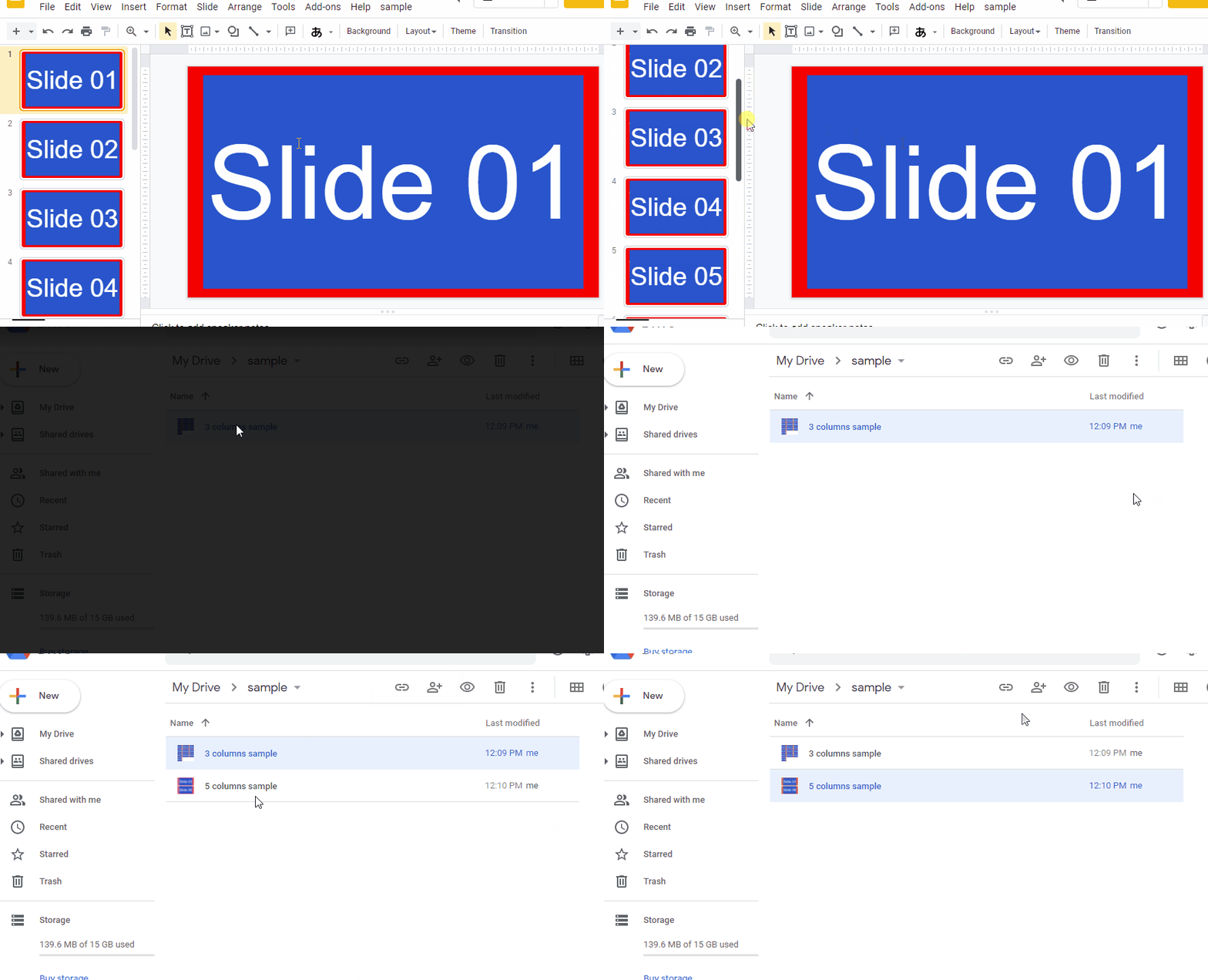
This is a sample script for creating the custom grid view of Google Slides as an image using Google Apps Script.
Demo
Usage
In order to use this script, please do the following flow.
1. Install GAS library
This sample script uses a library of DocsServiceApp. So please install DocsServiceApp. You can see the method for installing it at here.
Gists
This is a sample script for adding the slide page link to the shape using Google Apps Script.
When I use Google Slides, there is the case that I want to jump to the specific slide on the same Google Slides. And, I have the case that I want to jump from the last slide to the 1st slide. In those cases, I had manually added the slide page link to each shape. But when the number of slides are large, I thought that when a script for achieving this is prepared, it will be useful. So I created this.
Overview
This is a Google Apps Script library for supporting Document service, Docs API, Spreadsheet service, Sheets API, Slides service and Slides API. The aim of this library is to compensate the processes that they services cannot achieve.

Description
The Google services, which are Document service, Docs API, Spreadsheet service, Sheets API, Slides service and Slides API, are growing now. But, unfortunately, there are still the processes that they cannot done. I created this GAS library for supporting the Google services.