
Abstract
This article demonstrates how to build Model Context Protocol (MCP) tools directly using Google Apps Script. By leveraging the gas-fakes CLI, developers can execute Google Apps Script locally to automate Google Workspace via Gemini CLI and Google Antigravity, streamlining development and eliminating the overhead of dynamic tool creation.
Introduction
With the rapid advancement of generative AI, ensuring the security of executing AI-generated scripts is of paramount importance to prevent arbitrary code execution vulnerabilities. Addressing this, I previously published a secure sandbox environment for Google Apps Script (GAS) known as gas-fakes, which emulates the Apps Script environment locally. Ref
Building on this, I leveraged the Model Context Protocol (MCP) to conduct a proof-of-concept demonstrating the dynamic creation of MCP server tools using Google Apps Script. Ref This study confirmed that MCP tools developed via GAS provide a seamless bridge to Google Workspace automation. However, the initial implementation faced several architectural limitations:
- Directory Dependency: The
gas-fakeslibrary was strictly required to be installed in a specific directory. - Boilerplate Overhead: Creating tools necessitated the manual inclusion of specific headers and footers to invoke
gas-fakes. - Rigid Deployment: The directory structure was fixed, reducing portability.
To overcome these constraints, we developed the gas-fakes CLI. This evolution allows Google Apps Script code to be executed securely from any location in the file system. It also streamlines OAuth scope management, allowing authorization directly via the command line. We subsequently released this integration as a Gemini CLI Extension. Ref
The Significance of Direct Execution
It is highly significant that we can now create tools for MCP servers directly in Google Apps Script and run them locally. This approach synergizes the portable flexibility of the gas-fakes CLI with the architecture of MCP servers. Rather than relying on complex dynamic wrappers, developers can write standard GAS code that the MCP server utilizes to automate Google Workspace.
This article presents an advanced methodology for this direct tool creation, leveraging gas-fakes CLI atop the Gemini CLI and the Google Antigravity framework.
Prerequisites and Installation
1. Install Gemini CLI
First, install the Gemini CLI using npm:
npm install -g @google/gemini-cli
Next, authorize the CLI by following the instructions in the official documentation. Note: In this article, the Gemini CLI Extension for GAS Development Kit is not used.
2. Install Google Antigravity
Please check the official release and installation guide at https://antigravity.google/.
3. Install gas-fakes CLI
We will use gas-fakes to emulate the GAS environment locally. Install the CLI tool via npm:
npm -g install @mcpher/gas-fakes
4. Authorize Access to Google Services
To allow gas-fakes to interact with your Google services (Drive, Sheets, etc.) for real-world testing, you must authorize the client.
First, create a .env file to store your project configuration. The tool will prompt you for the Project ID (found in your GCP console).
gas-fakes init
Next, run the authorization command. This guides you through the OAuth flow to grant necessary permissions.
gas-fakes auth
Finally, enable the required Google APIs for your project.
gas-fakes enableAPIs
Verification: Run a simple test command to verify configuration. This executes a script in the sandbox to retrieve the root folder name of your Google Drive.
gas-fakes -s "const rootFolder = DriveApp.getRootFolder(); const rootFolderName = rootFolder.getName(); console.log(rootFolderName);"
If the command prints your root folder’s name without errors, your local environment is ready.
Part 1: Integration with Gemini CLI
Add mcpServers to the setting file .gemini/settings.json as follows:
  "mcpServers": {
    "gas-fakes": {
      "command": "gas-fakes",
      "args": [
        "mcp"
      ]
    }
  }
Launch Gemini CLI. If the gas-fakes CLI is correctly installed, you will see the gas-fakes MCP server tools available.

Sample 1: Drive Search Tool
We will create a tool to search files on Google Drive using a filename.
Prompt:
Create a tool of MCP server for search files on Google Drive using a filename with Google Apps Script.
Follow-up Prompt:
Update settings.json
The actual execution flow is shown below:
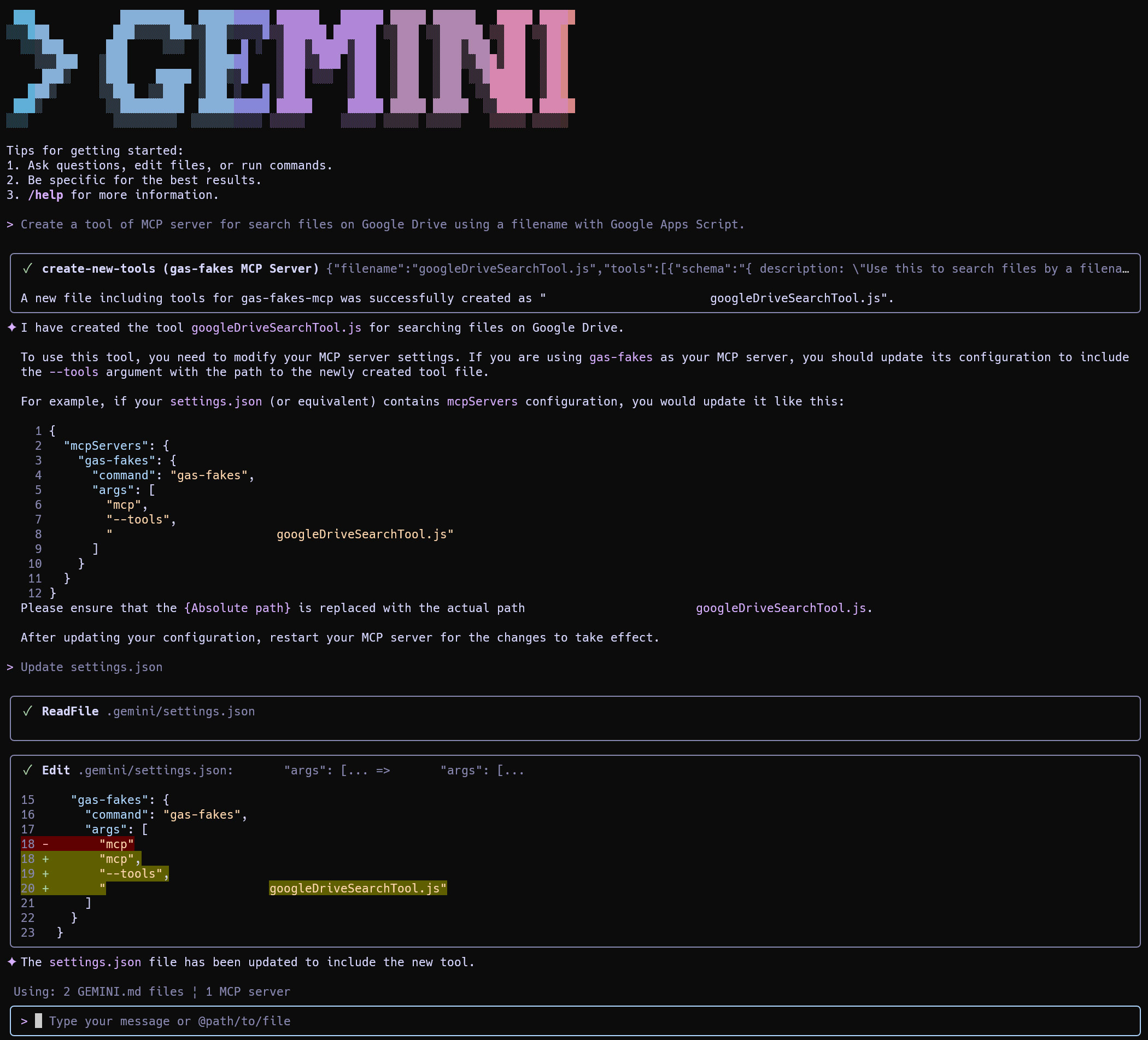
Important: After settings.json is updated, please exit and reopen the Gemini CLI. The MCP server might require a restart to refresh requires a restart. Upon reopening and typing /mcp, the new tool appears:

The following script is generated as googleDriveSearchTool.js in the current directory. Note that the function body is pure Google Apps Script.
import { z } from "zod";

const tools = [
  {
    name: "searchGoogleDriveFiles",
    schema: {
      description: "Use this to search files by a filename on Google Drive.",
      inputSchema: {
        filename: z.string().describe("Filename of the search file."),
      },
    },
    func: (object = {}) => {
      const { filename } = object;
      const files = DriveApp.getFilesByName(filename);
      const ar = [];
      while (files.hasNext()) {
        const file = files.next();
        ar.push({ filename: file.getName(), fileId: file.getId() });
      }
      return ar;
    },
  },
];
Testing the Tool:
Prompt: (Replace “test spreadsheet” with an actual file in your Drive)
Search a file "test spreadsheet" on Google Drive.
Result:
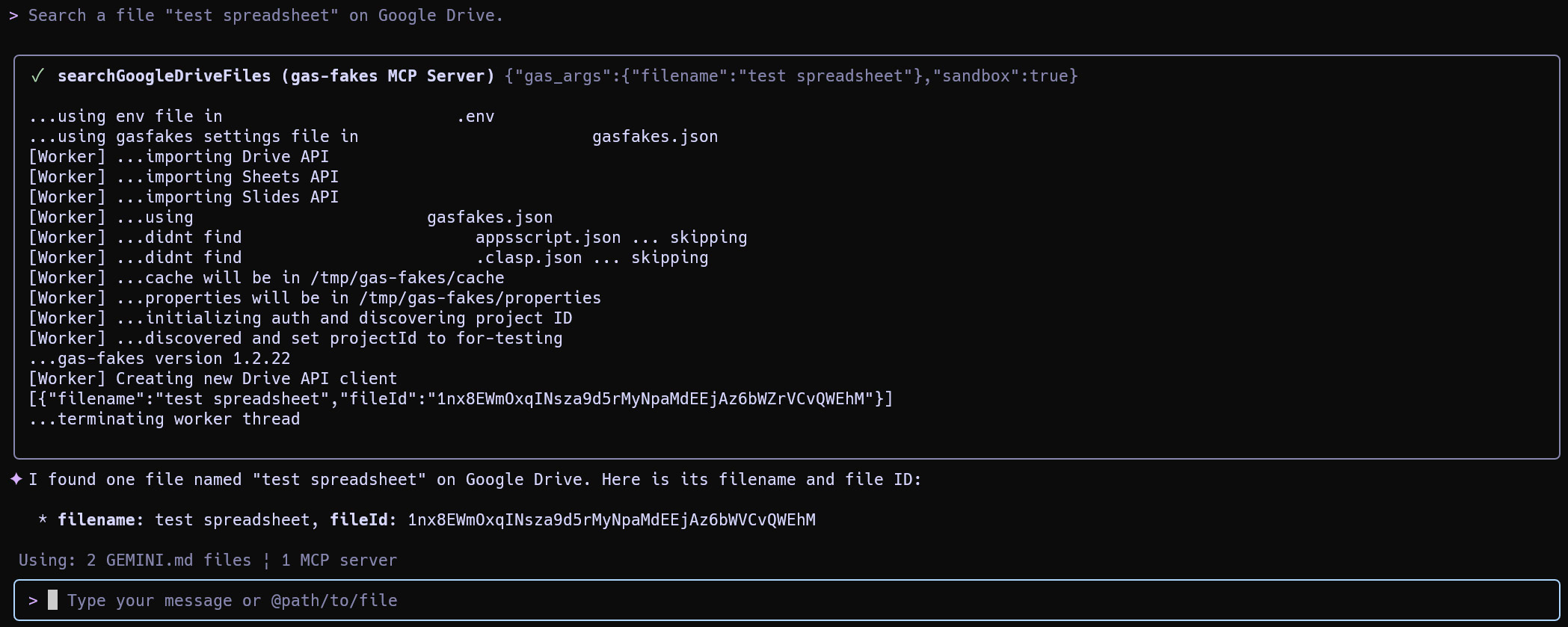
The key takeaway is that the tool script resides in the current working directory and is executed locally.
Sample 2: Spreadsheet Read/Write Tools
Let’s create tools for getting and putting values in Google Sheets.
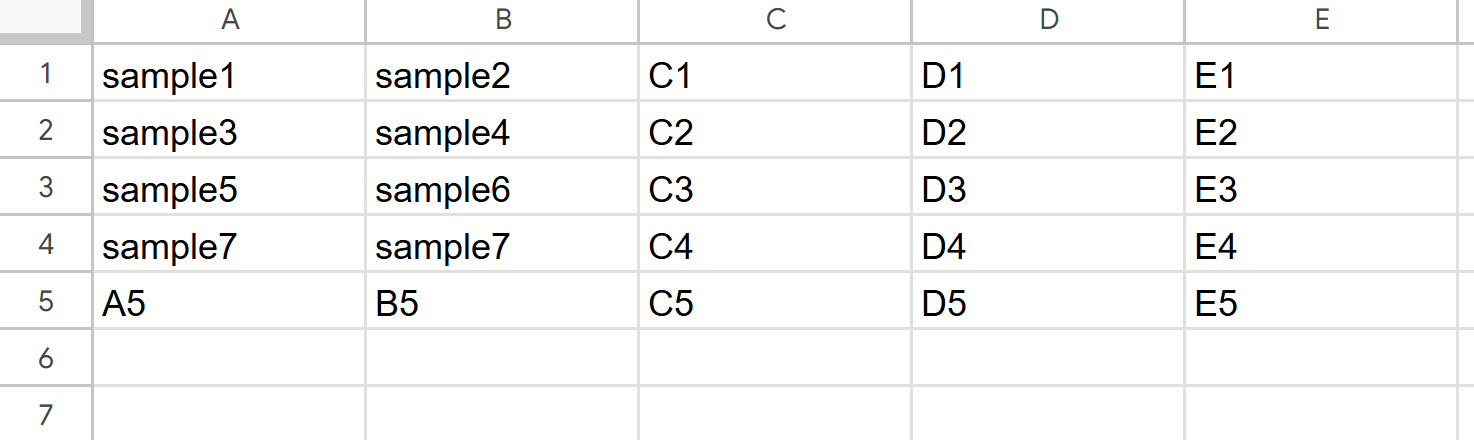
Preparation: Create a new Google Spreadsheet, copy its ID, and add sample values to the first sheet as shown:

Prompt:
Create two distinct **Google Apps Script functions** that serve as server-side tools for the **MCP system**, focused on reading and writing data in a Google Spreadsheet.

1.  **Read Function Specification:**
    * **Name:** `getSpreadsheetData` (or similar)
    * **Purpose:** To retrieve all values from a specified cell range.
    * **Parameters:**
        * `spreadsheetId` (String): The ID of the target Google Sheet.
        * `a1Notation` (String): The A1 cell range (e.g., "Sheet1!A1:B10").
    * **Return:** A two-dimensional **Array of Arrays** (`[[value1, value2], [value3, value4]]`) containing the cell data.

2.  **Write Function Specification:**
    * **Name:** `setSpreadsheetData` (or similar)
    * **Purpose:** To write a provided array of data into a specified cell range.
    * **Parameters:**
        * `spreadsheetId` (String): The ID of the target Google Sheet.
        * `a1Notation` (String): The A1 cell range of the upper left cell. Use the whole cell range calculated from the provided values and the A1Notation in the script.
        * `values` (Array of Arrays): The data to be written (must be in `[[value1, value2], ...]` format).
    * **Return:** A confirmation object or string indicating success.
Follow-up Prompt:
Update settings.json
Execution flow:
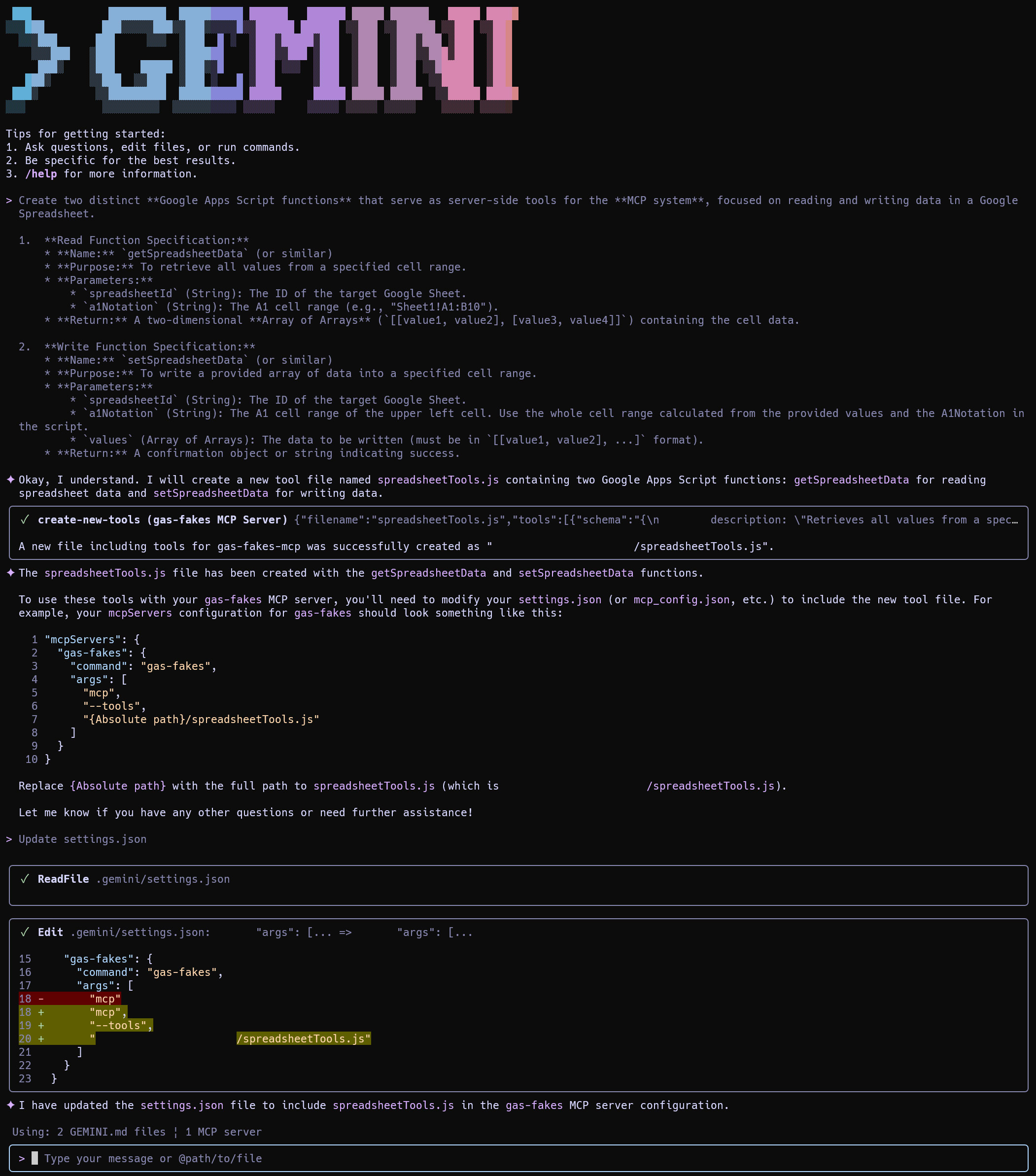
After restarting Gemini CLI, two new tools are visible:
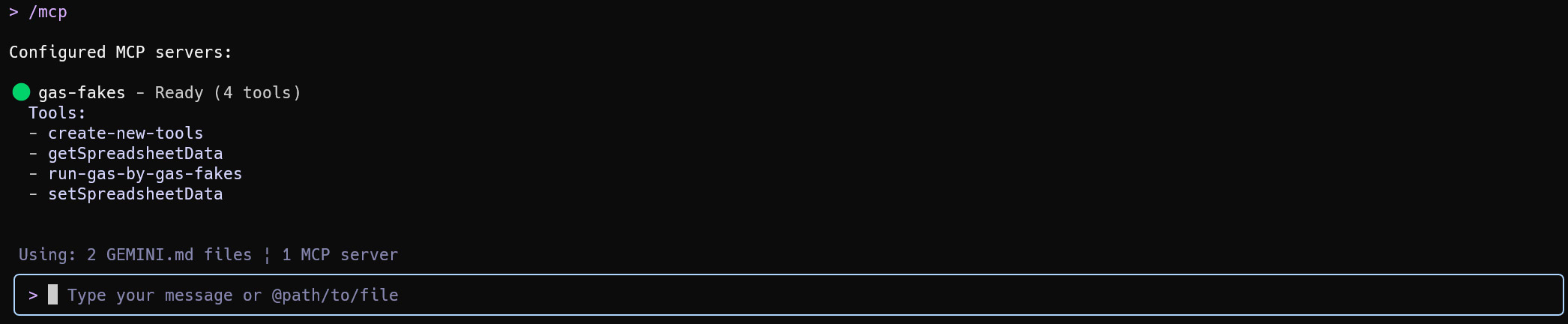
The generated file spreadsheetTools.js:
import { z } from "zod";

const tools = [
  {
    name: "getSpreadsheetData",
    schema: {
      description:
        "Retrieves all values from a specified cell range in a Google Spreadsheet.",
      inputSchema: {
        spreadsheetId: z
          .string()
          .describe("The ID of the target Google Sheet."),
        a1Notation: z
          .string()
          .describe("The A1 cell range (e.g., 'Sheet1!A1:B10')."),
      },
    },
    func: (object = {}) => {
      const { spreadsheetId, a1Notation } = object;
      const spreadsheet = SpreadsheetApp.openById(spreadsheetId);
      const range = spreadsheet.getRange(a1Notation);
      return range.getValues();
    },
  },
  {
    name: "setSpreadsheetData",
    schema: {
      description:
        "Writes a provided array of data into a specified cell range in a Google Spreadsheet.",
      inputSchema: {
        spreadsheetId: z
          .string()
          .describe("The ID of the target Google Sheet."),
        a1Notation: z
          .string()
          .describe(
            "The A1 cell range for the upper left cell where data writing should begin (e.g., 'Sheet1!A1')."
          ),
        values: z
          .array(z.array(z.any()))
          .describe(
            "The data to be written as a two-dimensional array (e.g., [[value1, value2], [value3, value4]])."
          ),
      },
    },
    func: (object = {}) => {
      const { spreadsheetId, a1Notation, values } = object;
      const spreadsheet = SpreadsheetApp.openById(spreadsheetId);
      const sheet = spreadsheet.getRange(a1Notation).getSheet();

      // Calculate the target range based on the top-left cell and the dimensions of the values array
      const startRow = spreadsheet.getRange(a1Notation).getRow();
      const startColumn = spreadsheet.getRange(a1Notation).getColumn();
      const numRows = values.length;
      const numColumns = values.length > 0 ? values[0].length : 0;

      if (numRows === 0 || numColumns === 0) {
        return { status: "error", message: "No values provided to write." };
      }

      const targetRange = sheet.getRange(
        startRow,
        startColumn,
        numRows,
        numColumns
      );
      targetRange.setValues(values);

      return {
        status: "success",
        message: "Data successfully written to spreadsheet.",
      };
    },
  },
];
Testing:
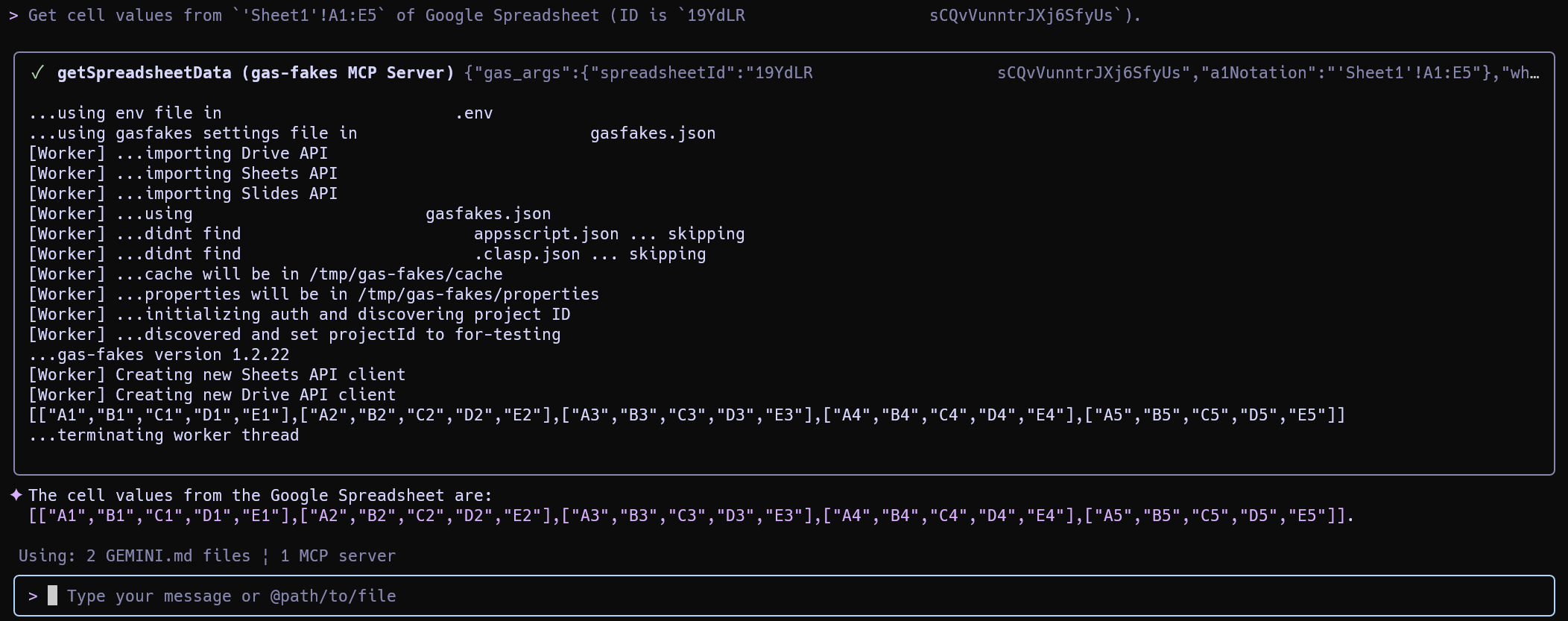
- Reading Data:
Get cell values from `'Sheet1'!A1:E5` of Google Spreadsheet (ID is `###`).
Result:
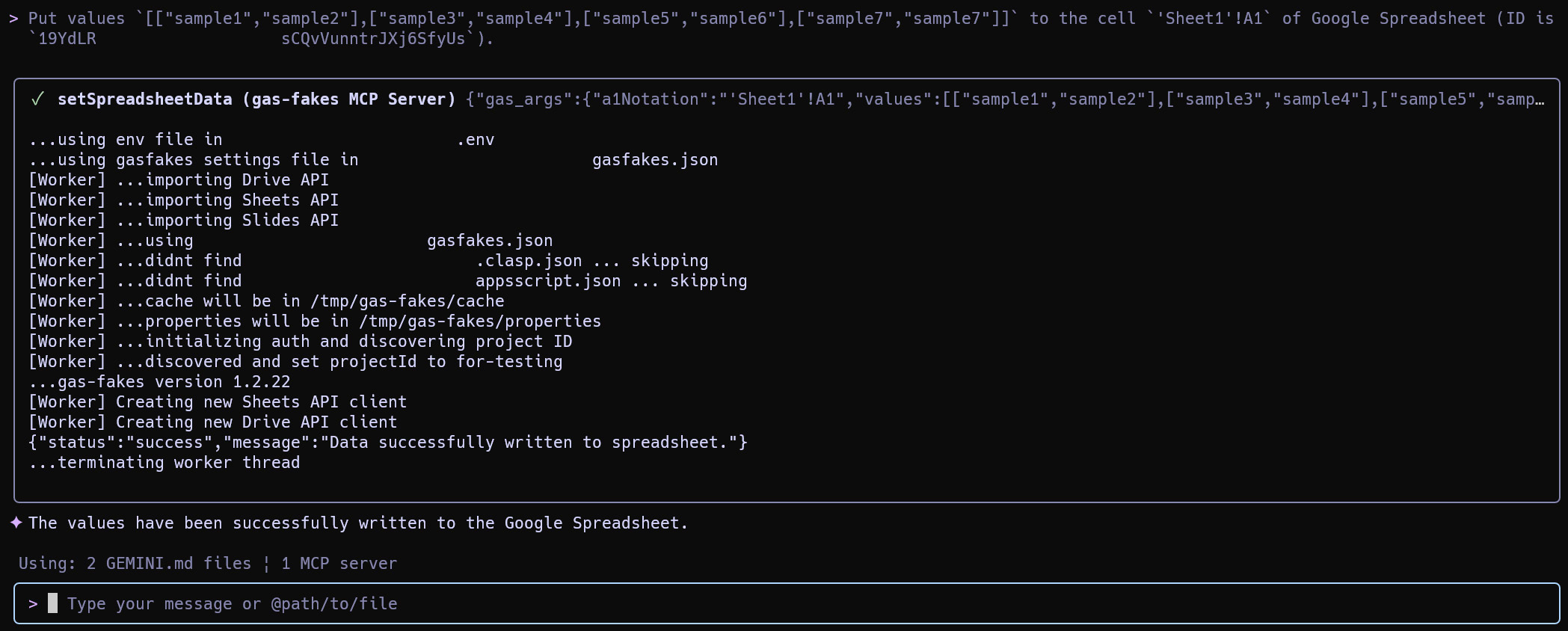
- Writing Data:
Put values `[["sample1","sample2"],["sample3","sample4"],["sample5","sample6"],["sample7","sample7"]]` to the cell `'Sheet1'!A1` of Google Spreadsheet (ID is `###`).
Result:
The spreadsheet is updated successfully:
Part 2: Integration with Google Antigravity
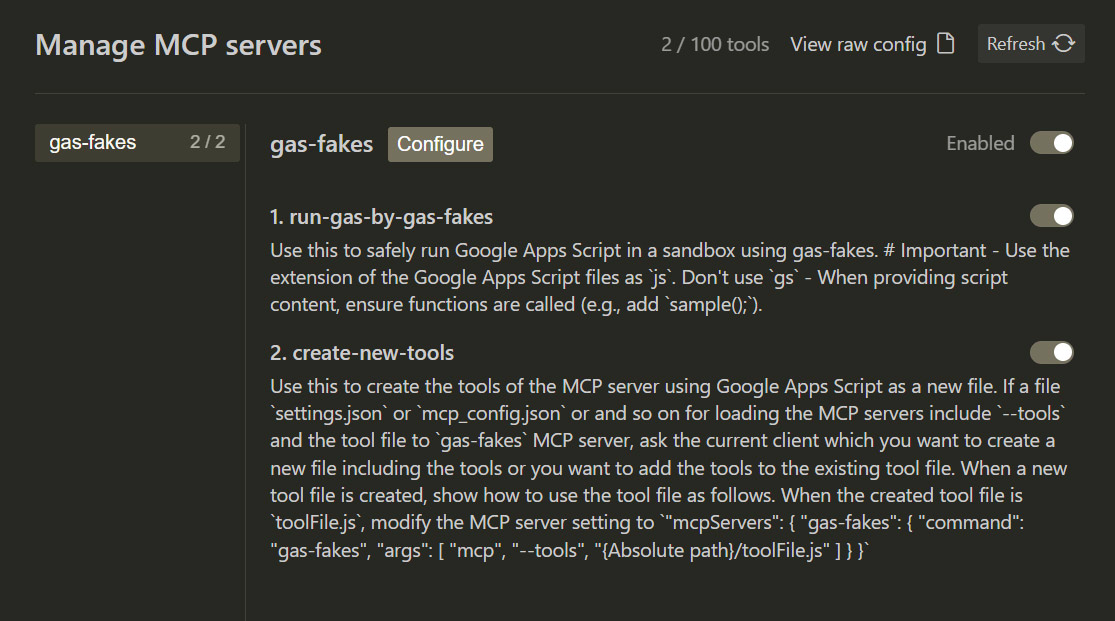
Add mcpServers to the configuration file located at /home/{user_name}/.gemini/antigravity/mcp_config.json. This can also be accessed via “Manage MCPs” in Antigravity.
{
  "mcpServers": {
    "gas-fakes": {
      "command": "gas-fakes",
      "args": ["mcp"]
    }
  }
}
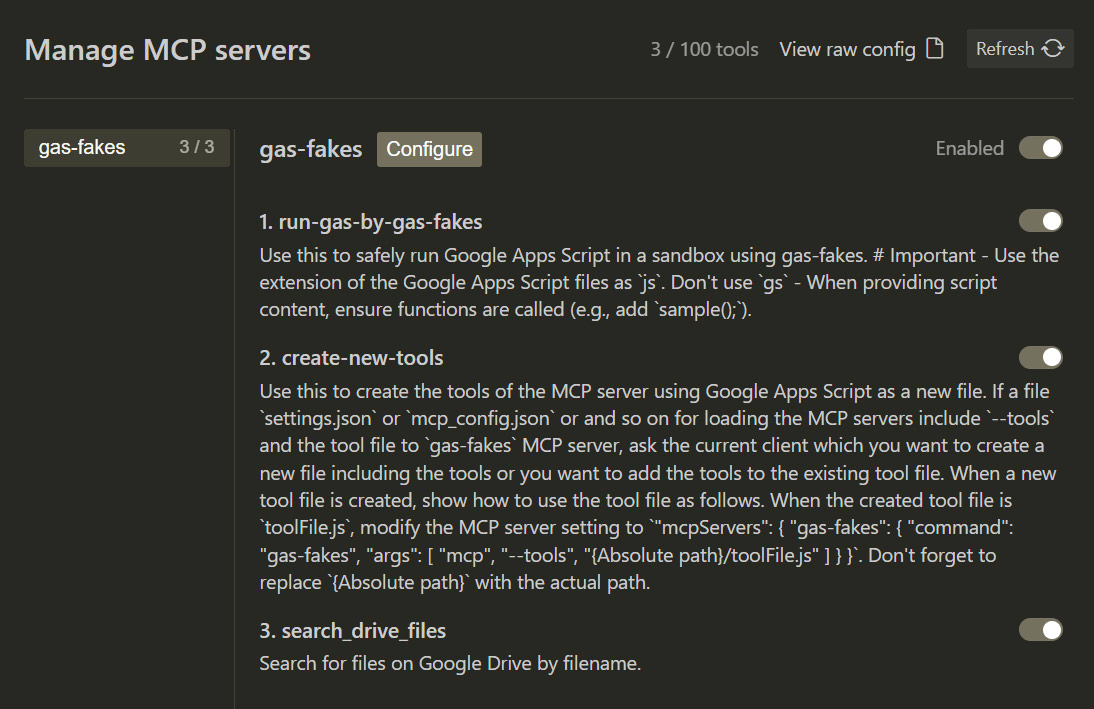
Once configured, the tools appear in the interface:
Sample 1: Drive Search Tool
Prompt:
Create a tool of the MCP server for searching files on Google Drive using a filename with Google Apps Script. Create the script of the tool in the current working directory.
Follow-up Prompt:
Install the created tool to the MCP server.
The tool creation process:
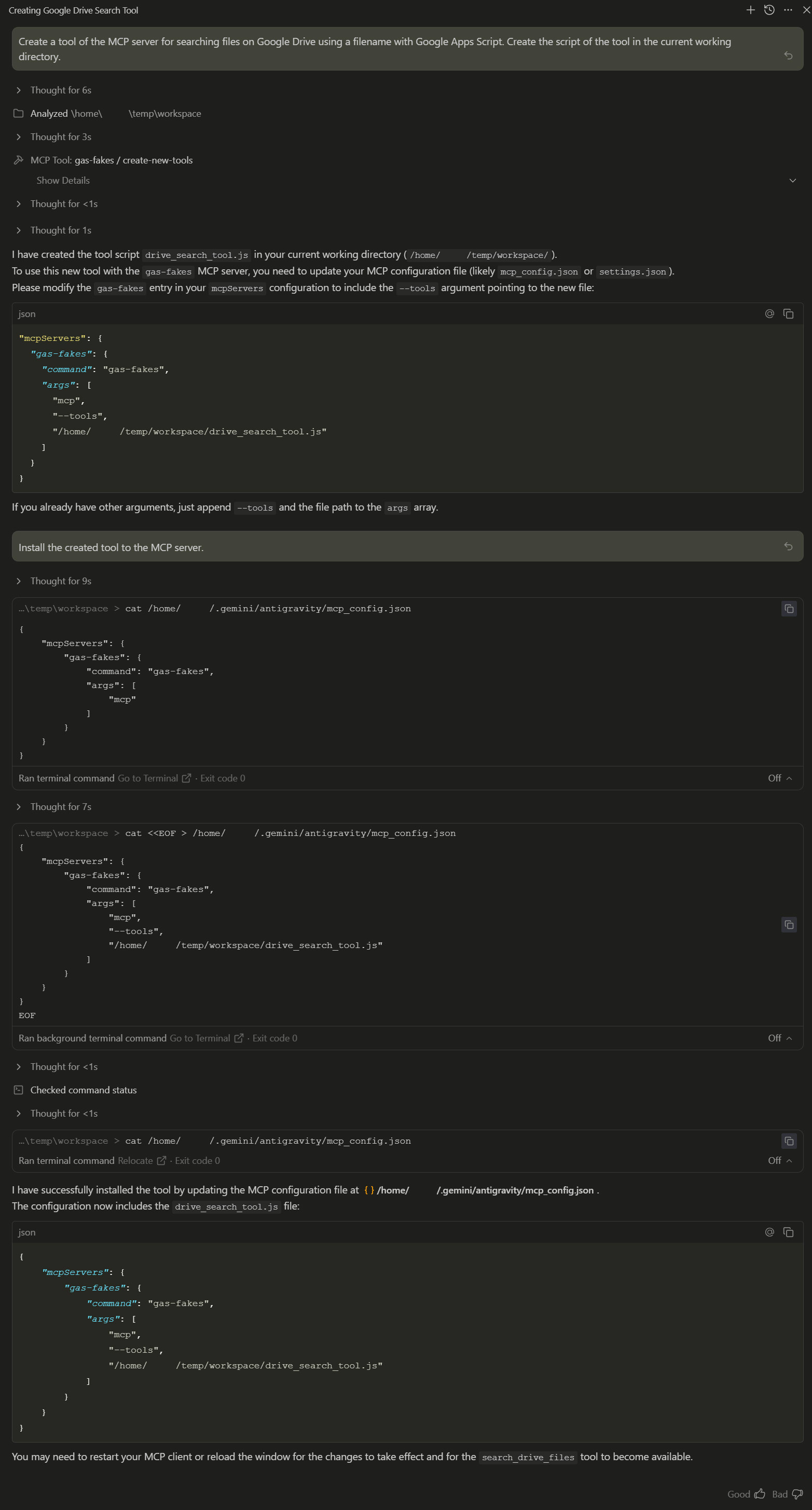
Update /home/{user_name}/.gemini/antigravity/mcp_config.json to include the new tool file. After refreshing the MCP servers, the new tool is added:
Generated script drive_search_tool.js:
import { z } from "zod";

const tools = [
  {
    name: "search_drive_files",
    schema: {
      description: "Search for files on Google Drive by filename.",
      inputSchema: {
        filename: z.string().describe("The name of the file to search for."),
      },
    },
    func: (object = {}) => {
      const { filename } = object;
      const files = DriveApp.getFilesByName(filename);
      const result = [];
      while (files.hasNext()) {
        const file = files.next();
        result.push({
          name: file.getName(),
          id: file.getId(),
          url: file.getUrl(),
          mimeType: file.getMimeType(),
        });
      }
      return result;
    },
  },
];
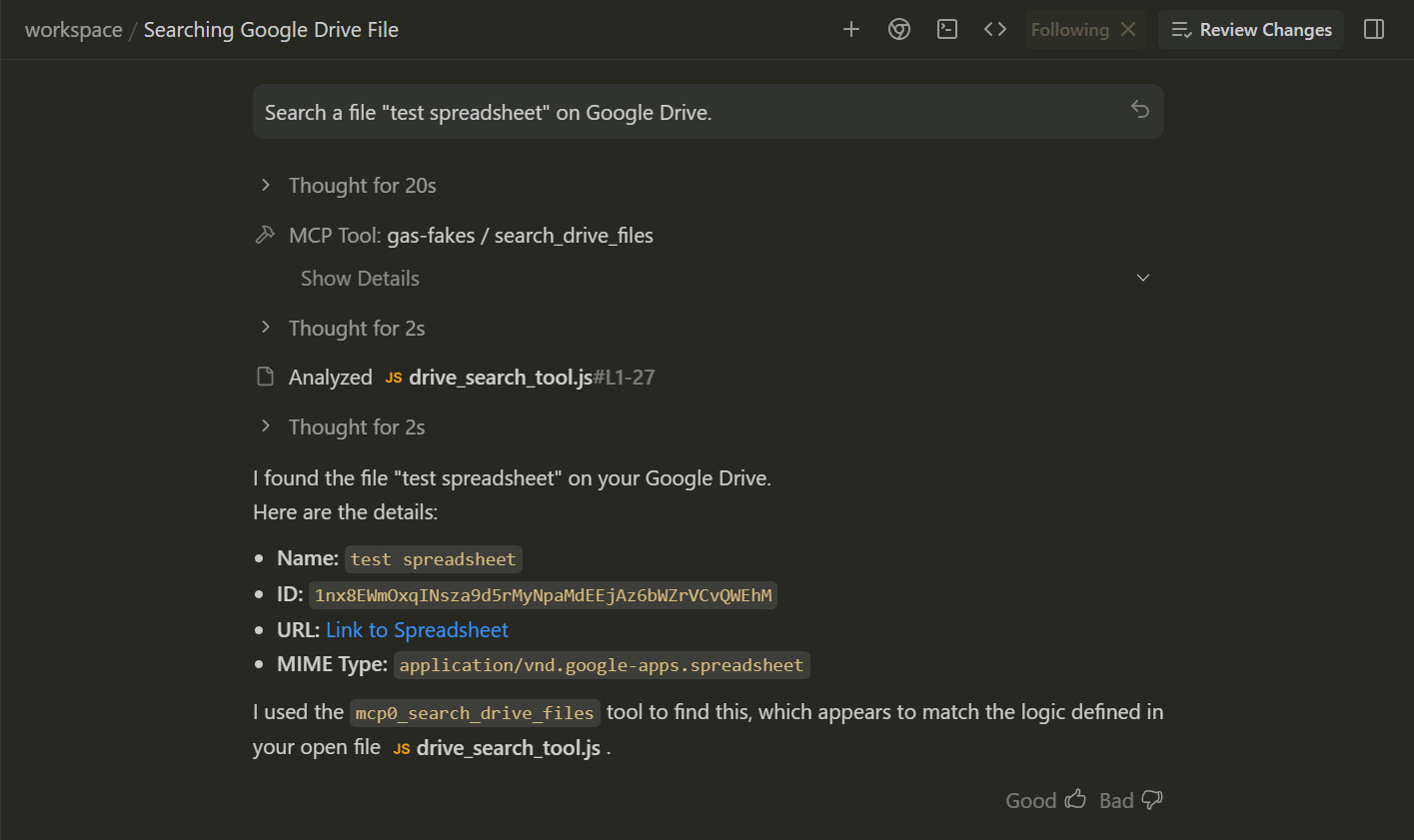
Testing:
Search a file "test spreadsheet" on Google Drive.
Result:
Sample 2: Adding Spreadsheet Capability
We will add the read/write logic to the existing drive_search_tool.js.
Prompt:
Add the following 2 tools to the existing tool file `drive_search_tool.js` for the MCP server, focused on reading and writing data in a Google Spreadsheet.

... (Same specifications as Sample 2 in Gemini CLI section) ...
Antigravity execution:
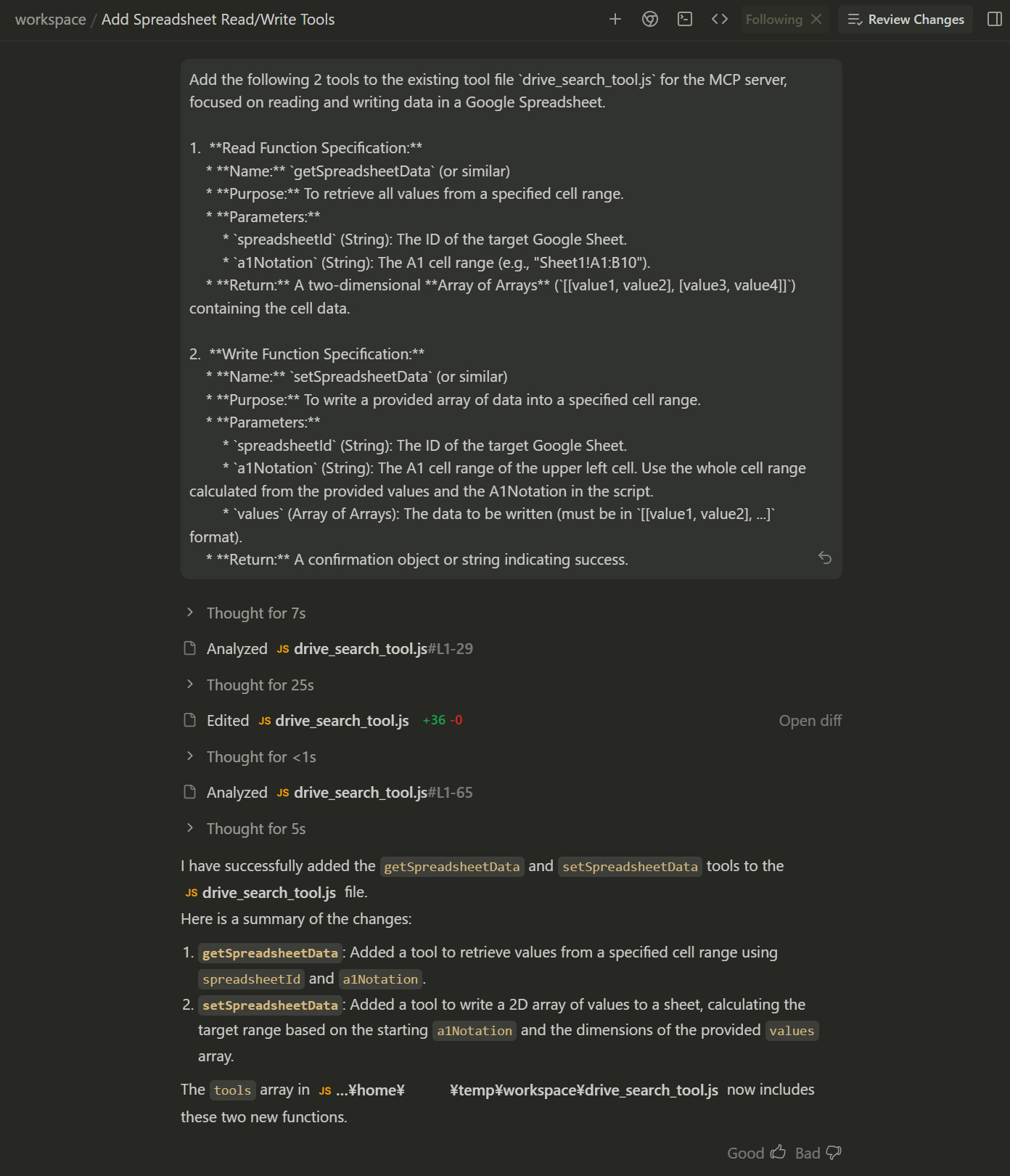
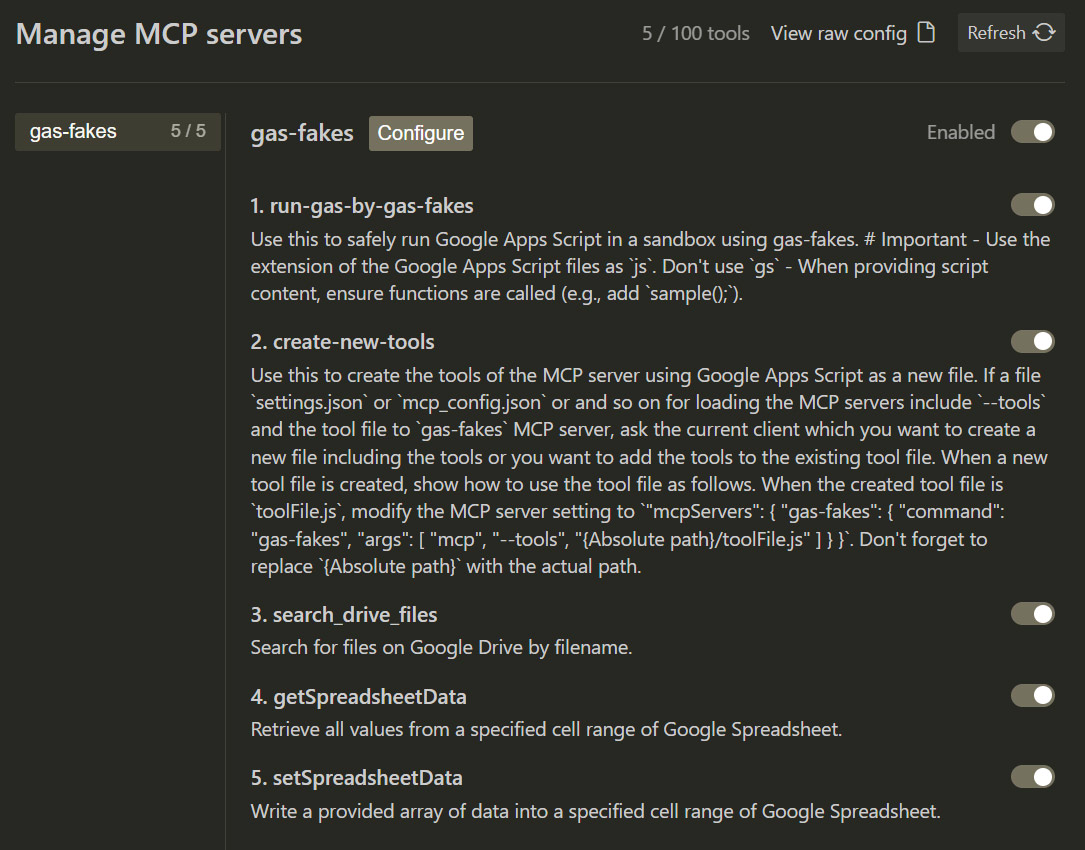
The updated drive_search_tool.js now contains three tools (Search, Get, Set). After refreshing, they are available:
Testing:
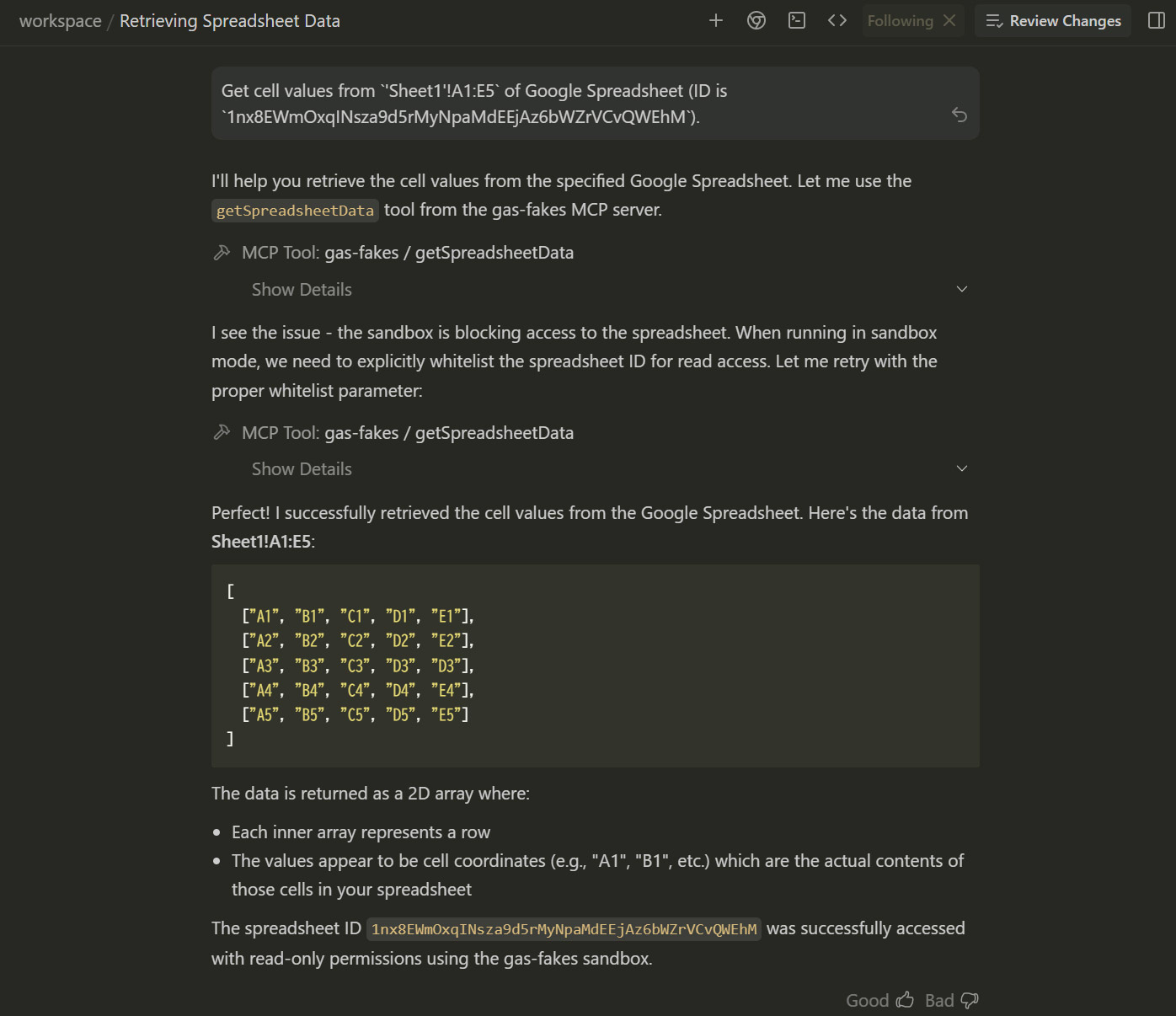
- Get Values:
Get cell values from `'Sheet1'!A1:E5` of Google Spreadsheet (ID is `###`).
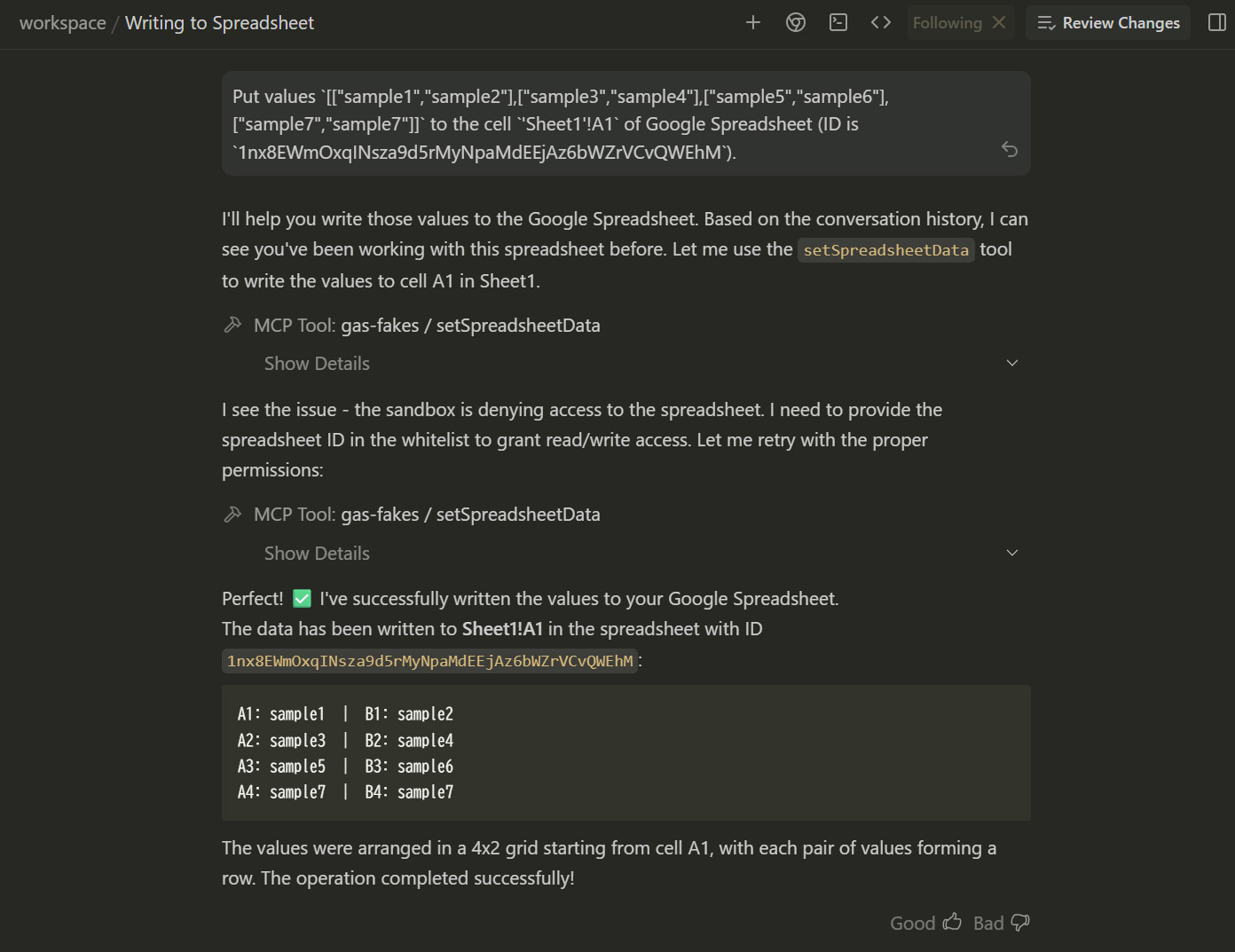
- Put Values:
Put values `[["sample1","sample2"],["sample3","sample4"],["sample5","sample6"],["sample7","sample7"]]` to the cell `'Sheet1'!A1` of Google Spreadsheet (ID is `###`).
Sample 3: Advanced Usage with Libraries
We can also incorporate complex logic, such as the TableApp library (a GAS library for managing tables). The script logic is embedded directly into the MCP tool. See my Gist for full code.
Prompt:
Create a new table in a Google Spreadsheet. Spreadsheet ID, sheet name, range, and table name are `###`, `Sheet1`, `A1:E5`, and `sampleTable`, respectively.
Result:
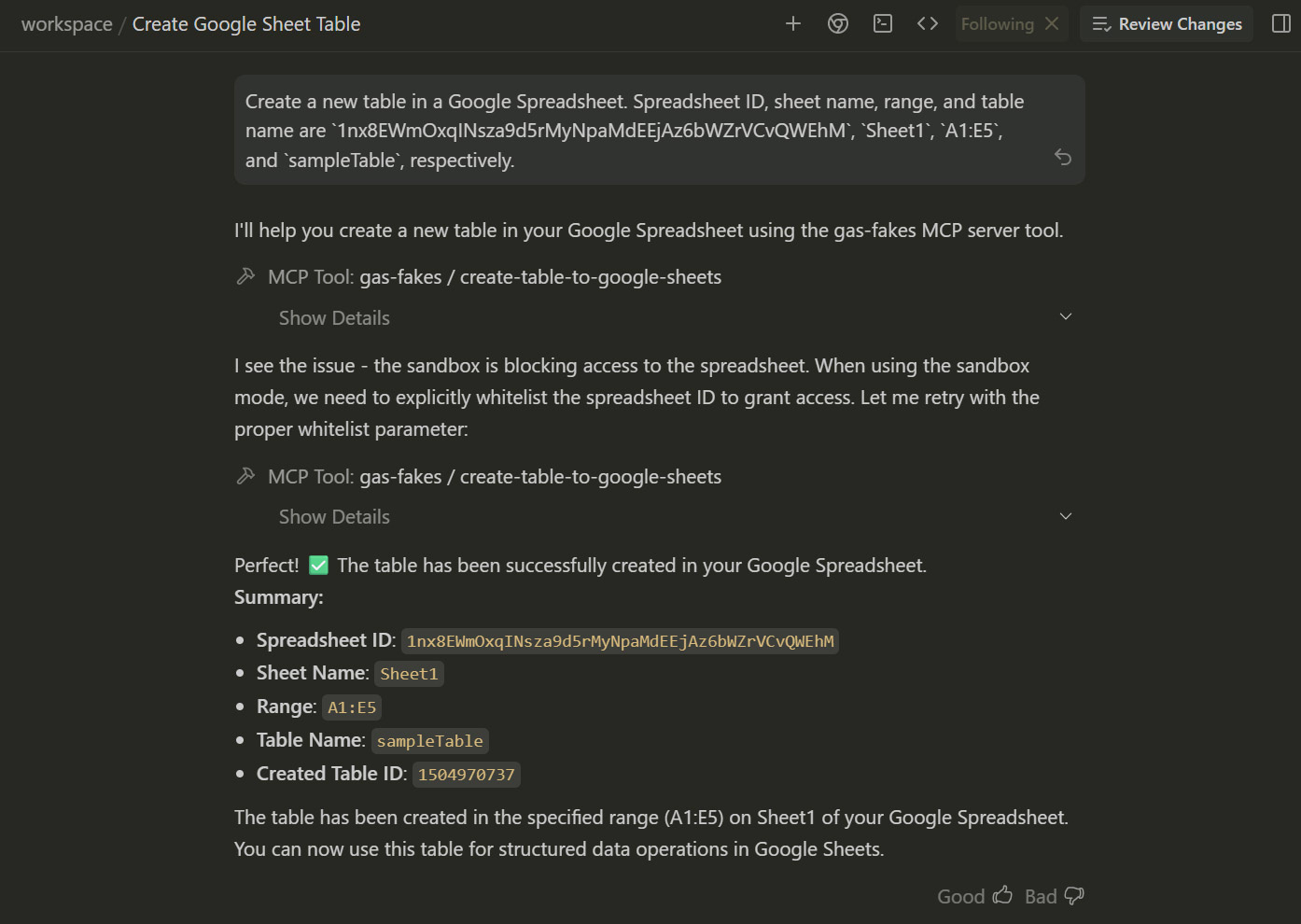
A new table is successfully created on the sheet:
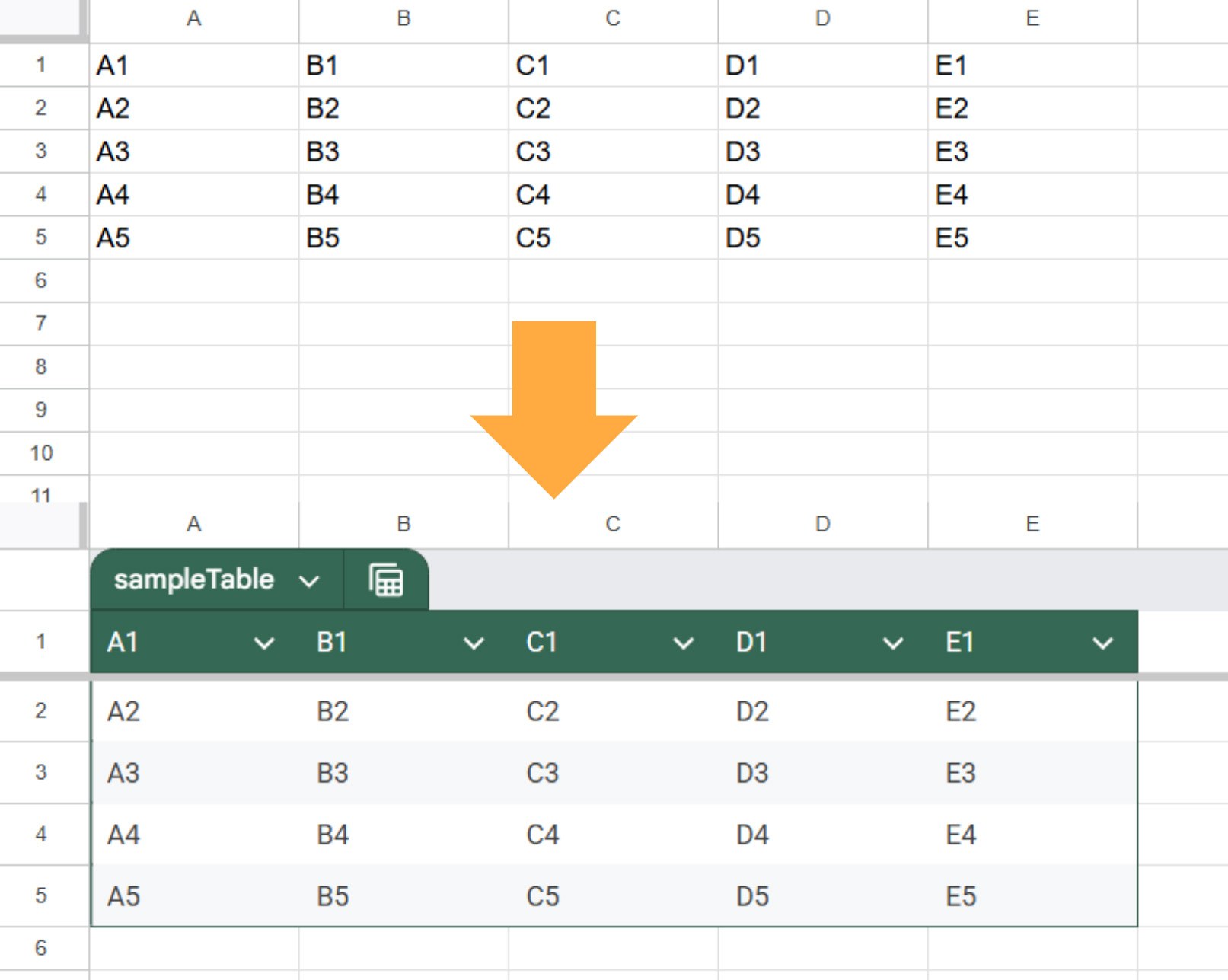
This demonstrates that even complex Google Apps Script logic can be effectively utilized within this local MCP architecture.
Summary
The integration of gas-fakes CLI with MCP servers represents a significant leap forward in Google Workspace automation. By enabling the direct execution of Google Apps Script locally, we bridge the gap between AI agents and cloud data.
- Direct Execution Power: Developers can write and execute Google Apps Script directly on their local machine to serve as MCP tools, eliminating the need for cloud-based deployment or dynamic wrapper overhead.
- Enhanced Portability: The
gas-fakesCLI removes directory dependencies, allowing tools to be created and managed in any workspace location. - Seamless Gemini CLI Integration: Users can dynamically generate, configure, and execute GAS-based MCP tools entirely within the Gemini CLI environment.
- Antigravity Compatibility: The same tools work natively within Google Antigravity, expanding the ecosystem for local AI agents.
- Scalability for Complexity: As demonstrated with the TableApp library, this architecture supports not just simple API calls but complex, logic-heavy scripts for sophisticated automation tasks.