tanaike - Google Apps Script, Gemini API, and Developer Tips

The Thinker

User Runs Script for Range Protected by Owner using Google Apps Script

Gists

There is a situation that it wants to make users run a script for the range protected by the owner using Google Apps Script. This is a sample script that an user runs a script for the range protected by the owner using Google Apps Script.

Demo
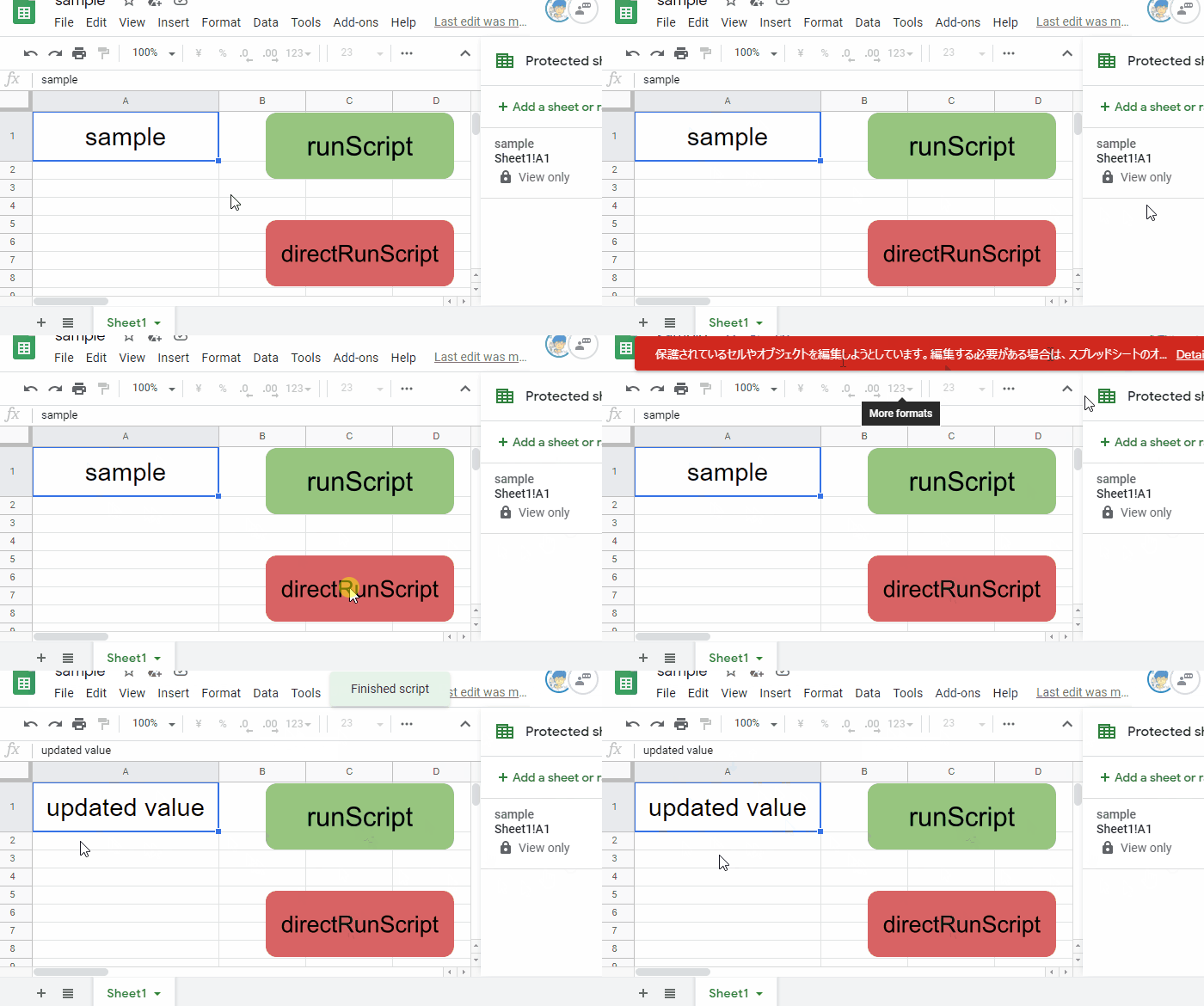
This demonstration shows the following situations.

  • Spreadsheet is shared with an user.

  • The cell “A1” is protected by the owner. Other users cannot be edited.

Benchmark: Process Costs for Retrieving Values from Arrays for Spreadsheet using Google Apps Script

Gists

Introduction

Here, I would like to report the process costs for retrieving the values from the arrays for Spreadsheet using Google Apps Script (GAS). When Spreadsheet is used with Google Apps Script, we have the following situations.

  1. Retrieve values from the multiple rows in a column.

  2. Retrieve values from the multiple columns in a row.

When the values are retrieved from above situations, it is required to retrieve the values from 1 dimensional array in the 2 dimensional array. In this report, the process costs for retrieving the values from the 2 dimensional array of above situations have been measured.

Creating Multiple Buttons on Google Spreadsheet using Google Apps Script

Gists

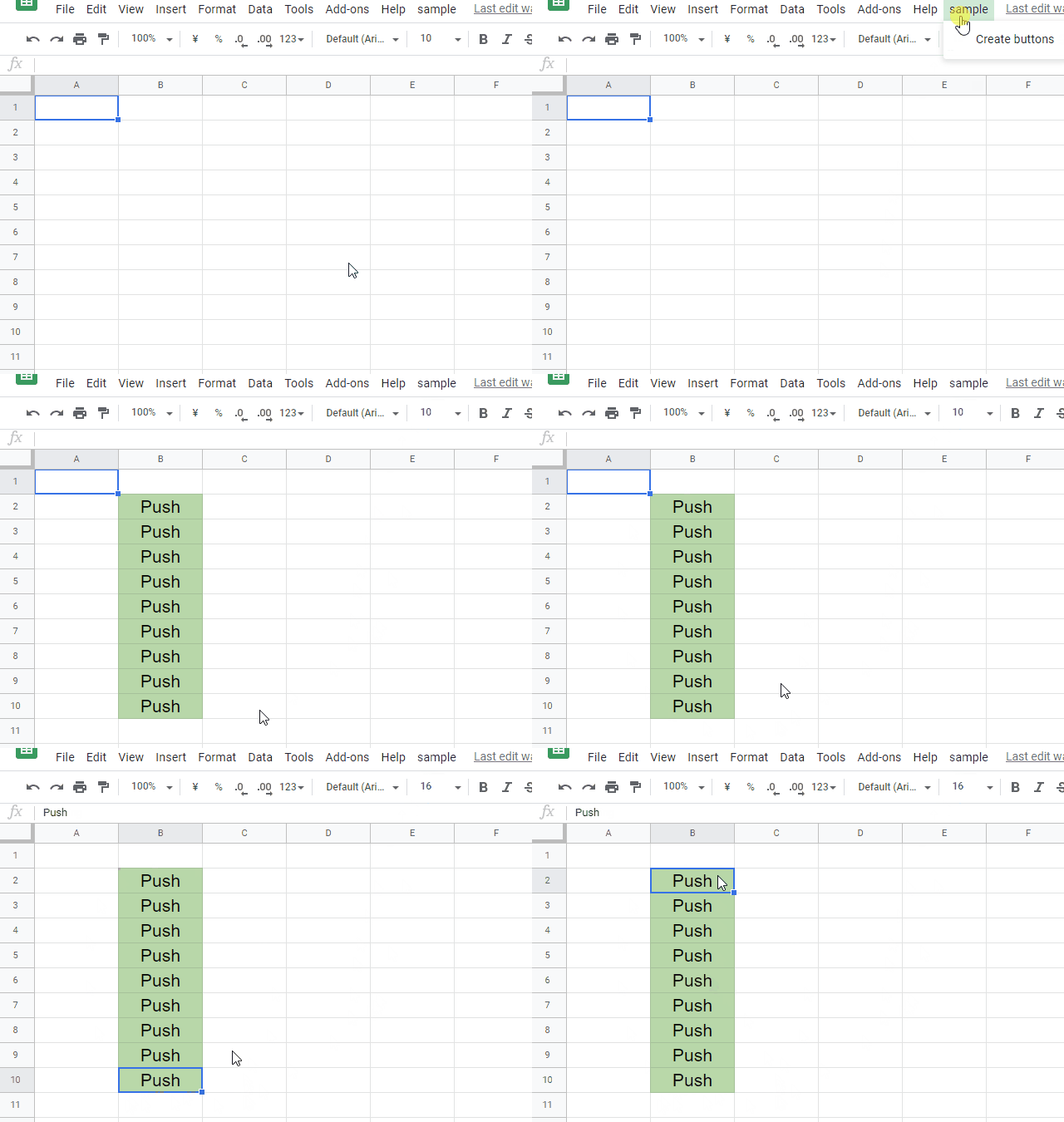
This is a sample script for creating the multiple buttons on Google Spreadsheet using Google Apps Script.

Recently, I have got several contacts about this. I thought that when this is published, it might be useful for other users. So I published this sample script.

Sample script

Please copy and paste the following script to the script editor of the container-bound script of Google Spreadsheet. And, please set the variables and run the function createButtons. By this, the buttons are created to the cells.

Request of multipart/form-data with Simple Request Body using Google Apps Script

Gists

This is a sample script of the request of multipart/form-data with a simple request body using Google Apps Script. I hope that the users will easy to use Class UrlFetchApp by this report.

This report is the updated post of “Multipart-POST Request Using Google Apps Script”.

Description

I had already reported about this at this report. In that case, it was required to create a bit complicated request body to request multipart/form-data. Today, by a comment, I could notice the sample script of Class UrlFetchApp in the official document had been updated. By this, I thought that multipart/form-data will be requested with a simple request body. In this report, I would like to introduce a sample script for requesting multipart/form-data with a simple request body. But I’m not sure whether this request got to be able to be done by the internal update of Class UrlFetchApp.

Retrieving All Values from All Sheets from URL of 2PACX- of Web Published Google Spreadsheet using Python

Gists

This is a sample script for retrieving all values from all sheets from URL of 2PACX- of Web Published Google Spreadsheet using Python.

In this post, it supposes that the Google Spreadsheet has already been published for Web. Ref

Flow

The flow of this method is as follows.

  1. Retrieve XLSX data from the URL of web published Google Spreadsheet as BytesIO data.
    • The URL is like https://docs.google.com/spreadsheets/d/e/2PACX-###/pubhtml.
  2. XLSX data is parsed with openpyxl.
  3. Retrieve all values from all sheets.

Sample script

Please set spreadsheetUrl.

Inserting Text on Image using Google Apps Script

Gists

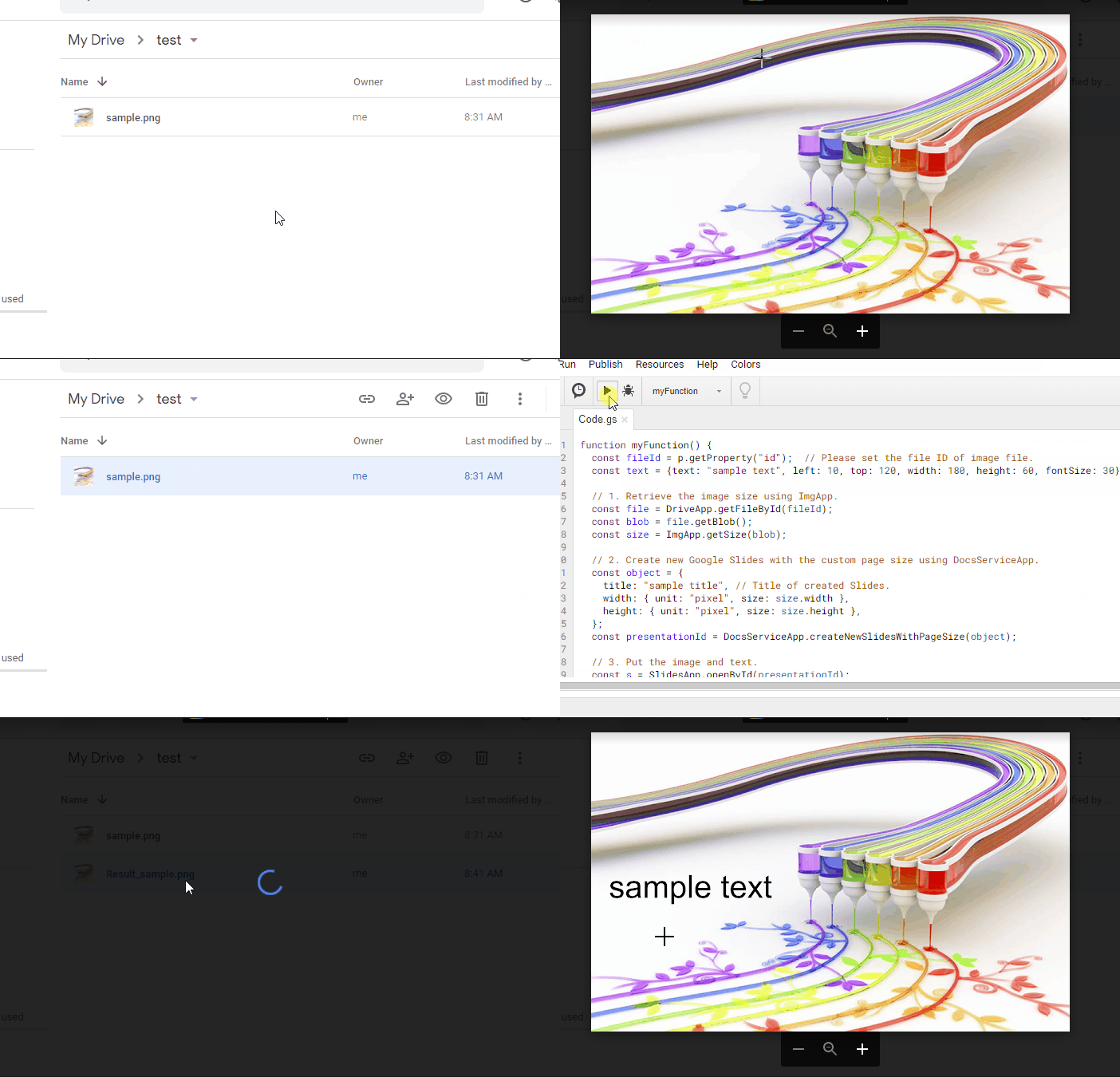
This is a sample script for inserting a text on an image using Google Apps Script.

Demo

In this demonstration, “sample text” is inserted to the image. The image is from https://www.deviantart.com/k3-studio/art/Rainbow-painting-281090729.

Preparation

When you use this script, please install the following 2 Google Apps Script libraries.

  1. DocsServiceApp
  2. ImgApp

And, please enable Slides API at Advanced Google services.

Flow

The flow of this sample script is as follows.

  1. Retrieve the image size using ImgApp.
  2. Create new Google Slides with the custom page size using DocsServiceApp.
  3. Put the image and text.
  4. Export the result image.

Sample script

function myFunction() {
  const fileId = "###"; // Please set the file ID of image file.

  // Please set the text.
  const text = {
    text: "sample text",
    left: 10,
    top: 120,
    width: 180,
    height: 60,
    fontSize: 30,
  };

  // 1. Retrieve the image size using ImgApp.
  const file = DriveApp.getFileById(fileId);
  const blob = file.getBlob();
  const size = ImgApp.getSize(blob);

  // 2. Create new Google Slides with the custom page size using DocsServiceApp.
  const object = {
    title: "sample title", // Title of created Slides.
    width: { unit: "pixel", size: size.width },
    height: { unit: "pixel", size: size.height },
  };
  const presentationId = DocsServiceApp.createNewSlidesWithPageSize(object);

  // 3. Put the image and text.
  const s = SlidesApp.openById(presentationId);
  const slide = s.getSlides()[0];
  slide.insertImage(blob);
  slide
    .insertTextBox(text.text, text.left, text.top, text.width, text.height)
    .getText()
    .getTextStyle()
    .setFontSize(text.fontSize);
  s.saveAndClose();

  // 4. Export the result image.
  const obj = Slides.Presentations.Pages.getThumbnail(
    presentationId,
    slide.getObjectId(),
    {
      "thumbnailProperties.thumbnailSize": "LARGE",
      "thumbnailProperties.mimeType": "PNG",
    }
  );
  const url = obj.contentUrl.replace(/=s\d+/, "=s" + size.width);
  const resultBlob = UrlFetchApp.fetch(url)
    .getBlob()
    .setName("Result_" + file.getName());
  DriveApp.createFile(resultBlob);
  DriveApp.getFileById(presentationId).setTrashed(true);
}

Note

  • This is a simple sample script. When you want to add more texts and change the text style, please modify the section 3 of above script.
  • In this sample, the maximum size of image is 25,000,000 pixels^2. Ref Please be careful this.

Testing

  • February 6, 2021: When I tested above sample script, I could confirm that the script worked.
  • January 3, 2023: When I tested above sample script, I could confirm that the script worked.

Retrieving All Values from All Sheets from URL of 2PACX- of Web Published Google Spreadsheet using Node.js

Gists

This is a sample script for retrieving all values from all sheets from URL of 2PACX- of Web Published Google Spreadsheet using Node.js.

In this post, it supposes that the Google Spreadsheet has already been published for Web. Ref

Before you use this sample script, please install SheetJS js-xlsx.

Flow

The flow of this method is as follows.

  1. Retrieve XLSX data from the URL of web published Google Spreadsheet as the buffer data.
    • The URL is like https://docs.google.com/spreadsheets/d/e/2PACX-###/pubhtml.
  2. XLSX data is parsed with SheetJS js-xlsx.
  3. Retrieve all values from all sheets.

Sample script

Please set spreadsheetUrl.

Retrieving All Values from All Sheets from URL of 2PACX- of Web Published Google Spreadsheet using Google Apps Script and Javascript

Gists

This is a sample script for retrieving all values from all sheets from URL of 2PACX- of Web Published Google Spreadsheet using Google Apps Script and Javascript.

In this post, it supposes that the Google Spreadsheet has already been published for Web. Ref

Flow

The flow of this method is as follows.

  1. From the client side, send the URL of web published Google Spreadsheet to the Web Apps created by Google Apps Script.
    • The URL is like https://docs.google.com/spreadsheets/d/e/2PACX-###/pubhtml.
  2. Return the byte array of XLSX data from the Web Apps to the client side.
  3. At the client side, the XLSX data is parsed with SheetJS js-xlsx.
  4. Retrieve all values from all sheets.

Usage

1. Prepare script.

Please copy and paste the following script to the script editor and save it.

Sorting Cells on Google Spreadsheet with Background colors using Google Apps Script

Gists

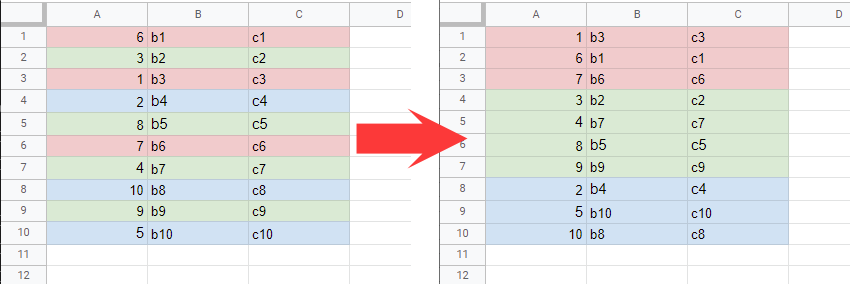
This is a sample script for sorting the cells on Google Spreadsheet with the background colors using Google Apps Script.

Unfortunately, in the current stage, it seems that sort(sortSpecObj) of Class Range cannot directly sort by the background colors of cells. But when Sheets API is used, this goal can be achieved. Here, “SortRangeRequest” of the method of “spreadsheets.batchUpdate” in Sheets API is used.

Flow

The flow of this sample script is as follows.

Statistical Analysis of Duplicated Questions for google-apps-script tag in Stackoverflow

Gists

Introduction

At Stackoverflow, a lot of people post the questions and answer to the questions every day. By this, there are a lot of important information in Stackoverflow. I have already reported “Trend of google-apps-script Tag on Stackoverflow” using the data retrieved from Stackoverflow. Ref. 1 It is found that the important statistical result can be obtained by analyzing the data on Stackoverflow. In this report, I would like to introduce the statistical analysis of duplicated questions for the google-apps-script tag in Stackoverflow. When the duplicated question is analyzed, it is considered that the important issues for users can be known. As the result, it was found that there are the trend that the duplicated questions related to Javascript, Google Spreadsheet , the process cost and the cooperation with HTML and Javascript are posted.