My report has been published at Champion Innovators Content Library
My report has been published at Champion Innovators Content Library.
If these reports will be useful, I’m glad.
My report has been published at Champion Innovators Content Library.
If these reports will be useful, I’m glad.
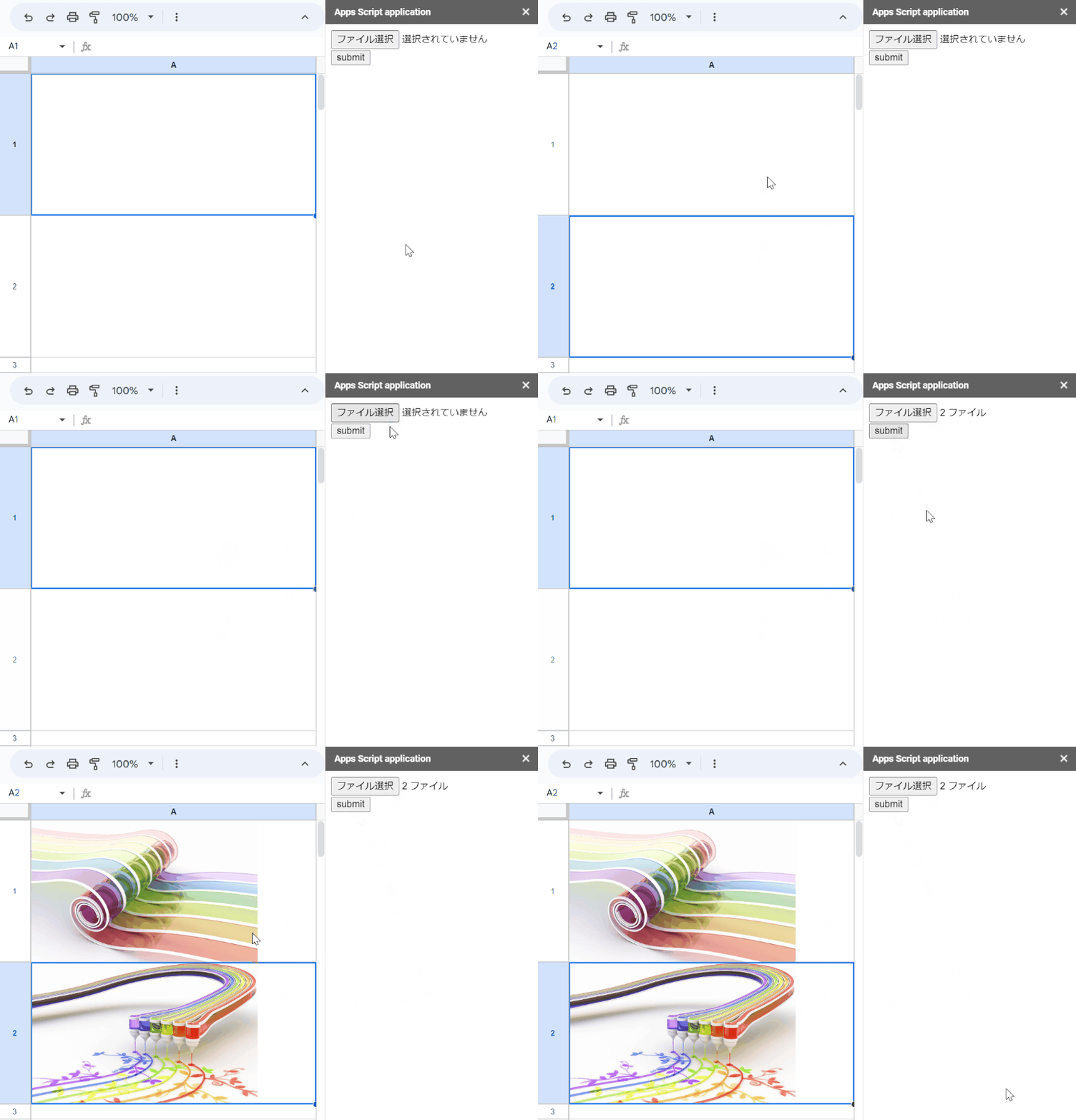
These are sample scripts for putting an image into a cell of a Spreadsheet using Google Apps Script.
In this sample, the image is put into a cell using thumbnailLink retrieved by Drive API. So, when you test this, please enable Drive API at Advanced Google services. The image is put into cell “A1”.
function sample1() {
  const fileId = "###"; // Please set the file ID of the PNG image file on Google Drive.

  const url = Drive.Files.get(fileId).thumbnailLink.replace("=s220", "=s1000");
  const image = SpreadsheetApp.newCellImage().setSourceUrl(url).build();
  const range = SpreadsheetApp.getActiveSheet().getRange("A1");
  range.setValue(image);

  const value = range.getValue();
  console.log(value.getUrl()); // ---> null
  console.log(value.getContentUrl()); // --> Exception: Unexpected error while getting the method or property getContentUrl on object SpreadsheetApp.CellImage.
}
In this sample, the image is put into a cell using the data URL. The image is put into cell “A1”. In this case, I believe that when the data URL is used, this method will be able to be used for various situations.
This is a workaround for automatically installing the OnEdit trigger to the copied Google Spreadsheet using Google Apps Script.
The sample situation for this workaround is as follows.
installedOnEdit for executing by the installable OnEdit trigger.installedOnEdit for the copied Spreadsheet, simultaneously.This method is from “Using OnEdit Trigger to Google Spreadsheet by Hiding Google Apps Script from Other Users (Author: me)” and “Using OnEdit trigger on Google Spreadsheet Created by Service Account (Author: me)”.
v2.0.3 (April 5, 2023)
The detail information and how to get this are https://github.com/tanaikech/goodls.
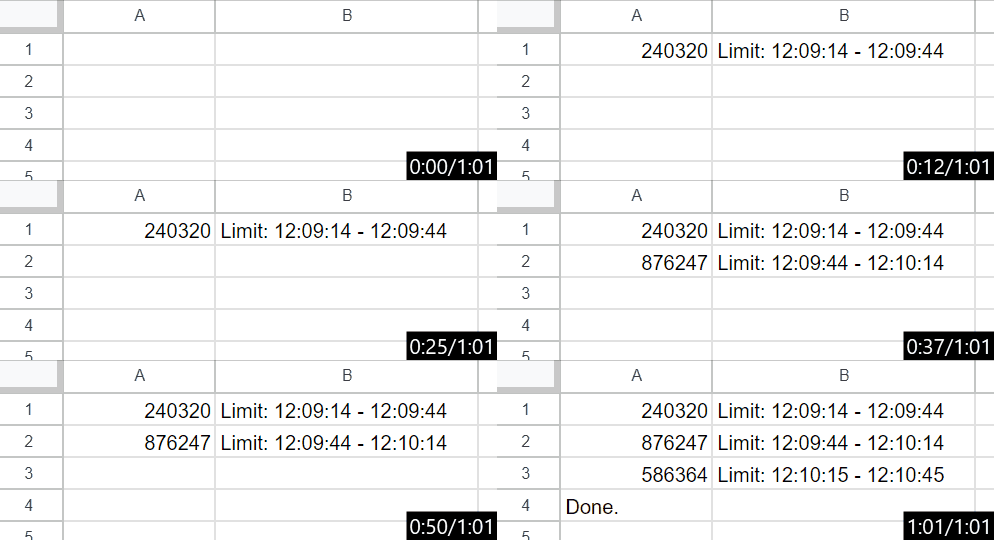
In this post, I would like to introduce a sample script for putting Time-based One-time Password (TOTP) value into Google Spreadsheet using Google Apps Script.
In this sample script, I used a Javascript library of https://github.com/hectorm/otpauth . In the current stage, Google Apps Script can run with V8 runtime. By this, it seems that this library can be used with Google Apps Script.

In the current stage, Google Spreadsheet can use rich texts in cells. The rich texts can be also managed by Google Apps Script. But, I thought that creating a script for editing the existing rich text in the cell might be a bit complicated. Because, for example, in the current stage, when the text of the rich text of a cell is changed using a script, all text styles are cleared. In order to add and delete a text for the rich text in a cell, it is required to create a script while the current text style is kept. This is actually complicated. In this post, I would like to introduce the enriched management of rich text on Google Spreadsheet using Google Apps Script. In order to enrich the management of Rich Text using Google Apps Script, I created a library RichTextAssistant.
This is a GAS library for supporting editing RichText in Google Spreadsheet using Google Apps Script.
There is RichTextApp in my published libraries. RichTextApp can be used mainly for converting RichText to Google Documents and vice versa. This library RichTextAssistant will support editing the rich text in Google Spreadsheets using Google Apps Script. Google Spreadsheet can use rich text as the cell value using Google Apps Script. But, I thought that when I created a script for editing the existing rich text in the cell, it might be a bit complicated. Because, for example, in the current stage, when the text of rich text of a cell is changed using a script, all text styles are cleared. In order to add and delete a text for the rich text in a cell, it is required to create a script while the current text style is kept. This is actually complicated. From this situation, when a script for supporting editing the rich text in a cell is published, it will be useful for a lot of users. So, I created it and published it as “RichTextAssistant” of a Google Apps Script library.
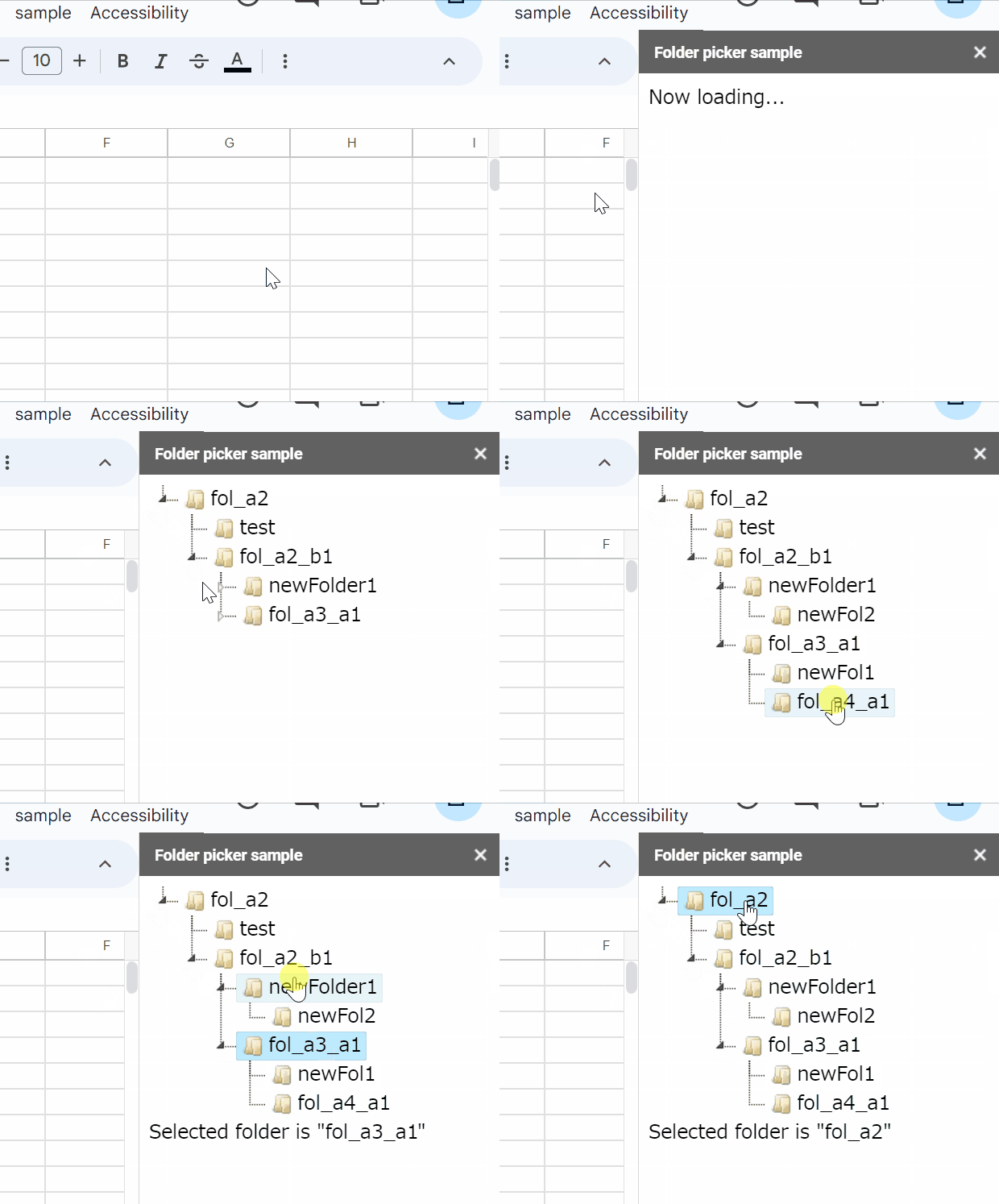
This is a sample script for the folder picker using jsTree with Google Apps Script and Javascript.
I have already published “File Picker using Google Apps Script and Javascript without 3rd party”. In this post, jsTree is used.
In this script, “FilesApp” of my Google Apps Script library is used. So, please install it. You can see how to install it at here.
When a value is searched from the 1-dimensional array and a 2-dimensional array, after V8 runtime could be used, I use JSON object, Set object, and Map Object. But, I had never measured the process cost of this situation. In this post, I would like to introduce the process cost for searching a value using a JSON object, Set object, and Map object converted from the 1-dimensional array and 2-dimensional array.
This is a sample script for importing Microsoft Excel (XLSX) data to Google Spreadsheet using a custom function with Google Apps Script.
Please copy the script of the SheetJS library from https://cdn.sheetjs.com/xlsx-latest/package/dist/xlsx.full.min.js, and paste the script to the script editor of Google Spreadsheet, and save the script.
In this case, I would like to recommend the following flow.