
Abstract
This article demonstrates how to create a unified file search for Gemini, integrating disconnected local files and Google Workspace data. Using a Google Apps Script-powered extension, users can directly ingest data from Drive, Sheets, and Gmail, enabling a powerful, context-aware RAG system.
Introduction
1. The Challenge of Data Silos
In modern enterprises, data is fragmented. It lives on local machines, in Google Drive, within Google Sheets, and across countless emails. While the Gemini CLI excels at file searches, it traditionally requires manually downloading cloud files to a local environment before they can be used. This workflow is inefficient, error-prone, and creates unnecessary operational overhead, preventing the creation of a truly comprehensive knowledge base for Retrieval-Augmented Generation (RAG).
This article presents an efficient, serverless architecture that directly integrates your Google Workspace and local files into a single, searchable store, creating a single source of truth for Gemini.
2. The Solution: A Unified, Serverless Architecture
The solution leverages two complementary Gemini CLI extensions that work in tandem:
- ToolsForMCPServer-extension: A serverless extension built with Google Apps Script. It acts as a native bridge to your Google Workspace, enabling direct, low-cost file ingestion from Google Drive, Sheets, Gmail, and Calendar. Its key advantage is eliminating intermediate download steps, which enhances security and reduces costs.
- FileSearchStore-extension: A Node.js-based extension that manages and uploads files from your local machine.
Because both extensions operate on the same Gemini API key, they contribute to the same file search stores, seamlessly unifying your disparate data sources.
System Architecture and Workflow
Gemini’s AI intelligently routes tasks to the appropriate extension based on the user’s prompt, creating a seamless workflow.
- Local File Ingestion: A user prompts the Gemini CLI to upload a local file. The
FileSearchStore-extensionhandles the request. - Google Workspace Ingestion: The user prompts the CLI to use a file from Google Drive (or data from Sheets, Gmail, etc.). The
ToolsForMCPServer-extensionprocesses this directly via Google’s native infrastructure. - Unified RAG: With the file store populated from all sources, the user can ask questions. The Gemini API leverages the entire corpus to provide contextually rich, accurate answers.
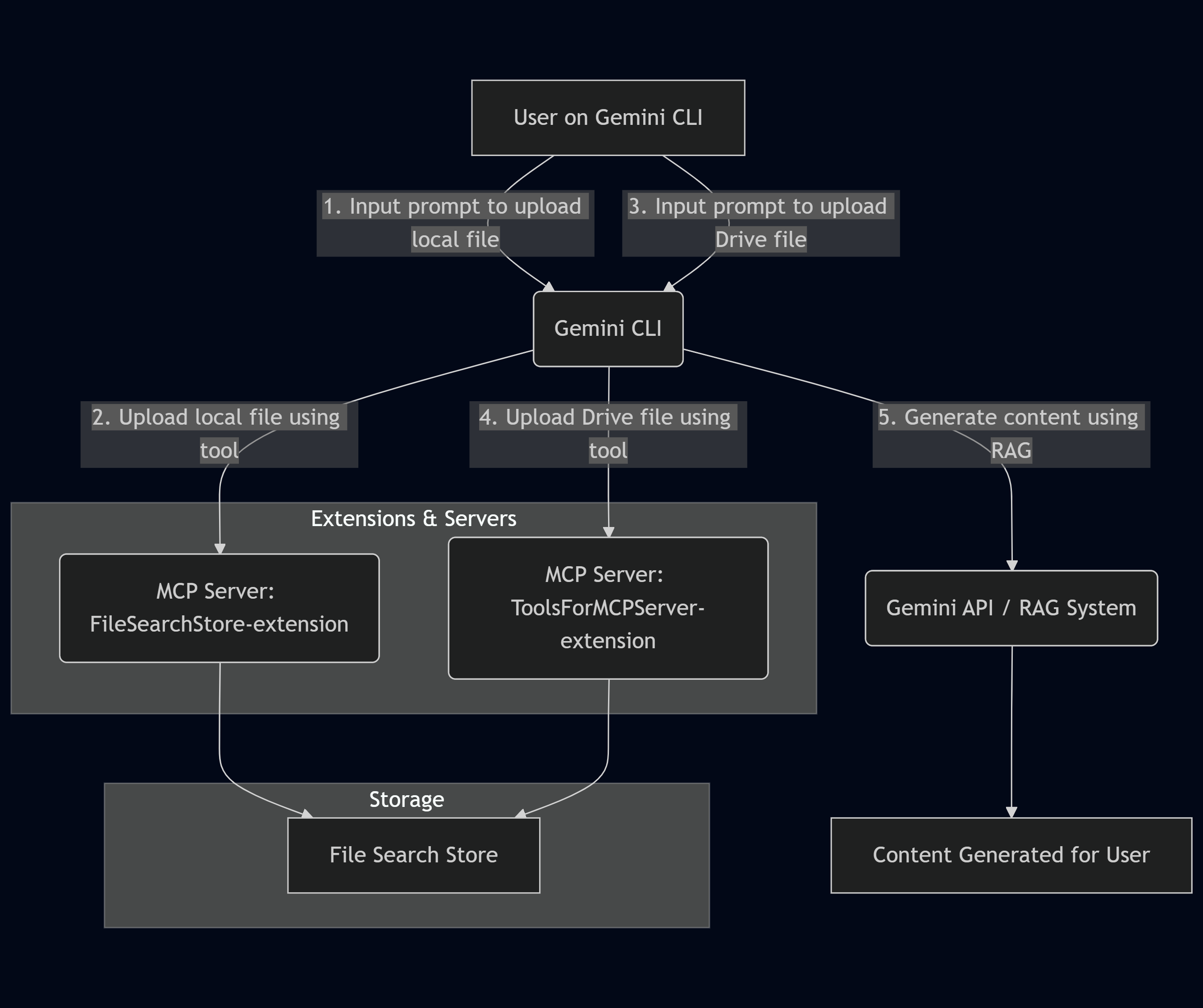
View Diagram in Mermaid Chart Playground
Implementation Guide: Installation and Verification
Step 1: Configure Your Gemini API Key
First, ensure your Gemini API key is configured as an environment variable.
export GEMINI_API_KEY="YOUR_API_KEY"
Step 2: Install the Gemini CLI Extensions
Install both extensions by following the instructions in their respective repositories:
- ToolsForMCPServer-extension (for Google Workspace): Installation Guide
- FileSearchStore-extension (for Local Files): Installation Guide
Step 3: Verify the Installation
After installation, open the Gemini CLI and run /mcp to verify that both servers are active and their tools are recognized.
/mcp
The output should show both extensions as “Ready” and list their available tools.
> /mcp

Configured MCP servers:

🟢 file-search-store-extension (from file-search-store-extension) - Ready (11 tools)
  Tools:
  - document_delete
  - document_get
  ...

🟢 tools-for-mcp-server-extension (from tools-for-mcp-server-extension) - Ready (160 tools, 3 prompts)
  Tools:
  - add_label_to_Gmail
  - analytics_admin_accountSummaries_list
  ...
Practical Walkthrough: From Data Ingestion to RAG
This section demonstrates the end-to-end workflow, from creating a file store to performing a query.
1. Create a File Search Store
First, create a new, empty store. Gemini will automatically select the appropriate tool.
Prompt:
Create a new file search store named "sample".
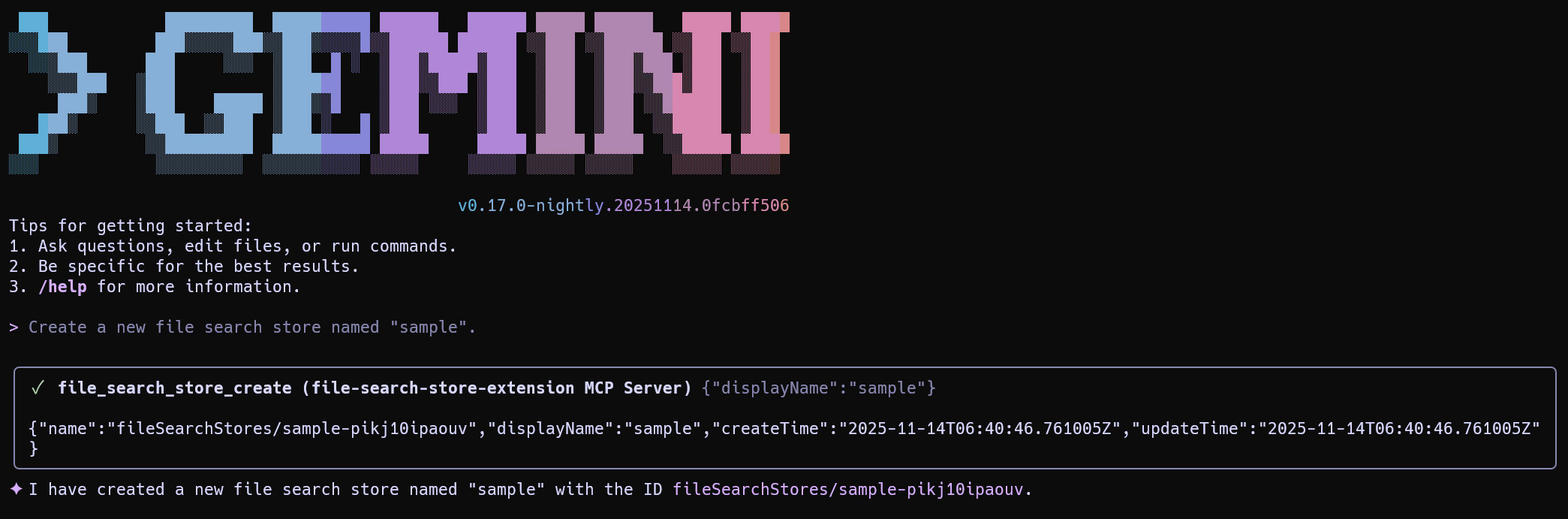
Prompt:
Show the list of file search stores.

You can confirm the created file search store.
2. Populate the Store from All Sources
Now, populate the store with data from a public URL, a local file, and various Google Workspace applications.
A. From a Public URL
Gemini intelligently selects file_search_gas_media_upload from the Google Apps Script extension, as it can process URLs directly.
Prompt:
Upload the data of https://tanaikech.github.io/about/ to the file search store "sample".

B. From a Local File
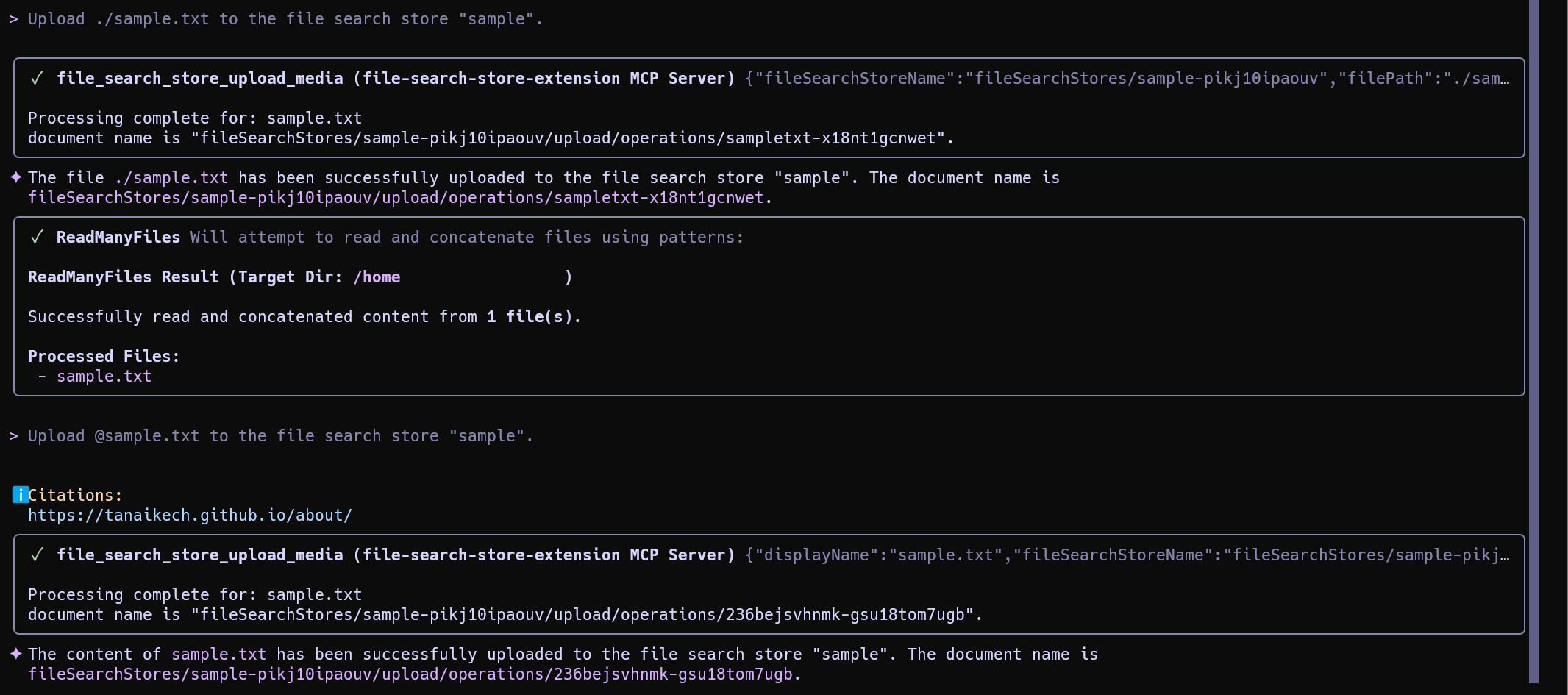
Use the @ syntax or a relative path to reference a local file. The FileSearchStore-extension will handle the upload.
Prompt:
Upload ./sample.txt to the file search store "sample".
C. Deep Integration: Ingesting from Google Workspace
This is where the serverless Google Apps Script extension shines. Reference Workspace content using its unique ID or a descriptive query.
From Google Drive:
Prompt:
Upload a file on Google Drive to the file search store "sample". The file ID is ###.

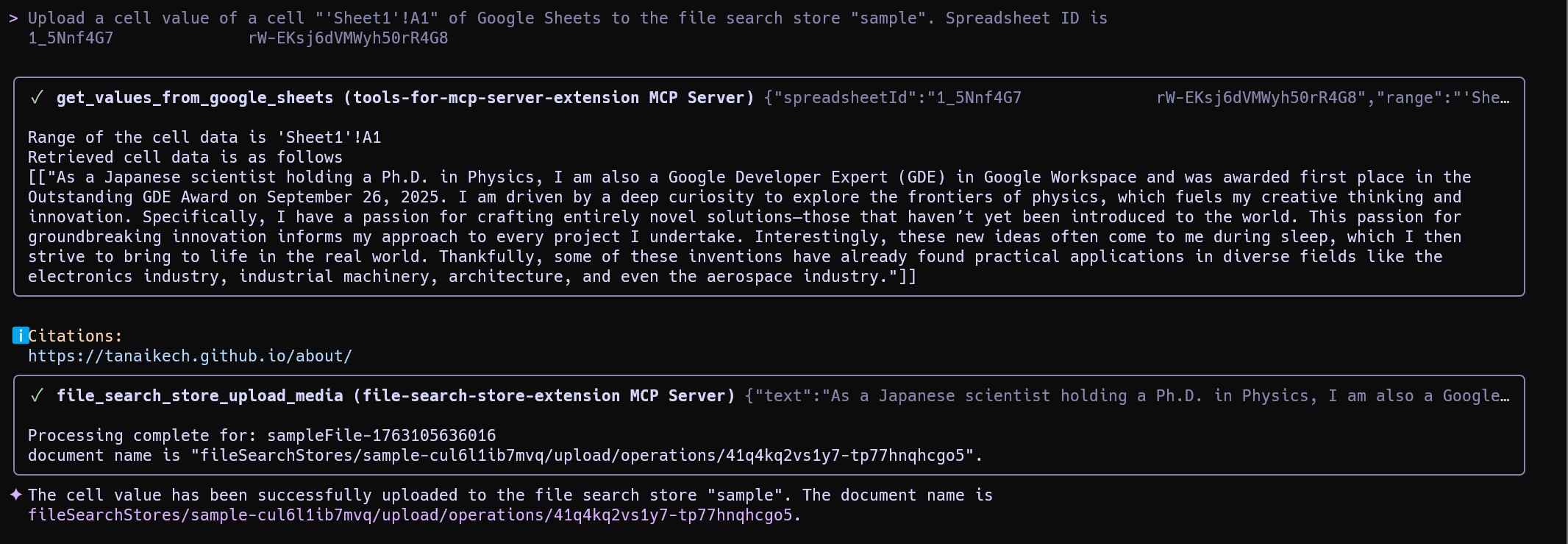
From Google Sheets:
Prompt:
Upload a cell value of a cell "'Sheet1'!A1" of Google Sheets to the file search store "sample". Spreadsheet ID is ###
From Gmail:
Prompt:
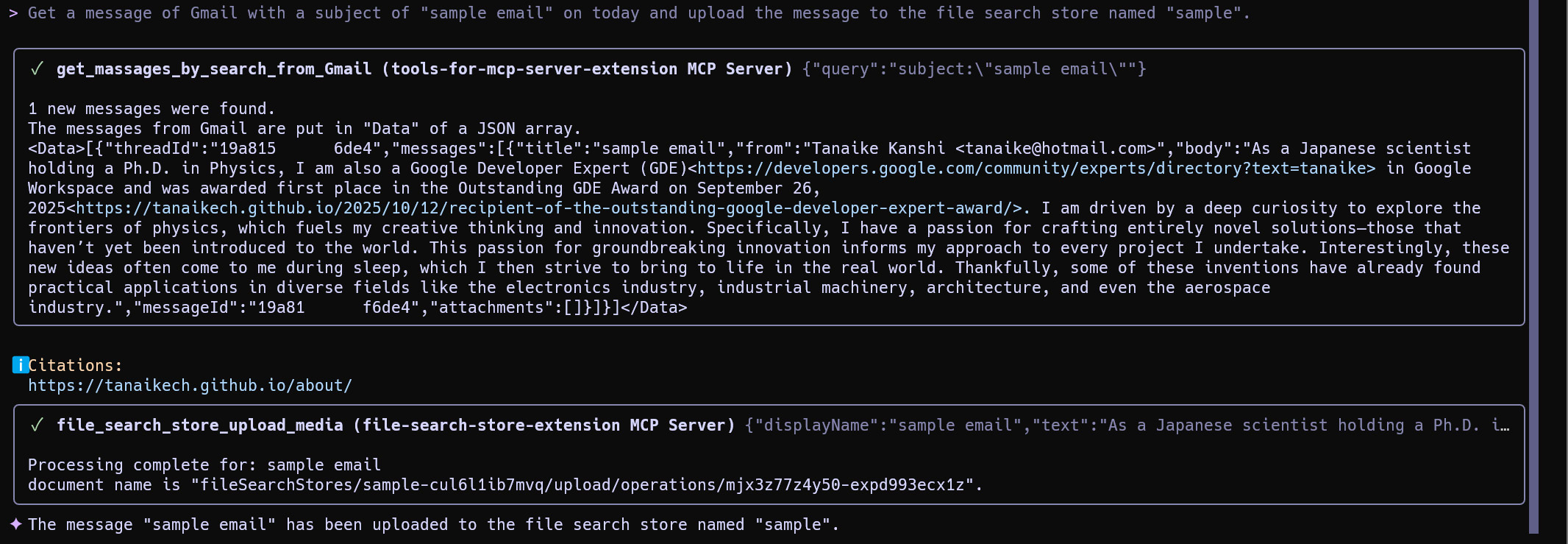
Get a message of Gmail with a subject of "sample email" on today and upload the message to the file search store named "sample".
From Google Calendar:
Prompt:
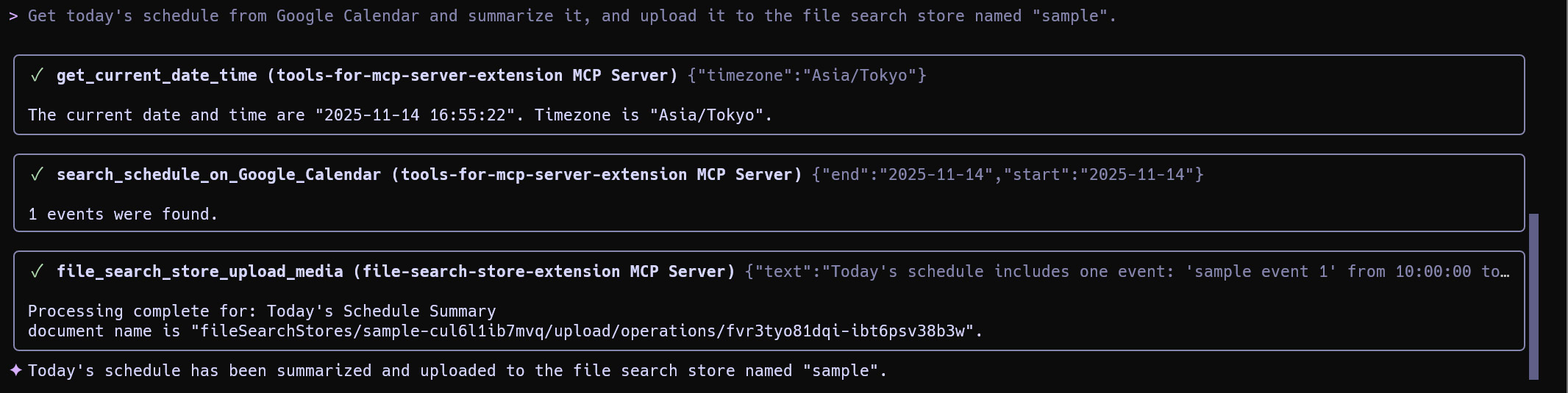
Get today's schedule from Google Calendar and summarize it, and upload it to the file search store named "sample".
Note on Automation: The samples above demonstrate manual uploads via the Gemini CLI. For automated ingestion from Google Workspace, you can create a standalone Google Apps Script using the FileSearchApp library and schedule it with time-driven triggers.
3. Generate Content with RAG
First, ask a question without the file search store to establish a baseline. (Note: The author’s name is Kanshi Tanaike).
Prompt 1 (Without File Search):
Generate content about Kanshi Tanaike using a tool generate_content without the file search stores.
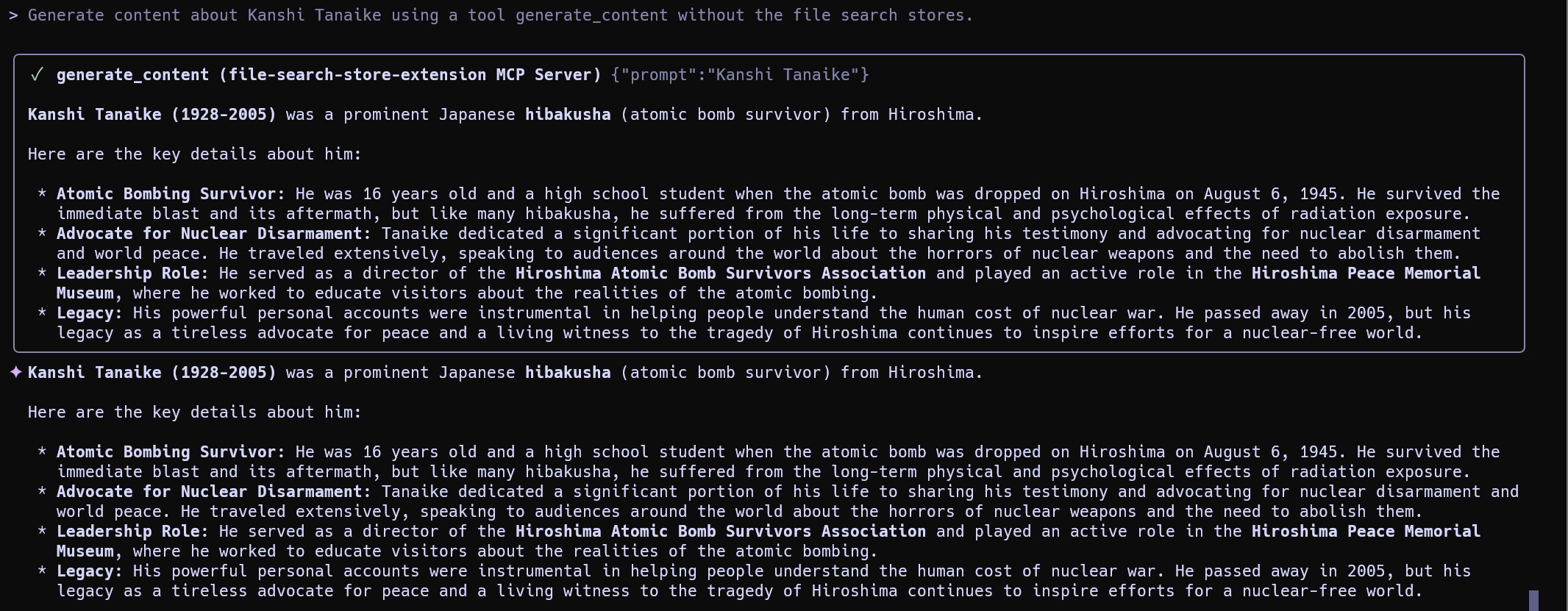
The model returns generic, unverified information. Now, repeat the query, this time leveraging the unified “sample” store.
Prompt 2 (With File Search):
Generate content about Kanshi Tanaike using a tool generate_content with the file search store "sample".
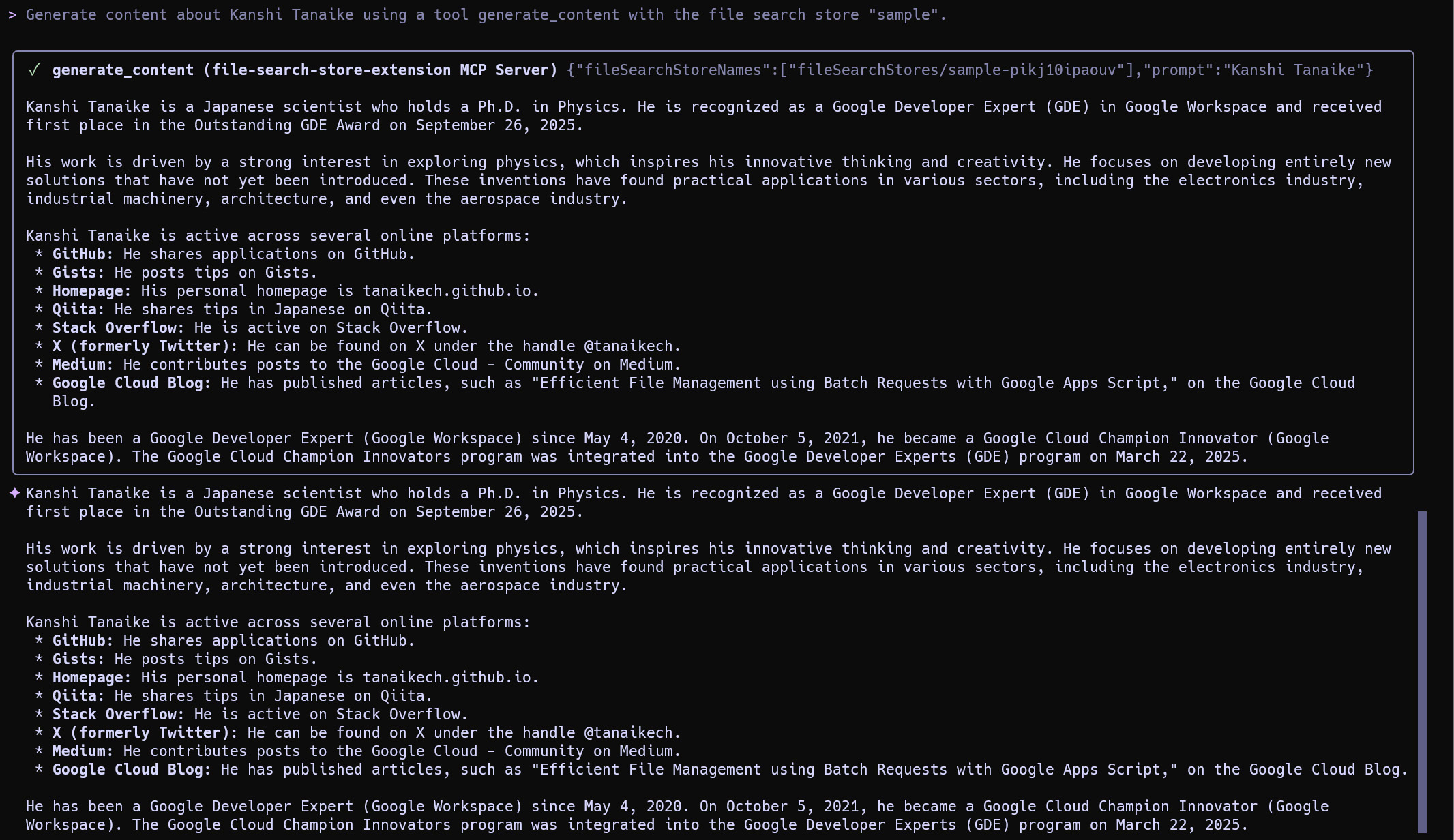
The response is now accurate and detailed, proving the RAG system is successfully retrieving context from the unified file store containing local, web, and Google Workspace data.
4. Delete the File Search Store
Finally, clean up the environment by deleting the store.
Prompt:
Delete the store.

Summary
This dual-extension architecture provides a seamless and powerful method for integrating disparate data sources into Gemini. The key takeaways are:
- True Data Unification: This approach allows Gemini to treat local files and a wide range of Google Workspace data as a single, cohesive knowledge base.
- Serverless Efficiency: Using Google Apps Script eliminates the need to download Google Drive files before uploading, reducing complexity, cost, and security risk.
- Deep Workspace Integration: Go beyond files by natively ingesting data from Google Sheets, Gmail, and Google Calendar directly into your RAG system.
- Intelligent Tool Selection: The Gemini CLI automatically selects the most efficient extension for handling local files, public URLs, or Google Workspace items.
- Enhanced RAG Capabilities: By consolidating all relevant documents and data into one file store, you can build more powerful and accurate RAG applications.