
Abstract
This article introduces a Gemini CLI extension that integrates File Search feature. This tool provides a fully managed Retrieval-Augmented Generation (RAG) system directly in your command line, enabling content generation grounded in your private documents and data.
Introduction
The Gemini API recently introduced File Search, a powerful feature that enables Retrieval-Augmented Generation (RAG) using your own documents as a knowledge base. This allows you to generate content grounded in personal or proprietary information. While powerful, leveraging this via API calls requires scripting.
To streamline this process, I have developed a Gemini CLI extension that brings the full power of File Search directly to your terminal. Built with Node.js, this extension allows you to seamlessly manage File Search stores and generate context-aware content without leaving the command-line interface.
Repository
https://github.com/tanaikech/FileSearchStore-extension
Prerequisites
Before installing the extension, ensure the following requirements are met:
- Gemini CLI Installed: This guide assumes you have already installed and configured the Gemini CLI.
- Gemini API Key: You must have a valid Gemini API key. This key needs to be accessible as an environment variable. You might have already used this for Gemini CLI.
export GEMINI_API_KEY="YOUR_API_KEY"
- Model Configuration (Optional): The extension defaults to the
gemini-1.5-flashmodel. To use a different model, set theGEMINI_MODELenvironment variable. Currently,gemini-1.5-flashandgemini-1.5-proare supported.
export GEMINI_MODEL="gemini-1.5-pro"
Installation
With the prerequisites in place, install the extension by running the following command in your terminal:
gemini extensions install https://github.com/tanaikech/FileSearchStore-extension
Available Tools
Once installed, you can list the available tools provided by this extension.
Command:
> /mcp desc
Output: This will display the 11 integrated tools on an MCP server “file-search-store-extension” for managing your File Search stores.
Configured MCP servers:

🟢 file-search-store-extension - Ready (11 tools)
  Tools:
  - document_delete
    Use this to delete a document.
  - document_get
    Use this to get information about a specific Document.
  - document_list
    Use this to list all Documents in a file search store.
  - file_search_store_create
    Use this to create a new file search store.
  - file_search_store_delete
    Use this to delete the file search store.
  - file_search_store_get
    Use this to get the metadata of the file search store.
  - file_search_store_import_file
    Use this to upload a file or a raw text to the file search store.
  - file_search_store_list
    Use this to get a list of file search stores.
  - file_search_store_upload_media
    Use this to upload a file or a raw text to the file search store.
  - generate_content
    Use this to generate content using the file search stores with Gemini API.
  - operation_get
    Use this to get the latest state of a long-running operation.
Usage Examples
Below are typical workflows for using the extension.
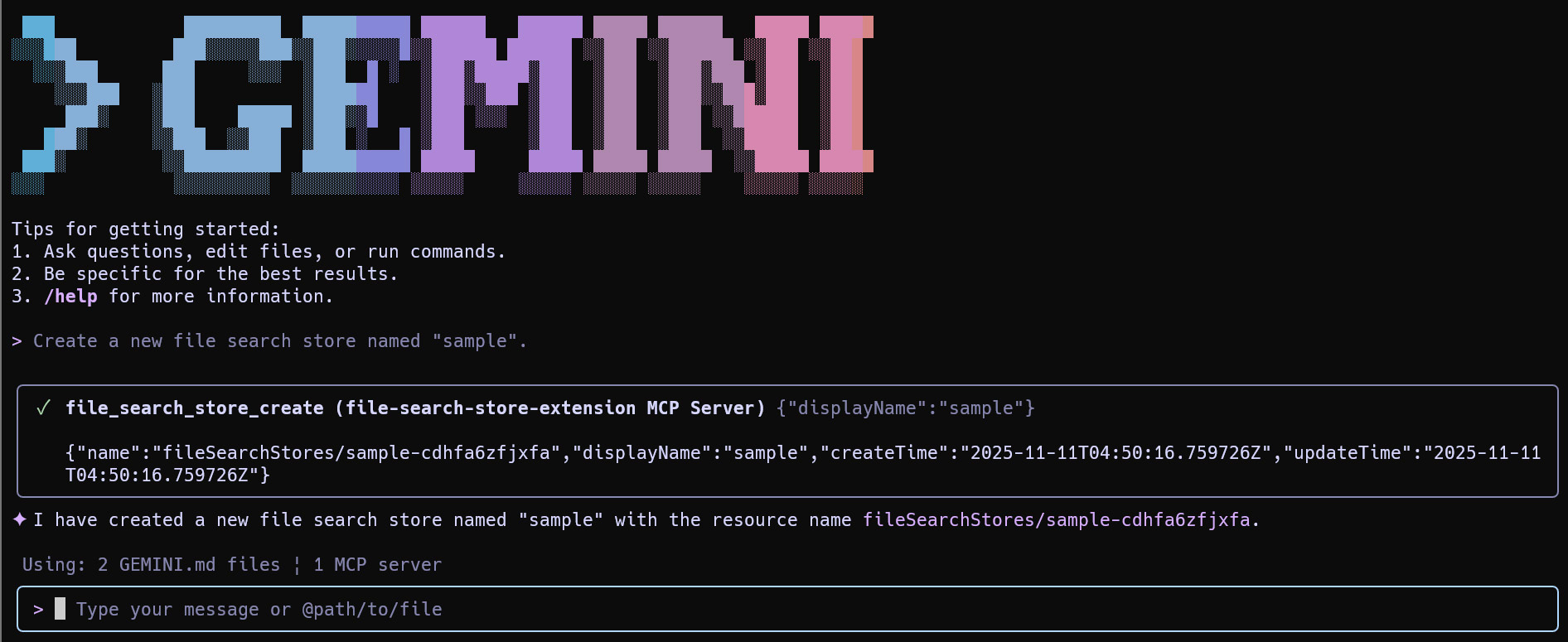
1. Create a File Search Store
Prompt:
Create a new file search store named "sample".
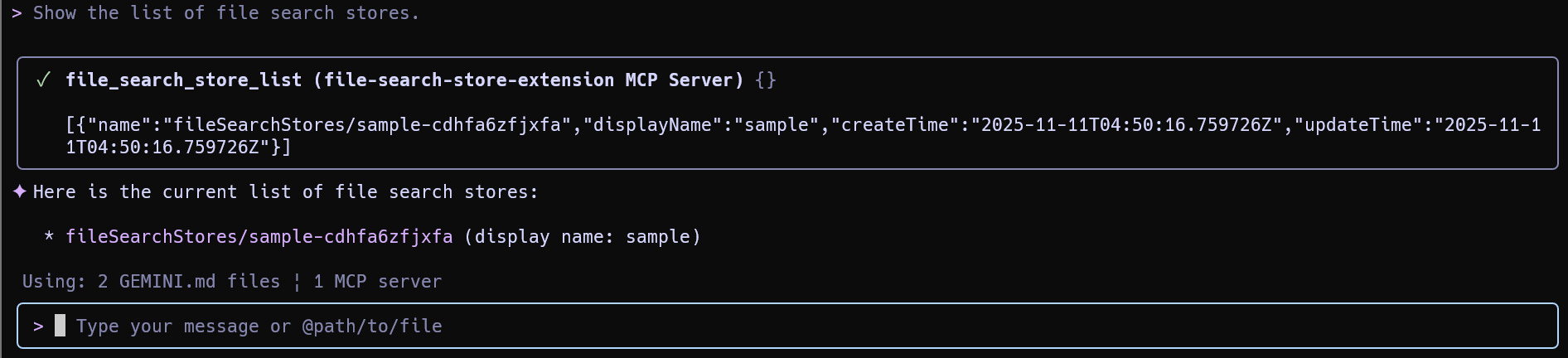
2. List File Search Stores
Prompt:
Show the list of file search stores.
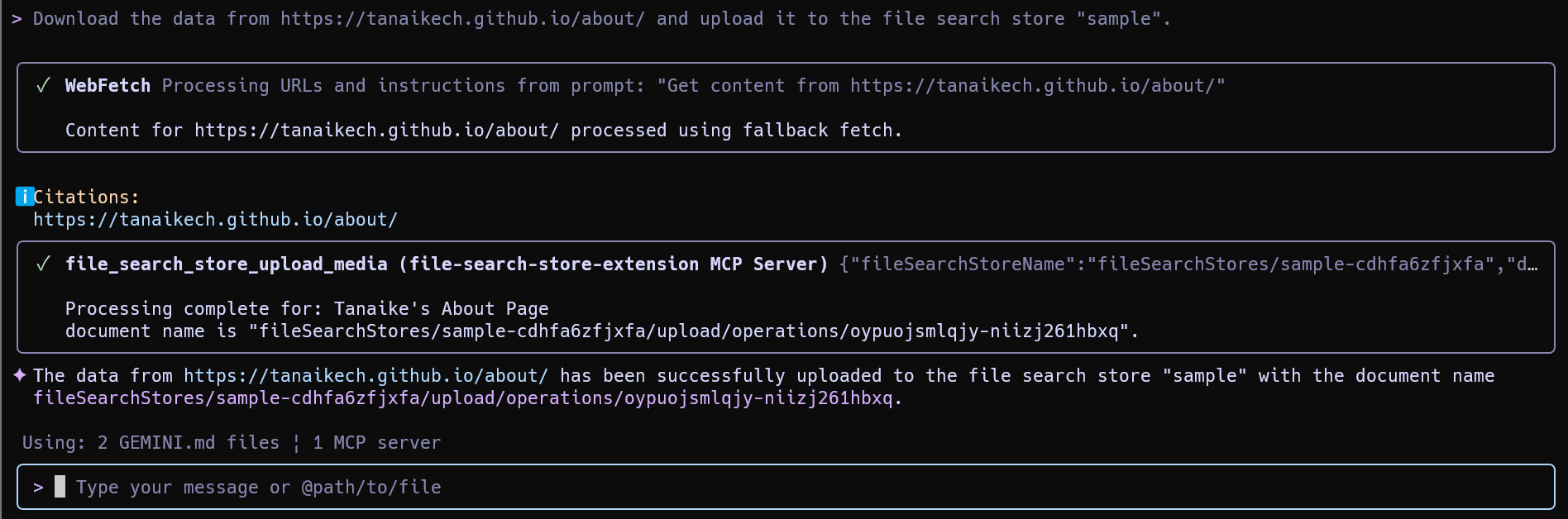
3. Upload Data to a File Search Store
You can upload data from a URL, a local file path, or a referenced file.
Prompt (from URL):
Download the data from https://tanaikech.github.io/about/ and upload it to the file search store "sample".
Prompt (from local file):
You can also upload the local file.
Upload ./sample.txt to the file search store "sample".
or
Upload @sample.txt to the file search store "sample".
4. Generate Content (RAG)
To demonstrate the power of RAG, let’s first ask a question without the File Search store. (Note: My name is Kanshi Tanaike).
Prompt 1 (without File Search):
Generate content about Kanshi Tanaike using a tool generate_content without the file search stores.
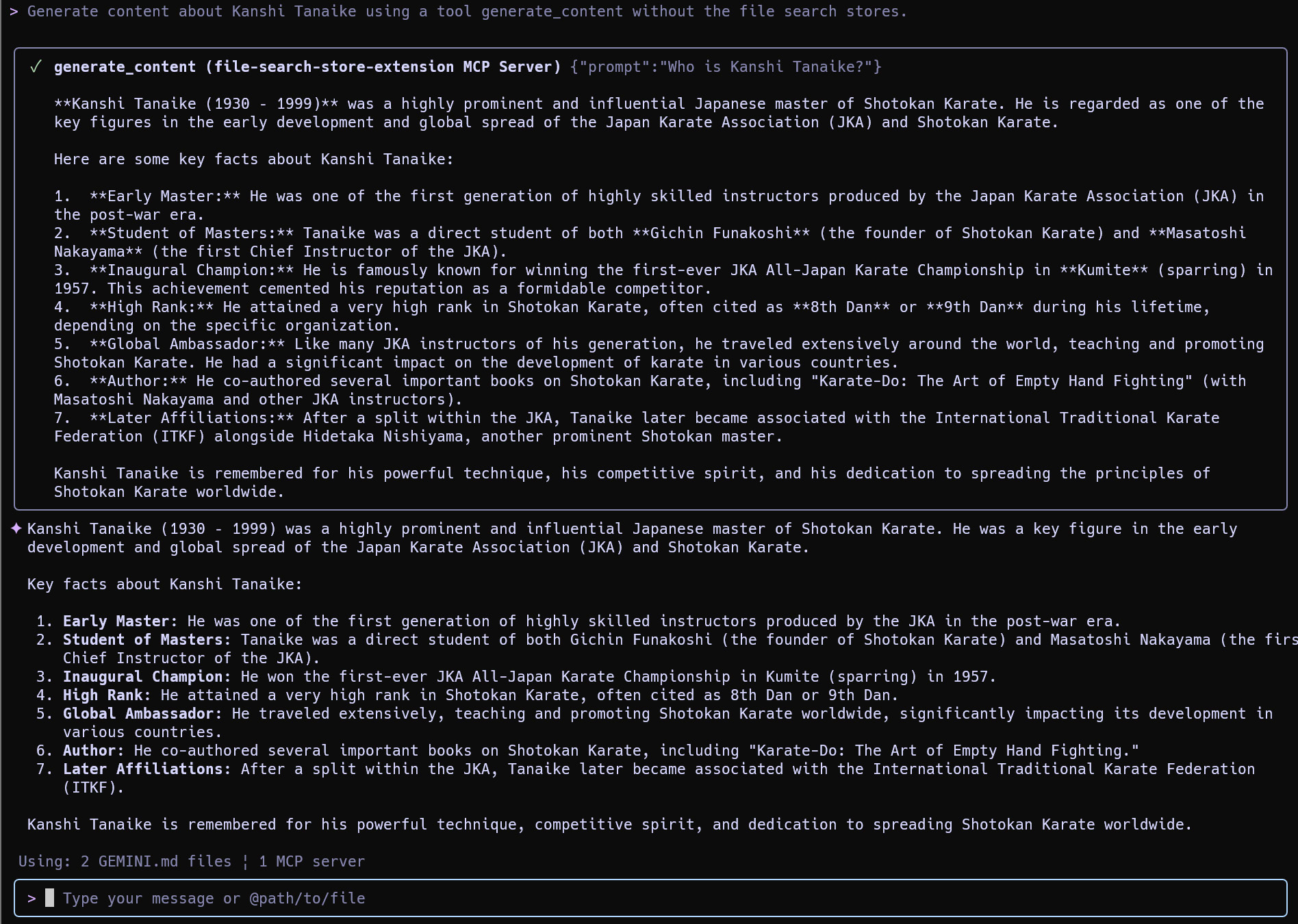
As expected, the model has no specific information about me. Now, let’s use the file search store we created, which contains my personal data.
Prompt 2 (with File Search):
Generate content about Kanshi Tanaike using a tool generate_content with the file search store "sample".
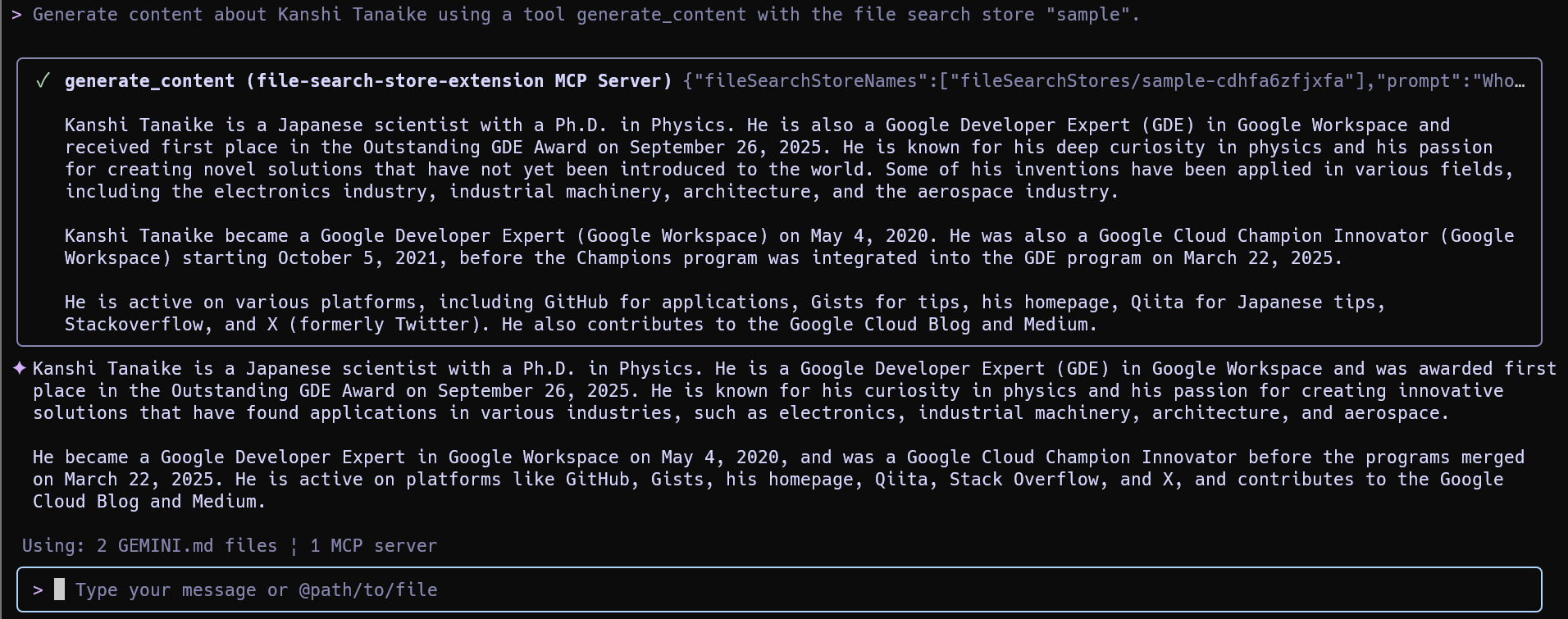
The generated content now accurately includes my information by retrieving it from the specified store.
5. Delete a Document
Prompt:
Show the list of documents in "sample".
Delete the document.
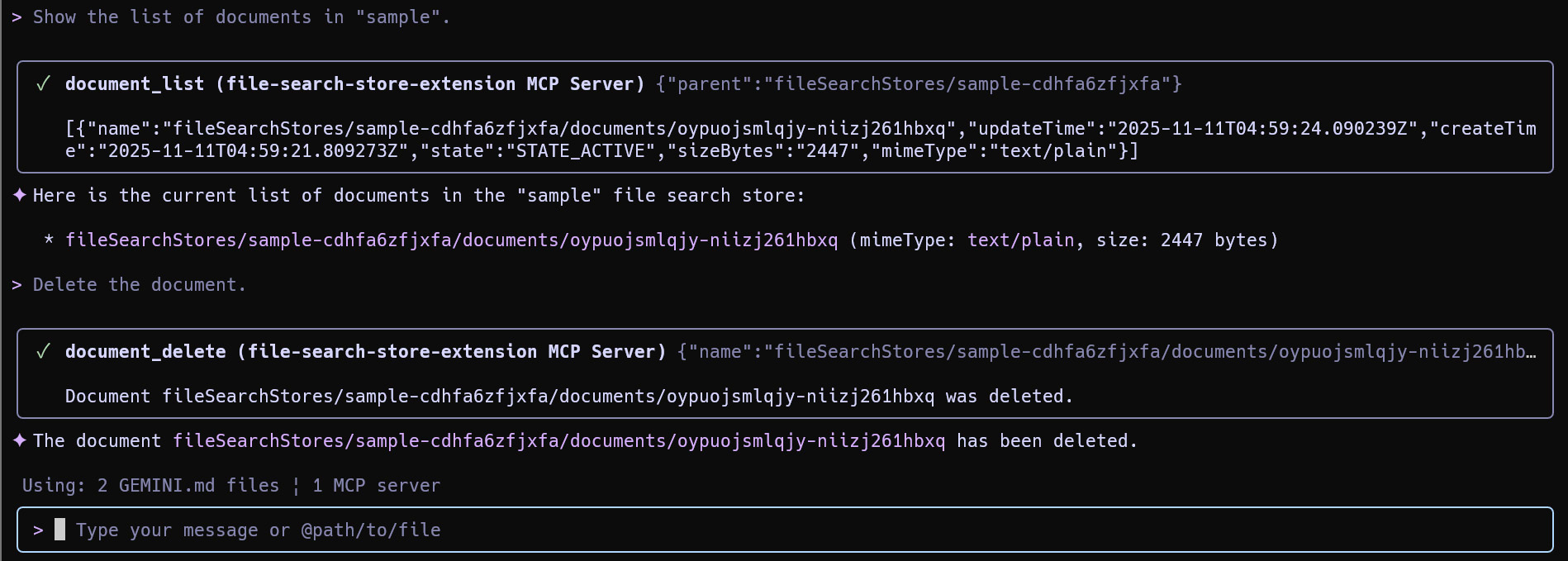
6. Delete a File Search Store
Prompt:
Show the list of file search stores.
Delete it.
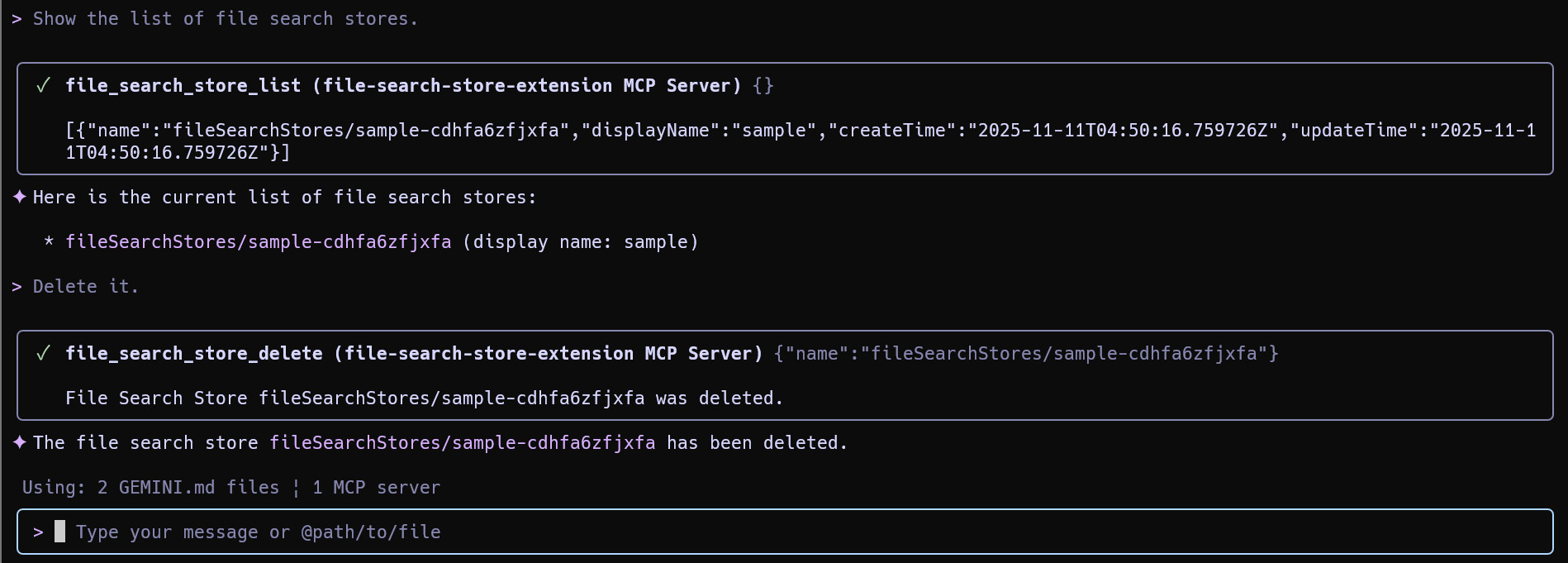
Summary
This Gemini CLI extension provides a powerful and convenient way to leverage the File Search API. Here are the key takeaways:
- Managed RAG in your Terminal: It integrates a fully managed Retrieval-Augmented Generation (RAG) service directly into the Gemini CLI.
- Simple Installation: A single command is all that is needed to install the extension.
- Comprehensive Management: It offers 11 distinct tools to create, list, delete, and manage File Search stores and documents.
- Flexible Data Upload: Supports uploading data from URLs or local files.
- Seamless Workflow: Enables a complete workflow from data ingestion to grounded content generation without leaving the command line.