Exporting Tabulator Data to Google Drive using Google Apps Script
This is a sample script for exporting the Tabulator data to Google Drive using Google Apps Script.
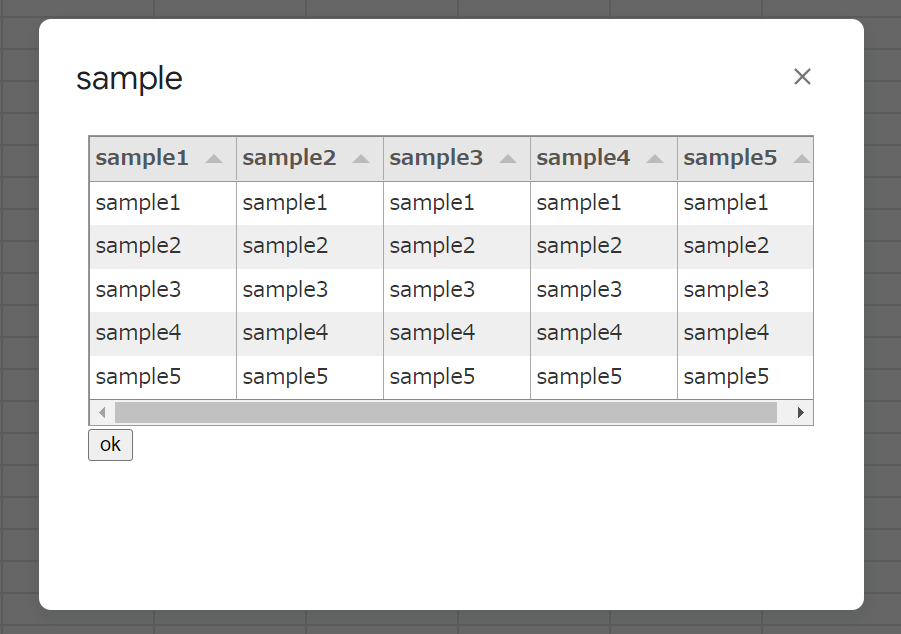
As the sample, a dialog on Google Spreadsheet is used. So, please copy and paste the following scripts to the container-bound script of Google Spreadsheet.
Google Apps Script side: Code.gs
const saveFile = (e) => DriveApp.createFile(Utilities.newBlob(...e)).getId();

// Please run this script.
const openDialog = (_) =>
  SpreadsheetApp.getUi().showModalDialog(
    HtmlService.createHtmlOutputFromFile("index"),
    "sample"
  );
HTML & Javascript side: index.html
<link
  href="https://cdnjs.cloudflare.com/ajax/libs/tabulator/5.2.4/css/tabulator.min.css"
  rel="stylesheet"
/>
<script
  type="text/javascript"
  src="https://cdnjs.cloudflare.com/ajax/libs/tabulator/5.2.4/js/tabulator.min.js"
></script>

<div id="table"></div>
<input type="button" value="ok" onclick="download();" />
<script>
  const type = "csv"; // In this sample, you can select "csv" or "json".
  const filename = "sample"; // Please set the filename.

  const table = new Tabulator("#table", {
    data: [...Array(5)].map((_, i) =>
      [...Array(5)].reduce(
        (o, _, j) => ((o[`sample${j + 1}`] = `sample${i + 1}`), o),
        {}
      )
    ),
    autoColumns: true,
    downloadReady: function (fileContents, blob) {
      const fr = new FileReader();
      fr.onload = (e) =>
        google.script.run
          .withSuccessHandler((id) => console.log(id))
          .saveFile([
            [...new Int8Array(e.target.result)],
            blob.type,
            `${filename}.${type}`,
          ]);
      fr.readAsArrayBuffer(blob);
      return false;
    },
  });

  function download() {
    table.download(type, `${filename}.${type}`);
  }
</script>
-
When
openDialogis run with the script editor, a dialog is opened on Spreadsheet. And, you can see the table (as shown in the top of this post) and a button. When “ok” button is clicked, this table is exported as a CSV data and save it as a file in the root folder of Google Drive.