Uploading Local Files to Google Drive without Authorization using HTML Form

Gists

This is a sample script for uploading local file to Google Drive without the authorization using HTML form. A selected file in your local PC using HTML form is uploaded to Google Drive and saved to Google Drive.

When you use this, at first, please deploy Web Apps. The script is doPost() of following scripts.

Script : Google Apps Script

function doPost(e) {
  var data = Utilities.base64Decode(e.parameters.data);
  var blob = Utilities.newBlob(data, e.parameters.mimetype, e.parameters.filename);
  DriveApp.createFile(blob);
  var output = HtmlService.createHtmlOutput("<b>Done!</b>");
  output.setXFrameOptionsMode(HtmlService.XFrameOptionsMode.ALLOWALL);
  return output;
  // return ContentService.createTextOutput("Done.") <--- Here, an error occurred.
}

Flow :

  • Retrieve data, filename and mimetype as e.parameters.data, e.parameters.filename and e.parameters.mimetype, respectively.
  • Decode the data using Utilities.base64Decode().
  • Create blob using Utilities.newBlob().
  • Create the file in the root folder of Google Drive.

Script : HTML

https://script.google.com/macros/s/#####/exec is the URL obtained when the Web Apps was deployed. Please replace it to your Web Apps URL. You can open this HTML for the browser of your local PC.

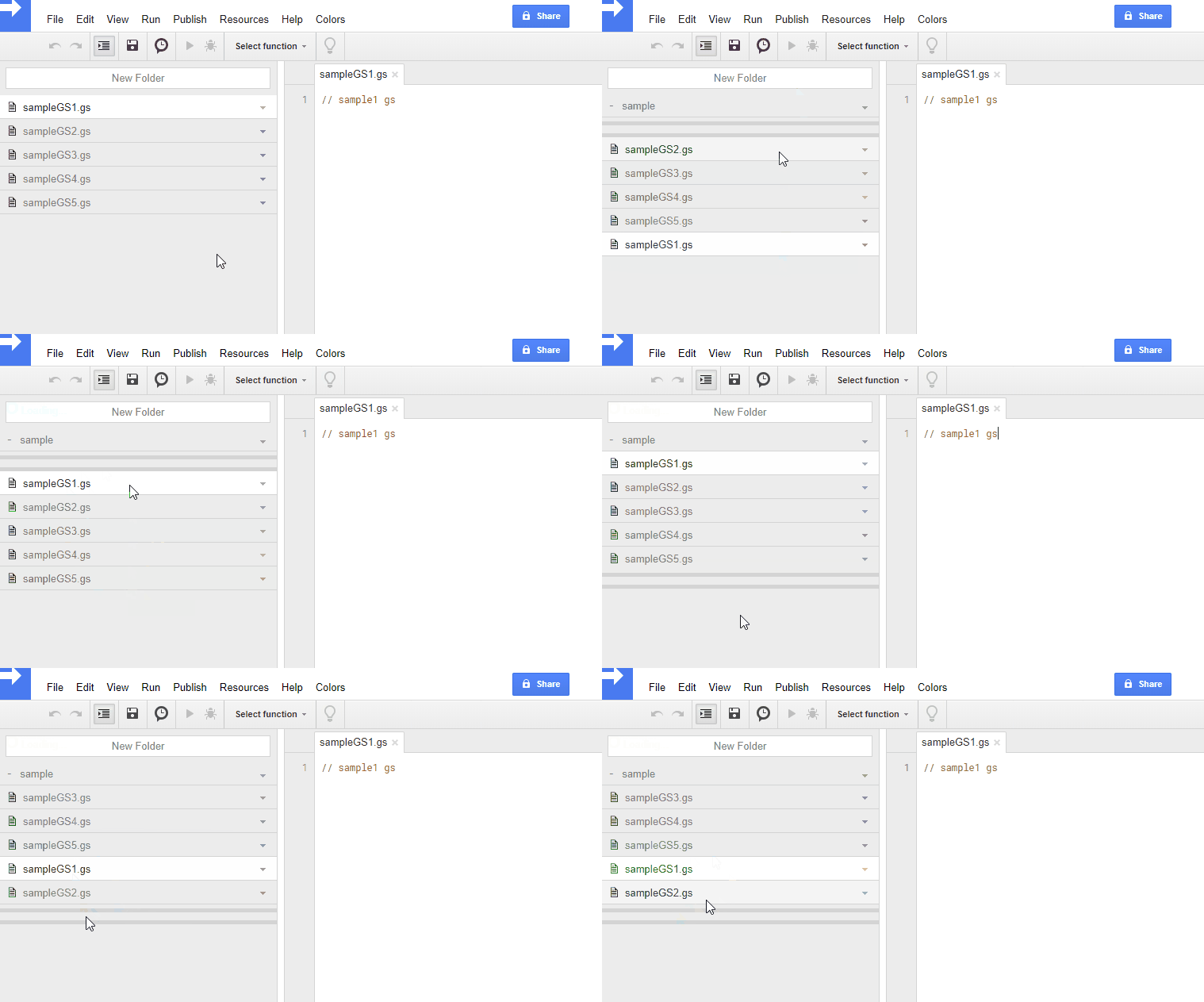
Create New Project with Original Manifests

It was found that you can also create new project with your original Manifests using ggsrun. By using this, for example, when you created new project, the project can have libraries, Advanced Google Services and so on at the initial stage. I think that this can be used as a template for Project.

$ ggsrun u -pn [Project name] -f appsscript.json

https://github.com/tanaikech/ggsrun/blob/master/help/README.md#ModifyManifests

Create New Project with Original Manifests

You can check this and download ggsrun at https://github.com/tanaikech/ggsrun.

Updated ggsrun to v133

ggsrun was updated to v.1.3.3

Awesome points of Manifests :

Awesome points of Manifests that I think are below.

Measuring Execution Time of Built-In Functions for Google Spreadsheet

Gists

This sample script is for measuring the execution time of built-in functions for Google Spreadsheet. Unfortunately, there are not measurement tools for retrieving the execution time of built-in functions. So I thought of about a workaround.

Flow :

  1. Import a value to a cell. The value is anything good, because this is used as a trigger. Please do this by yourself.
    • Custom functions cannot use setValue(). So I used onEdit().
  2. func1() imports a formula that you want to measure the execution time by the script launched by the trigger.
  3. At func2(), after set the formula, the measurement is started. The confirmation when built-in function was completed is carried out using loop.
    • By measuring the cost per one call for getValue(), it was found that that was about 0.0003 s. So I thought that this can be used.
  4. The result of measurement can be seen at Stackdriver as milliseconds.

Sample script :

function func1(range, formula) {
  range.setFormula(formula);
}

function func2(range) {
  var d = range.getValue();
  while (r == d) {
    var r = range.getValue();
  }
}

function onEdit() {
  var formula = '### Built-in function ###'; // Set the built-in function you want to measure.

  var label = "Execution time for built-in functions.";
  var ss = SpreadsheetApp.getActiveSheet();
  var cell = ss.getActiveCell();
  var range = ss.getRange(cell.getRow(), cell.getColumn());
  func1(range, formula);
  console.time(label);
  func2(range);
  console.timeEnd(label);
}

Note :

  • When built-in functions with very long time is measured, an error may occur at getValue().
    • In my environment, the built-in function for 10 seconds worked fine.

Straightening Elements in 2 Dimensional Array using Google Apps Script

Gists

This sample script is for straightening elements in 2 dimensional array using Google Apps Script (GAS). When applications using Spreadsheet are developed by GAS, it usually uses 2 dimensional array by setValues(). And the lengths of each element are required to be the same. On the other hand, data used for the applications might not be the same length for each element in 2 dimensional array. This sample script can be used under such situation.

Updated ggsrun to v132

ggsrun was updated to v.1.3.2

  • v1.3.2 (October 20, 2017)

    1. Updated ggsrun’s Install manual (README.md). Since I thought that the manual became too complicated, I separated it to the simple version and the detail version. And also , recently, since Google’s specification was updated, about how to deploy API executable and enable APIs for ggsrun’s Install manual were updated.
    2. From this version, scripts in a project can be rearranged. The rearrangement can be done by interactively on your terminal and/or a configuration file. The usage is here
      • For rearranging scripts, there is one important point. When scripts in a project is rearranged, version history of scripts is reset once. So if you don’t want to reset the version history, before rearranging, please copy the project. By copying project, the project before rearranging is saved.

Updated ggsrun to v132

Updated go-rearrange and gorearrange to v102

go-rearrange and gorearrange were updated to v.1.0.2

From this version, data included multi-bytes characters can be used. At Linux, it works fine. At Windows DOS, rearranging and selecting data can be done. But the displayed data is shifted. Although this may be a bug of termbox-go, I don’t know the reason. I’m sorry. On the other hand, data with only single-byte characters works fine. About MAC, I don’t have it. If someone can confirm and tell me it, I’m glad.

Updated go-rearrange and gorearrange to v101

go-rearrange and gorearrange were updated to v.1.0.1

  • As one of outputs, indexmode (bool) was added. If this is true, the rearranged result is output as the change of index for the source data. For example, if the source data and rearranged data are ["a", "b", "c"] and ["c", "b", "a"], respectively. The output will become [2, 1, 0].

By this, the specification for creating applications will expand.

The detail information and how to get this are https://github.com/tanaikech/gorearrange.

CLI Tool - gorearrange

Overview

This is a CLI tool to interactively rearrange a text data on a terminal.

Description

Since I couldn’t find CLI tools for manually rearranging text data, I created this CLI tool.

For this, at first, I created a Golang library go-rearrange.

CLI Tool - gorearrange

The detail information and how to get this are https://github.com/tanaikech/gorearrange.

Enhanced onEdit(e) using Google Apps Script

Gists

onEdit(e) which is used for the Edit event on Spreadsheet has the old value as e.oldValue. The specifications for this are as follows.

  1. When an user edited a single “A1” cell, e of onEdit(e) shows hoge for e.oldValue and fuga for e.value.
  2. When an user edited the “A1:A2” multiple cells, e.oldValue and e.value of onEdit(e) are not shown anything.
  3. When an user copied and pasted from other cell, e.oldValue and e.value of onEdit(e) are not shown anything.

This sample script was created to retrieve both the edited values and the old values for the range of edited cells. This is the modified e.oldValue.

Google OAuth Verification & Application Privacy Policy

Registered Application Name: Workspace & Gemini AI Orchestration Engine

Application Purpose & Core Functionality:

This web page serves as the official homepage and privacy compliance interface for the application "Workspace & Gemini AI Orchestration Engine". This specialized developer utility is designed to research, benchmark, and optimize advanced integrations between Google Workspace services, the Google Apps Script API, and Gemini AI models (via Google Vertex AI / Gemini API endpoints).

The application facilitates automated multi-agent scaffolding, programmatic script deployment, project resource management, and structural analysis of Google Apps Script projects. It allows developers and autonomous AI agents (operating via Model Context Protocol / MCP) to securely evaluate execution performance, implement high-performance batch requests, and test agent-to-agent (A2A) workflows within a controlled and structured environment.

Google User Data Policy Compliance Statements:

1. Data Access & Specific Usage

Our application explicitly requests access to specific Google user accounts through OAuth scopes required strictly for interacting with the Google Apps Script API and Google Workspace endpoints. This access is utilized solely to execute user-initiated or agent-orchestrated programmatic operations—such as creating, modifying, deploying, or benchmarking script projects and executing automated workflows. No background automated extraction occurs without explicit session initiation.

2. Data Storage & Zero-Retention Policy

Adhering to a strict Zero-Retention Model, this application does not store, log, or persist any personal data, OAuth tokens, script source codes, or Google account configurations on any external server, database, or persistent storage medium. All data processing and API responses are handled entirely in-memory or securely on the client side within the active session context, ensuring complete cryptographic transient isolation.

3. Data Sharing & Third-Party Non-Disclosure

We maintain absolute data privacy. No data accessed via Google OAuth scopes is shared, sold, rented, or transferred to third-party entities, advertising networks, or data brokers. All data transmissions are strictly point-to-point, encrypted in transit using industry-standard protocols, and limited entirely to the direct channel between the execution environment and Google's official API gateways.

For inquiries regarding this developer application, technical benchmarks, or verification compliance, please refer to the official documentation and repositories linked on this homepage (tanaikech.github.io).