Gists
This is a report for checking the number of requests for Sheets API. I had contact about the quota for Sheets API. So, in order to explain this, I used the following simple sample scripts.
Sample 1
This sample puts a value of “sample” to a cell “A1” using the batchUpdate method. This request body includes one request. When this script is run, one API quota is used.
function sample1() {
const spreadsheetId = "###";
const sheetId = 0;
const requests = [{
"updateCells": {
"rows": [
{
"values": [
{
"userEnteredValue": {
"stringValue": "sample"
}
}
]
}
],
"range": {
"sheetId",
"startRowIndex": 0,
"endRowIndex": 1,
"startColumnIndex": 0,
"endColumnIndex": 1
},
"fields": "userEnteredValue.stringValue"
}
}];
Sheets.Spreadsheets.batchUpdate({ requests }, spreadsheetId);
}
Sample 2
This sample puts 1000 values like “sample#” to the cells of “B1:B1000” using the batchUpdate method. This request body includes 1000 requests. When this script is run, one API quota is used.
goris is a CLI tool to search for images with Google Reverse Image Search.
Today, it was updated to v3.0.1. Please check it out. https://github.com/tanaikech/goris
-
v3.0.1 (May 2, 2022)
- About the option
-w, a bug was resolved. By this, the URLs of the related Web site are returned. As the default, 10 URLs are returned. If you want to retrieve more, please use the option -n like -n 20.
Gists
This is a sample script for increasing the column letter by one using Google Apps Script.
Sample script
const increase = (ar) =>
ar.map((e) => {
const idx = [...e].reduce(
(c, e, i, a) =>
(c += (e.charCodeAt(0) - 64) * Math.pow(26, a.length - i - 1)),
-1
);
// Ref: https://stackoverflow.com/a/53678158
columnIndexToLetter = (n) =>
(a = Math.floor(n / 26)) >= 0
? columnIndexToLetter(a - 1) + String.fromCharCode(65 + (n % 26))
: "";
return columnIndexToLetter(idx + 1);
});
const samples = ["A", "Z", "AA", "AZ", "ZZ"];
const res = increase(samples);
console.log(res); // <--- [ 'B', 'AA', 'AB', 'BA', 'AAA' ]
- When this script is used, the column letters of
["A", "Z", "AA", "AZ", "ZZ"] is increased by one. As the result, [ 'B', 'AA', 'AB', 'BA', 'AAA' ] is obtained.
Testing
Overview

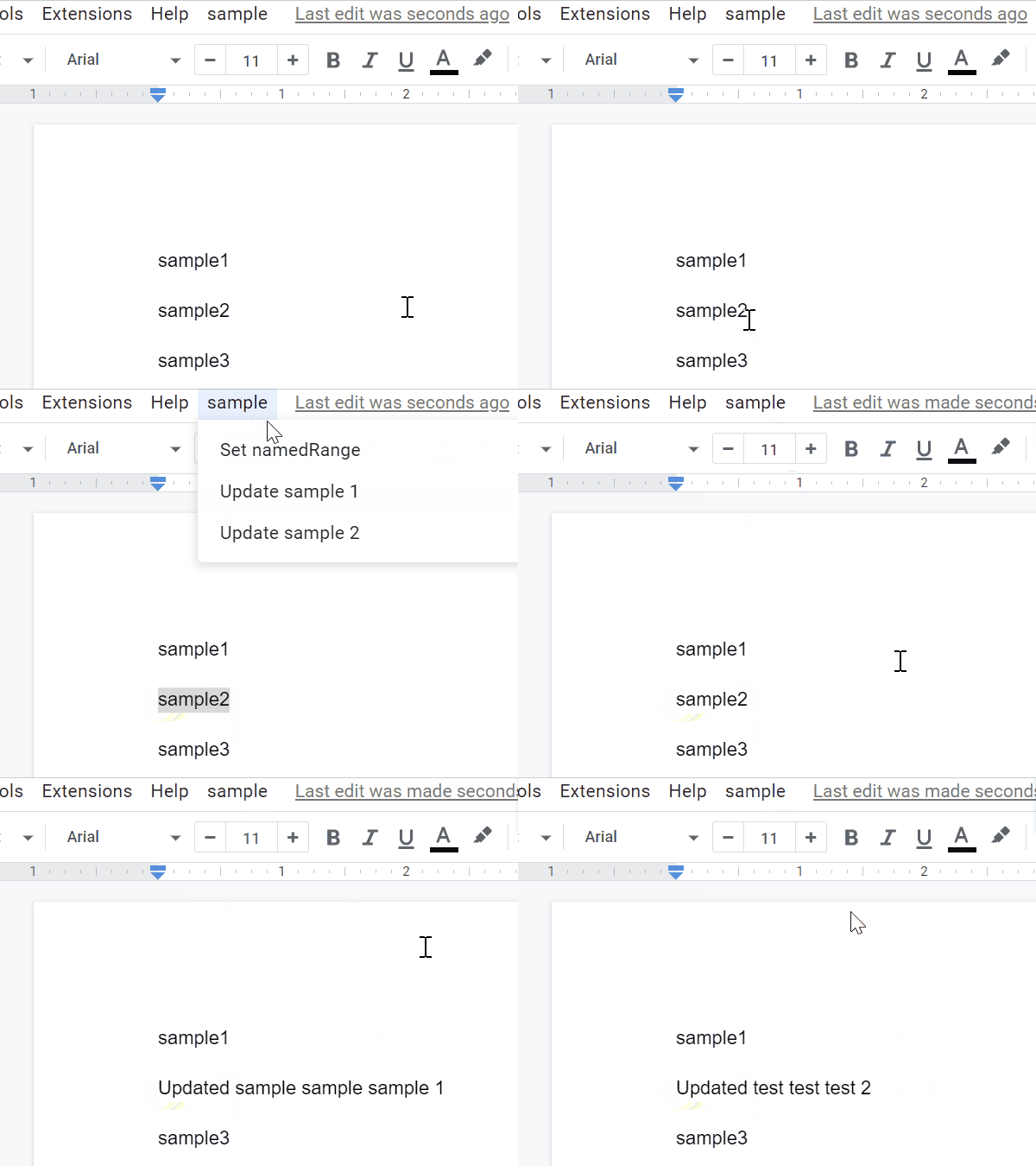
This is a Google Apps Script library for managing the named range on Google Documents.
Description
Google Document can use the named range. When the named range is used, the users can directly access the contents using the named range. For example, the developer can guide the users to the specific content in Google Documents using the named range. But, unfortunately, in the current stage, it seems that the named range cannot be directly used by the UI on Google Documents. It is required to use Google Apps Script. But, I thought that when I saw the official document of the named range, it might be difficult to understand it. Ref So, I created this library. When this library is used, the named ranges on Google Documents can be managed.
Gists
This is a sample script for analyzing the responses from Grid Items of Google Form using Google Apps Script.
In this sample situation, all responses are retrieved from Grid Items of Google Form, and the average values of each row of each question are calculated. And, the result is put on the Spreadsheet.
Sample situation
The sample Google Form is as follows.

Output: Sample Spreadsheet
The sample output is as follows.
Gists
Introduction
On March 14, 2022, it reported about “Google Sheets doubles cell limit”. Ref By this update, now, the users can use 10,000,000 cells in a Google Spreadsheet. This is great news for us. When I tried to handle 10,000,000 cells in a Google Spreadsheet using Google Apps Script, it was found that there were various important points. In this report, I would like to introduce the important points for handling 10,000,000 cells in Google Spreadsheet using Google Apps Script.
Gists
This is a sample script for replacing the multiple paragraphs on Google Document with a regex using Google Apps Script. There is the method of replaceText(searchPattern, replacement) for replacing the text on Google Document. Ref For example, when a text of sample1 is replaced with sample2, this can be achieved by a script like DocumentApp.getActiveDocument().getBody().replaceText("sample1", "sample2"). But, when the texts for replacing are the multiple paragraphs, this script cannot be used. Namely, it is considered that in the current stage, replaceText cannot be used for replacing the multiple paragraphs. In this post, I would like to introduce a sample script for replacing the texts with the multiple paragraphs using Google Apps Script.
Gists
This is a sample script for simply converting HTML to plain text using Google Apps Script.
Sample values
<div id="sample1">sample text1</div>
<div id="sample2">sample text2</div>
<ul id="sample3">
<li>sample list 1</li>
<li>sample list 2</li>
</ul>
<table id="sample4">
<tbody>
<tr>
<td>a1</td>
<td>b1</td>
<td>c1</td>
</tr>
<tr>
<td>a2</td>
<td>b2</td>
<td>c2</td>
</tr>
</tbody>
</table>
Text (output value)
sample text1
sample text2
- sample list 1
- sample list 2
a1 b1 c1
a2 b2 c2
Sample script
function myFunction() {
const sampleHTML = `<div id="sample1">sample text1</div>
<div id="sample2">sample text2</div>
<ul id="sample3">
<li>sample list 1</li>
<li>sample list 2</li>
</ul>
<table id="sample4">
<tbody>
<tr>
<td>a1</td>
<td>b1</td>
<td>c1</td>
</tr>
<tr>
<td>a2</td>
<td>b2</td>
<td>c2</td>
</tr>
</tbody>
</table>`;
const temp = GmailApp.createDraft("", "", "", { htmlBody: sampleHTML });
const plainText = temp.getMessage().getPlainBody();
temp.deleteDraft();
console.log(plainText);
}
- This method uses
GmailApp.createDraft for converting HTML to plain text. When a draft email is created with GmailApp.createDraft by giving an HTML body, when the message content is retrieved with getPlainBody(), the plain text is retrieved. This method uses this situation.
- When this sample script is run, the result in “Sample values” section can be obtained.
Note
- This method is a simple conversion from HTML to plain text. So I’m not sure whether this method can be used for all HTML data. Please be careful about this.
References
Gists
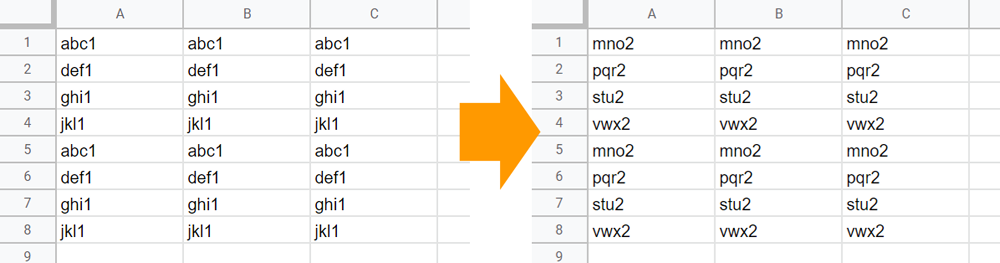
This is a sample Google Apps Script for processing the values in Google Spreadsheet. In this sample situation, each row is merged using the same header title.
In this sample script, the sample input and output situations are as follows.
Sample situation

Output:

Sample script
In this sample script, this sample can be used as the custom function.
function SAMPLE(values) {
const headers = [
...new Set(
values
.map((r) => [...r])
.flatMap((r) =>
[...Array(Math.ceil(r.length / 2))].map((_) => r.splice(0, 2)[0])
)
),
].filter(String);
const obj = values.reduce((o, r) => {
[...Array(Math.ceil(r.length / 2))].forEach((_) => {
const [k, v] = r.splice(0, 2);
if (k && headers.includes(k)) o[k] = o[k] ? [...o[k], v] : [v];
});
return o;
}, {});
const v = headers.map((e) => [e, ...obj[e]]);
return v[0].map((_, c) => v.map((r) => r[c]));
}
- In this sample script, the following flow is used.
- Retrieve values from cells.
- Retrieve header values.
- Create an object for populating values for each header.
- Convert the object to an array.
- Tanspose the created array.
Reference
On April 13, 2022, “Additional functionality for the Apps Script Integrated Development Environment (IDE) Script Editor” has been reported.
They say as follows.
We’re now adding several new features to the IDE to help achieve functional parity with the legacy IDE experience. These features are:
- Script Properties
- Add-on Testing
- Time Zone Setting
- Rhino Debugging
By this update, I believe that the script editor will be more useful.