Retrieving Glyph Value from List Items of Google Document using Google Apps Script

Gists

This is a sample script for retrieving the glyph value from the list items of Google Document using Google Apps Script.

In the current stage, when the list is put to the Google Document, the count of glyph is automatically calculated. When the glyph values of the list items are tried to be retrieved using the manual operation and the script, unfortunately, the glyph values cannot be retrieved. Only the values of the list are retrieved. Unfortunately, it seems that in the current stage, there are no methods for directly retrieving the glyph value from the list items.

Report: Images put with IMAGE function on Google Spreadsheet

Gists

This is a report about images put with “=IMAGE(IMAGE_URL)” function on Google Spreadsheet.

Experiment

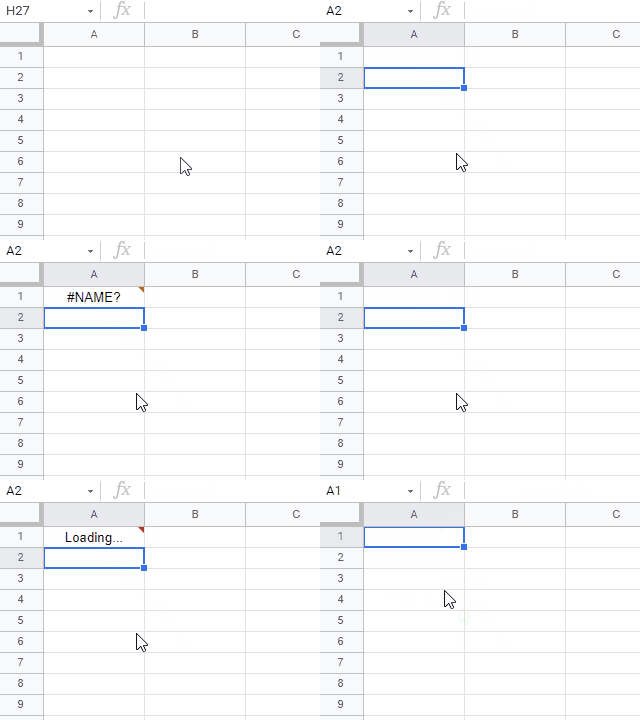
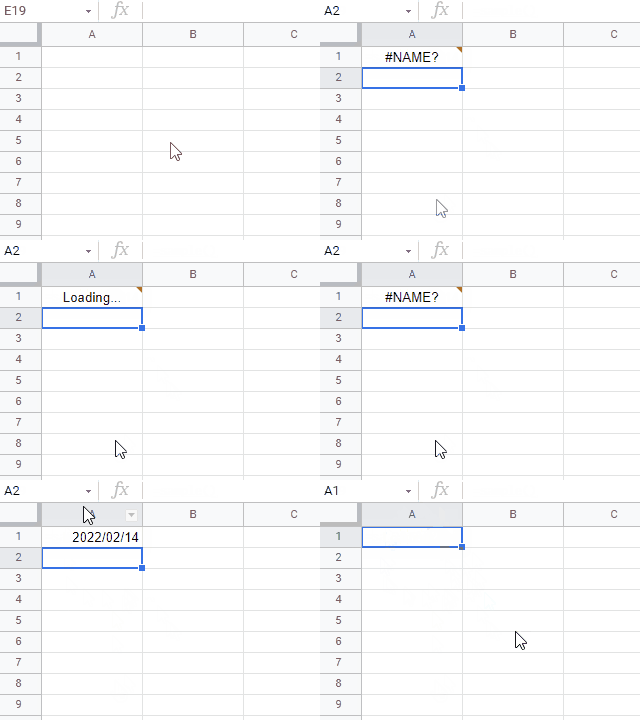
When “=IMAGE(IMAGE_URL)” is put to a cell “A1” on Spreadsheet, the image is shown in the cell as shown in the following image.

Report: Images put with IMAGE function on Google Spreadsheet

For this situation, when the following script is run,

const sheet = SpreadsheetApp.getActiveSpreadsheet().getSheetByName("Sheet1");
const range = sheet.getRange("A1");
range.copyTo(range, { contentsOnly: true });

The following result is obtained. In this case, the formula is removed and an image can be seen as shown in the following image.

File Picker using Google Apps Script and Javascript without 3rd party

GitHub

File Picker using Google Apps Script and Javascript without 3rd party

This is a sample script for the file picker using Google Apps Script and Javascript without 3rd party. I had created the same sample script before. Ref But, in the case of that script, jQuery is used. And, only Google Drive of own account could be used. In this sample script, 3rd party of jQuery is not used, and also, not only Google Drive of your own account, but also Google Drive of the service account can be used. By this, I thought that this file picker will be useful for various scenes.

Converting Values of Google Spreadsheet to Object using Google Apps Script

Gists

Converting Values of Google Spreadsheet to Object using Google Apps Script

This is a sample script for converting the values of Google Spreadsheet to an object using Google Apps Script.

Sample script

function myFunction() {
  const sheetName = "Sheet1";
  const [headers, ...rows] = SpreadsheetApp.getActiveSpreadsheet().getSheetByName(sheetName).getDataRange().getValues();
  const res = rows.map((r) => headers.reduce((o, h, j) => Object.assign(o, { [h]: r[j] }), {}));
  console.log(res);
}
  • When this script is run, the above sample image can be retrieved.

  • In this sample script, the 1st row of the sheet is used as the header row.

Updated: GAS Library - RichTextApp

RichTextApp was updated to v1.3.0

  • v1.3.0 (October 20, 2021)

    1. Added a new method of RangeToHTMLTableForSpreadsheet. In this method, the range on Google Spreadsheet is converted to a HTML table. Using this method, for example, you can send the specific range in the Spreadsheet as an email by including a HTML table.

Updated: GAS Library - RichTextApp

You can see the detail information here https://github.com/tanaikech/RichTextApp

Taking Advantage of TextFinder for Google Spreadsheet

Gists

There is Class TextFinder in Spreadsheet service for Google Apps Script. Ref The TextFinder can search and replace the texts in the Spreadsheet using Google Apps Script. There is the method for createTextFinder in Class Spreadsheet, Class Sheet and Class Range. When these methods are used, you can search and replace the texts for all sheets in a Spreadsheet, the specific sheet, and the specific range in the specific sheet.

Sending Multiple Emails using Batch Request with Gmail API using Google Apps Script

Gists

Sending Multiple Emails using Batch Request with Gmail API using Google Apps Script

This is a sample script for sending multiple emails using the batch request with Gmail API using Google Apps Script. When multiple emails are sent using “GmailApp.sendEmail” and “MailApp.sendEmail”, a loop is used. But in this case, the process cost becomes high. In this post, I would like to introduce the sample script for reducing the process cost under this situation. Gmail API can be requested with the batch request. The batch request can be processed with the asynchronous process. By this, I thought that the process cost for sending multiple emails. So, this sample script sends multiple emails using the batch request with Gmail API.

Putting All Response Values from Google Form to Google Spreadsheet using Google Apps Script

Gists

This is a sample script for putting all response values from Google Form to Google Spreadsheet using Google Apps Script.

Putting All Response Values from Google Form to Google Spreadsheet using Google Apps Script

Sample script

Please copy and paste the following script to the script editor of Google Spreadsheet and set the variables of formId and sheetName.

function myFunction() {
  const formId = "###"; // Please set the Google Form ID.
  const sheetName = "Sheet1"; // Please set the sheet name of sheet you want to put the values.

  // Retrieve all response values from Google Form.
  const form = FormApp.openById(formId);
  const headers = ["date", ...form.getItems().map(e => e.getTitle())];
  const values = [headers, ...form.getResponses().map((f) => {
    const timeStamp = f.getTimestamp();
    return f.getItemResponses().reduce((o, i) => {
      const r = i.getResponse();
      return Object.assign(o, {
        [i.getItem().getTitle()]: Array.isArray(r) ? r.join(",") : r,
      });
    }, { date: timeStamp });
  }).map((o) => headers.map((t) => o[t] || ""))];

  // Put the values to Spreadsheet.
  SpreadsheetApp.getActiveSpreadsheet().getSheetByName(sheetName).getRange(1, 1, values.length, values[0].length).setValues(values);
}
  • When this script is run, all response values are retrieved from Google Form and put them to the Spreadsheet.

Note

  • At Google Form, when the empty answer is submitted, the question has no value. By this, it is required to consider this. So at first, the titles are retrieved from the items, and the values are created using the item titles. I thought that this might be an important point.

References

Large Decimal Numbers and Exponential Notation for Google Spreadsheet

Gists

In this report, it has investigated the large decimal numbers and the exponential notation for Google Spreadsheet. When the large decimal numbers are put to the Spreadsheet, the Spreadsheet automatically sets the display value using the exponential notation. In this report, the result when the values are retrieved by Spreadsheet service and Sheets API is shown.

Sample script

At first, please create new Spreadsheet and open the script editor. And please copy and paste the following script. And, please enable Sheets API at Advanced Google services.