Send E-mail with Excel file converted from Spreadsheet

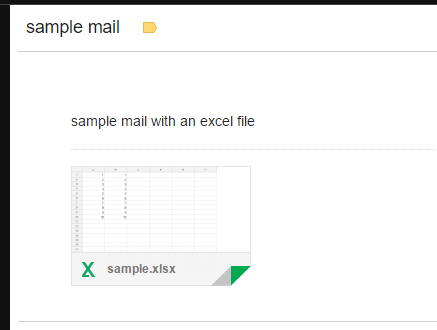
This sample script sends an e-mail with an Excel file exported from Spreadsheet as an attachment file.

function excelSender() {
  var sheetID = [Sheet ID];
  var xlsxName = [Excel file name];
  var params = {
    "headers" : {Authorization: "Bearer [Retrieved AccessToken]"},
    "muteHttpExceptions" : true
  };
  var dUrl = "https://www.googleapis.com/drive/v3/files/" + sheetID + "/export?mimeType=application/vnd.openxmlformats-officedocument.spreadsheetml.sheet"
  var xlsxlFile = UrlFetchApp.fetch(dUrl, params).getBlob().setName(xlsxName);
  MailApp.sendEmail({
    to: [Mail address],
    subject: "sample subject",
    body: "sample body",
    attachments: [xlsxlFile]
  });
}

Send E-mail with Excel file converted from Spreadsheet

Download a CSV File from Spreadsheet Using Google HTML Service

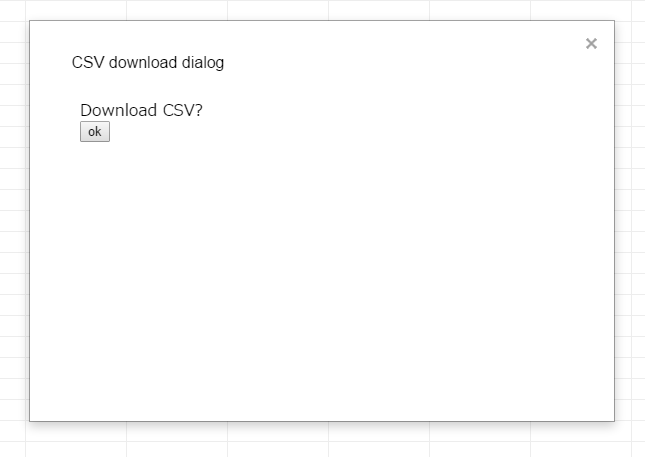
Here, I introduce how to download a CSV file from spreadsheet using Google HTML Service.

  1. Using “onOpen()”, it addes menu for launching a dialog.

Download a CSV File from Spreadsheet Using Google HTML Service

  1. After launching the dialog, “getFileUrl()” is launched by pushing a button. “getFileUrl()” exports a CSV file and outputs download URL.

  2. The CSV file is downloaded by “executeDownload()”.

Please put both HTML and GAS to a GAS project.

Making charts at spreadsheet

Making charts at spreadsheet

 var sheet = SpreadsheetApp.getActiveSpreadsheet().getActiveSheet();
 var chart = sheet.newChart()
    .setChartType(Charts.ChartType.LINE)
    .asLineChart()
    .addRange(sheet.getRange('a1:a21'))
    .addRange(sheet.getRange('b1:b21'))
    .addRange(sheet.getRange('c1:c21'))
    .setColors(["green", "red"])
    .setBackgroundColor("black")
    .setPosition(5, 5, 0, 0)
    .setPointStyle(Charts.PointStyle.MEDIUM)
    .setOption('useFirstColumnAsDomain', true)
    .setOption('height', 280)
    .setOption('width', 480)
    .setOption('title', 'Sample chart')
    .setOption('hAxis', {
      title: 'x axis',
      minValue: 0,
      maxValue: 20,
      titleTextStyle: {
        color: '#c0c0c0',
        fontSize: 20,
        italic: false,
        bold: false
      },
      textStyle: {
        color: '#c0c0c0',
        fontSize: 12,
        bold: false,
        italic: false
      },
      baselineColor: '#c0c0c0',
      gridlines: {
        color: '#c0c0c0',
        count: 4
      }
    })
    .setOption('vAxis', {title: 'y axis',
      minValue: 0,
      maxValue: 800,
      titleTextStyle: {
        color: '#c0c0c0',
        fontSize: 20,
        italic: false,
        bold: false
      },
      textStyle: {
        color: '#c0c0c0',
        fontSize: 12,
        bold: false,
        italic: false
      },
      baselineColor: '#c0c0c0',
        gridlines: {
        color: '#c0c0c0',
        count: 4
      }
    })
    .setOption('legend', {
      position: 'right',
      textStyle: {
        color: 'yellow',
        fontSize: 16
      }
    })
    .build();
    sheet.insertChart(chart);

Making charts at spreadsheet

File Upload and Download with File Convert For curl using Drive API

It is necessary to retrieve access token on Google. Scope is as follows.

https://www.googleapis.com/auth/drive

Other mimetypes can be seen here.

Download and convert from Spreadsheet to Excel

curl -X GET -sSL \
        -H "Authorization: Bearer [Your access token]" \
        -o "Excel file name" \
        "https://www.googleapis.com/drive/v3/files/[File ID]/export?mimeType=application/vnd.openxmlformats-officedocument.spreadsheetml.sheet"

Upload and convert from Excel to Spreadsheet

curl -X POST -sSL \
        -H "Authorization: Bearer [Your access token]" \
        -F "metadata={ \
                     name : '[File name on Google Drive]', \
                     mimeType : 'application/vnd.google-apps.spreadsheet' \
                     };type=application/json;charset=UTF-8" \
        -F "file=@[Your Excel file];type=application/vnd.ms-excel" \
        "https://www.googleapis.com/upload/drive/v3/files?uploadType=multipart"

Sample Array Script for Spreadsheet

This is a Sample Array Script for Spreadsheet. It makes an 2D array filled by strings and number. The strings and number are column strings and row number, respectively.

However, because this is a sample, the maximum column number is 26.

function sa(row, col){
  if (col > 26) return;

  var ar = new Array(row);
  for(var i = 0; i < row; i++) ar[i] = new Array(col);
  for (var i = 0; i < row; i++){
    for (var j = 0; j < col; j++){
      ar[i][j] = String.fromCharCode(i + 97) + String(j + 1);
    }
  }
  return ar.map(function(x, i){return x.map(function(y, j){return ar[j][i]})});
}

When “sa(10,10)” is given, following array can be output.

Event of onEdit() for Google spreadsheet

About Event Objects

For example, it thinks the situation of input text of ’test’ to ‘A1’ on a sheet.

When you use only ‘onEdit(e)’ without an installing trigger, ’e’ has following parameters.

{authMode=LIMITED, range=Range, source=Spreadsheet, user=, value=test}

In this case, the event cannot send an e-mail because of ‘authMode=LIMITED’.

When you use “onEdit(e)” with an installing trigger of “Edit”, ’e’ has following parameters.

{authMode=FULL, range=Range, source=Spreadsheet, value=test, triggerUid=#####}

In this case, the event can send an e-mail because of ‘authMode=FULL’.

File upload using doPost on Google Web Apps

File upload using HTML form in GAS project

Rule

  1. Following scripts have to be made into a project of Google Apps Script.

  2. Deploy the GAS project as a web application. Ref

  3. After updated the script, it has to be updated as a new version.

Form.html :

<html>
  <body>
    <form>
      <input type="file" name="imageFile">
      <input type="button" value="ok" onclick="google.script.run.upload(this.parentNode)">
    </form>
  </body>
</html>

GAS :

function doGet() {
  return HtmlService.createHtmlOutputFromFile('Form.html');
}

function upload(e) {
  var destination_id = '#####'; // Folder ID of destination folder

  // Reference : https://developers.google.com/apps-script/reference/base/blob#getAs(String)
  // You can use 'application/pdf', 'image/bmp', 'image/gif', 'image/jpeg' and 'image/png'.
  var contentType = 'image/jpeg';
  var img = e.imageFile;

  var destination = DriveApp.getFolderById(destination_id);
  var img = img.getAs(contentType);
  destination.createFile(img);
}

When you set ‘image/jpeg’ as “contentType” and upload png file, the uploaded image file is converted to jpeg file and saved it to the destination folder.

Add next row to current row using AWK

File.txt :

a1
a2
a3
a4
a5
a6

Code :

awk '{array[NR]=$0} END {for (i in array) {if (i>1) {{print array[i-1]","array[i]}}}}' File.txt

Result :

a1,a2
a2,a3
a3,a4
a4,a5
a5,a6

After the all rows are imported to an array, it shows next row to current row under a condition of row > 1.

Retrieving cells without blank using GAS

This is a sample script for retrieving cells without blank cells. Figure 1 shows the sample spreadsheet. In this sheet, the row 14 has one space.


Retrieving cells without blank using GAS
Fig. 1: Sample spreadsheet.

Data is retrieved as follows.

  var data = SpreadsheetApp
             .getActiveSpreadsheet()
             .getActiveSheet()
             .getRange('a1:a30')
             .getValues();

1. Retrieving cells with spaces and no blank cells.

  var Result = [i for each (i in data)if (i)].join('');

Result : Hello World

One Liner Code for Netatmo

I made One Liner Code to retrieve data using Netatmo API. There are 2 ways. One is for windows dos. Another is for unix bash. Requirement tools are curl and jq.

windows dos

> setlocal & curl -s -d "grant_type=password&client_id='#####'&client_secret='#####'&username='#####'&password='#####'&scope=read_station" "https://api.netatmo.net/oauth2/token" | for /f "usebackq tokens=*" %a in (`jq -r ".access_token"`) do @set a="%a" | curl -s -d "access_token=%a&device_id='#####'" "https://api.netatmo.net/api/getstationsdata" > dat.txt & for /f "usebackq tokens=*" %b in (`jq -r ".body.devices[0].dashboard_data.Temperature" dat.txt`) do @set b="%b" | echo: & set /p nb=Indoor: Temperature %b [degree C],<nul & for /f "usebackq tokens=*" %b in (`jq -r ".body.devices[0].dashboard_data.Humidity" dat.txt`) do @set b="%b" | set /p nb=Humidity %b [%],<nul & for /f "usebackq tokens=*" %b in (`jq -r ".body.devices[0].dashboard_data.Pressure" dat.txt`) do @set b="%b" | set /p nb=Pressure %b [hPa]<nul & for /f "usebackq tokens=*" %b in (`jq -r ".body.devices[0].modules[0].dashboard_data.Temperature" dat.txt`) do @set b="%b" | echo: & set /p nb=Outdoor: Temperature %b [degree C],<nul & for /f "usebackq tokens=*" %b in (`jq -r ".body.devices[0].modules[0].dashboard_data.Humidity" dat.txt`) do @set b="%b" | set /p nb=Humidity %b [%]<nul & del dat.txt

Indoor: Temperature 12 [degree C],  Humidity 56 [%],  Pressure 1000.2 [hPa]
Outdoor: Temperature 12.3 [degree C],  Humidity 56 [%]

unix bash

$ curl -s -d "grant_type=password&client_id='#####'&client_secret='#####'&username='#####'&password='#####'&scope=read_station" "https://api.netatmo.net/oauth2/token"|curl -s -d "access_token=`jq -r '.access_token'`&device_id='#####'" "https://api.netatmo.net/api/getstationsdata"|jq -r '"\nIndoor: Temperature "+(.body.devices[0].dashboard_data.Temperature|tostring)+" [degree C], Humidity "+(.body.devices[0].dashboard_data.Humidity|tostring)+" [%], Pressure "+(.body.devices[0].dashboard_data.Pressure|tostring)+" [hPa]\nOutdoor: Temperature "+(.body.devices[0].modules[0].dashboard_data.Temperature|tostring)+" [degree C], Humidity "+(.body.devices[0].modules[0].dashboard_data.Humidity|tostring)+" [%]"'

Indoor: Temperature 12 [degree C], Humidity 56 [%], Pressure 1000.2 [hPa]
Outdoor: Temperature 12.3 [degree C], Humidity 56 [%]

If you want to use these One Liner Codes, you can use following code. Please replace “#####” to yours.

Google OAuth Verification & Application Privacy Policy

Registered Application Name: Workspace & Gemini AI Orchestration Engine

Application Purpose & Core Functionality:

This web page serves as the official homepage and privacy compliance interface for the application "Workspace & Gemini AI Orchestration Engine". This specialized developer utility is designed to research, benchmark, and optimize advanced integrations between Google Workspace services, the Google Apps Script API, and Gemini AI models (via Google Vertex AI / Gemini API endpoints).

The application facilitates automated multi-agent scaffolding, programmatic script deployment, project resource management, and structural analysis of Google Apps Script projects. It allows developers and autonomous AI agents (operating via Model Context Protocol / MCP) to securely evaluate execution performance, implement high-performance batch requests, and test agent-to-agent (A2A) workflows within a controlled and structured environment.

Google User Data Policy Compliance Statements:

1. Data Access & Specific Usage

Our application explicitly requests access to specific Google user accounts through OAuth scopes required strictly for interacting with the Google Apps Script API and Google Workspace endpoints. This access is utilized solely to execute user-initiated or agent-orchestrated programmatic operations—such as creating, modifying, deploying, or benchmarking script projects and executing automated workflows. No background automated extraction occurs without explicit session initiation.

2. Data Storage & Zero-Retention Policy

Adhering to a strict Zero-Retention Model, this application does not store, log, or persist any personal data, OAuth tokens, script source codes, or Google account configurations on any external server, database, or persistent storage medium. All data processing and API responses are handled entirely in-memory or securely on the client side within the active session context, ensuring complete cryptographic transient isolation.

3. Data Sharing & Third-Party Non-Disclosure

We maintain absolute data privacy. No data accessed via Google OAuth scopes is shared, sold, rented, or transferred to third-party entities, advertising networks, or data brokers. All data transmissions are strictly point-to-point, encrypted in transit using industry-standard protocols, and limited entirely to the direct channel between the execution environment and Google's official API gateways.

For inquiries regarding this developer application, technical benchmarks, or verification compliance, please refer to the official documentation and repositories linked on this homepage (tanaikech.github.io).